

Make GitHub Copilot work for you
GitHub Copilot has evolved well beyond simple code completion. It now offers a chat interface inside your IDE, a GitHub CLI extension, pull request summaries, and terminal assistance. But getting the most out of it depends less on knowing every feature and more on how you structure your workspace and communicate your intent.
Because Copilot is built on large language models, its output quality tracks the quality of your input context. The more relevant context you provide, the better its suggestions. Unlike a standalone chat tool where you must paste all relevant data into a prompt, Copilot can pull context from your editor automatically. Still, there are several deliberate steps you can take to sharpen that context.
Keep relevant files open
Copilot analyzes the files currently open in your editor when generating suggestions. If a file is closed, its contents are invisible to the assistant. Opening a few key files gives Copilot a broader view of your project and informs better completions.
You can also use the #editor command in chat (available in Visual Studio Code and Visual Studio) to explicitly reference all open files. When you switch tasks, close files from the previous job so stale context doesn't contaminate your next round of suggestions.
Write a top-level comment
A brief, high-level comment at the top of your file acts like a project brief for Copilot. This is especially useful if you want it to generate boilerplate code. Describe what you're building, what the code should accomplish, and include examples where possible—particularly when you're dealing with data processing or string manipulation. This gives Copilot a goal and guides it toward more relevant suggestions.
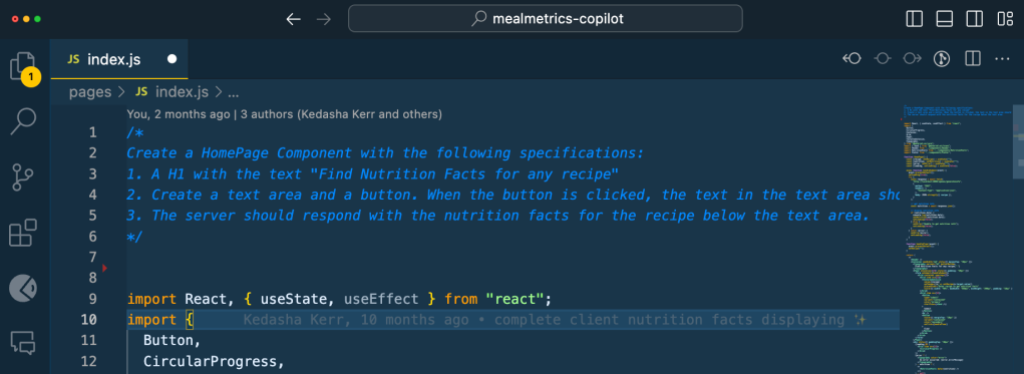
Set your imports manually
Don't rely on Copilot to pick your dependencies. If you're working with a specific package version or a particular framework, set the includes, imports, and module references yourself. This signals to Copilot which libraries and versions you expect it to use in its suggestions. It's also a practical way to steer the assistant toward newer versions when it defaults to older patterns.
Use descriptive names
Variable and function names carry meaning that Copilot can infer. Names like foo or bar give the model nothing to work with. Even fetchData() is too vague—Copilot, like a coworker (or your future self), can't tell what kind of data or fetching logic you intend. The quality of your identifiers directly influences the quality of your completions. Garbage in, garbage out still holds.
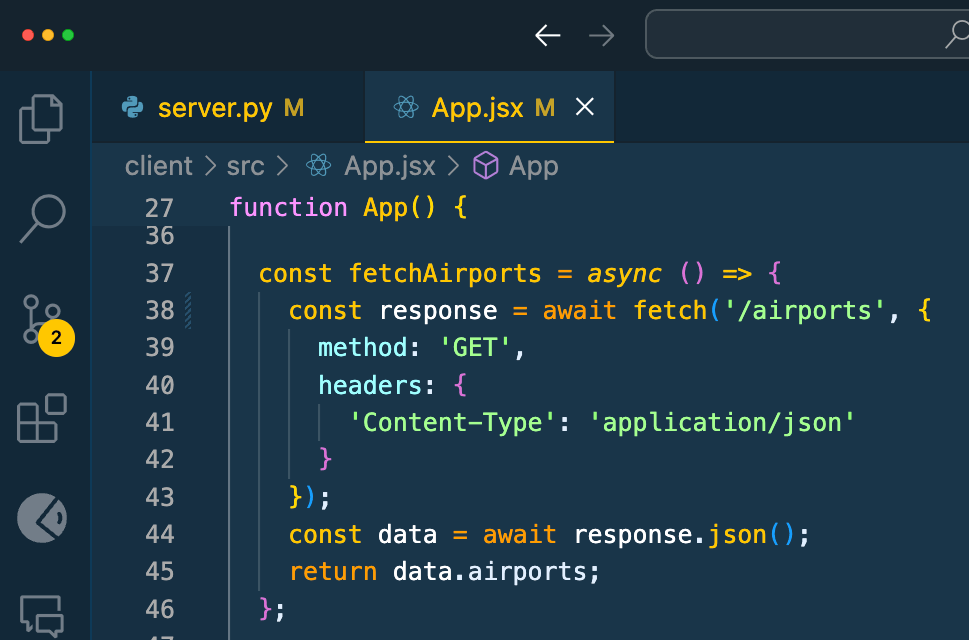
Comment each function specifically
Function names can only say so much before they become unwieldy. Function-level comments fill in the gaps. Copilot can recognize the comment syntax appropriate for your language and generate suggestions based on those comments. When you add a function comment with precise, scoped detail, Copilot knows what to implement and how the function should behave. Keep these comments single, specific, and short—that format yields the best context.
Show Copilot sample code
Sample code grounds the model and adds another layer of context. It helps Copilot match your coding style, preferred language features, and task patterns. Unit tests are one form of sample code at the function level, but end-to-end examples in your project work well too. Adopting this practice tends to reinforce good coding habits across your codebase over time.
Use inline chat for quick interactions
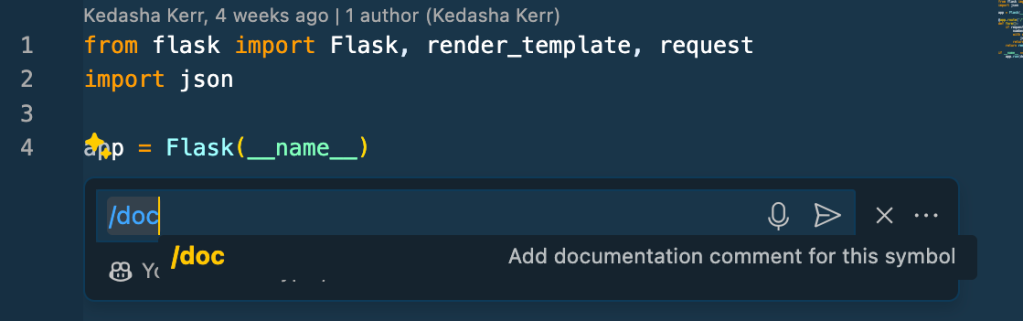
Inline chat is an underused feature that lets you converse with Copilot without leaving your code. Press CMD + I (or CTRL + I on Windows) to open it directly in your editor. This is often faster for quick fixes than switching to the chat side panel. Suggestions appear as inline diffs, and you can invoke slash commands—like generating documentation—with a single keystroke.
Getting More From Copilot Chat
Copilot Chat has several built-in features that can improve the quality of its responses. Here are the most useful ones to know about.
Clean Up Your Conversation History
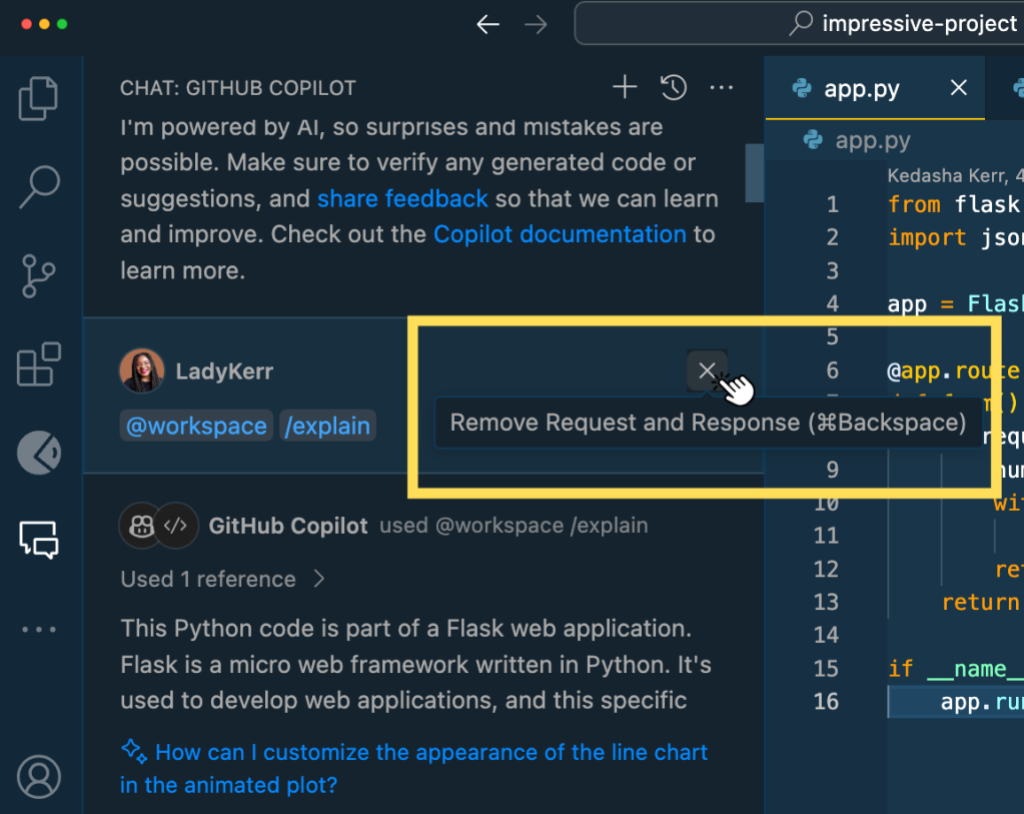
You can delete previously asked questions from the chat interface. This is particularly useful when a question is no longer relevant to your current goal, as it removes that query from the indexed conversation and gives Copilot only the context it needs for the best output.
Navigate Chat History With Keyboard Shortcuts
Instead of scrolling through the chat pane to find a previous question, you can use the up and down arrow keys to cycle through your conversation history, similar to navigating a terminal.
Scope Context With the @workspace Agent
In VS Code and Visual Studio, the @workspace agent is aware of your entire project. Using it when asking questions about how different parts of your codebase relate provides Copilot with significantly more context, which helps in getting more useful responses.
Feed the Model the Right Code
For targeted assistance, highlight the specific code you're working on before asking a question in Chat. This gives the assistant direct context about the problem you're trying to solve.
Use Threads for Multiple Topics
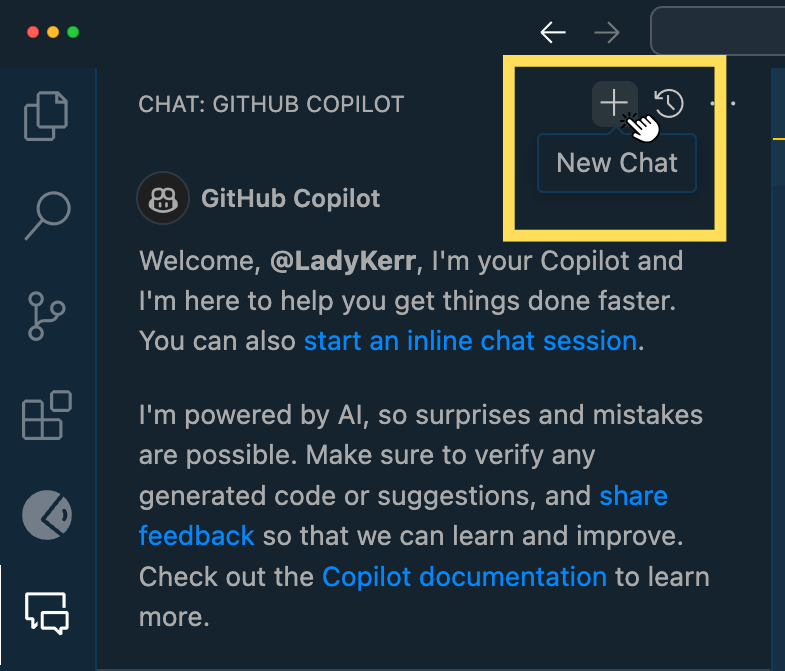
If you're working on several different problems, you can isolate them by starting a new conversation thread. Click the + sign on the chat interface to begin a new thread and keep your topics organized.
Employ Slash Commands
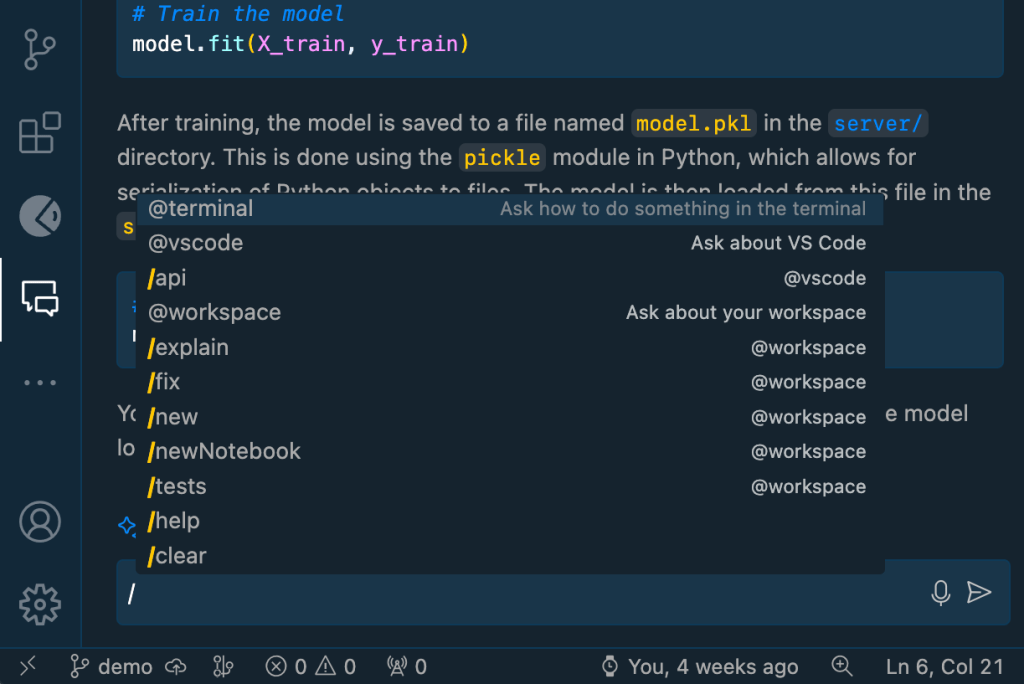
Slash commands are shortcuts for common prompts such as explaining code, fixing a problem, writing tests, or creating a notebook. These are streamlined versions of prompts that have proven useful in daily development.
| Command | Description | Usage |
| /explain | Get code explanations | Open file with code or highlight code you want explained and type:
/explain what is the fetchPrediction method? |
| /fix | Receive a proposed fix for the problems in the selected code | Highlight problematic code and type:
/fix propose a fix for the problems in fetchAirports route |
| /tests | Generate unit tests for selected code | Open file with code or highlight code you want tests for and type:
/tests |
| /help | Get help on using Copilot Chat | Type:
/help what can you do? |
| /clear | Clear current conversation | Type:
/clear |
| /doc | Add a documentation comment | Highlight code and type:
/doc
You can also press CMD+I in your editor and type /doc/ inline |
| /generate | Generate code to answer your question | Type:
/generate code that validates a phone number |
| /optimize | Analyze and improve running time of the selected code | Highlight code and type:
/optimize fetchPrediction method |
| /clear | Clear current chat | Type:
/clear |
| /new | Scaffold code for a new workspace | Type:
/new create a new django app |
| /simplify | Simplify the selected code | Highlight code and type:
/simplify |
| /feedback | Provide feedback to the team | Type:
/feedback |
The commands available in VS Code are shown below.
Attach Files for Reference
In Visual Studio and VS Code, you can scope Copilot Chat to a specific file by typing # in the comment box and selecting the file, or by typing #file_name.py directly. This ensures the assistant has the right context for your question.
Turn to Chat First When Debugging
A practical approach for debugging is to start with Copilot Chat rather than external search engines. As an example, while working on a decision tree implementation with k-fold cross-validation, incorrect accuracy scores were returned. The mistake—using the wrong dataset variables (`X_train`, y_train)—was identified much faster by explaining the problem and pasting the code into Chat than it would've been with traditional resources.
I'm catching up on my AI/ML studies today. I had to implement a DecisionTree and use the cross_val_score method to evaluate the model's accuracy score.
I couldn’t figure out why the incorrect values for the accuracy scores were being returned, so I turned to Chat for some help.
To replicate this workflow, explain the problem clearly, paste the relevant code, and ask for help. Highlighting the problematic code segment and using the /fix command also works well.
Look for the Sparkles
In VS Code, the "magic sparkles" icons are shortcuts for Copilot. Clicking them in the commit message field generates a commit message, and they appear inline for quick access to Copilot's inline chat. More sparkle triggers are being added across the editor where AI assistance makes sense.
Play to Copilot's Strengths
GitHub Copilot is strongest when it comes to boilerplate code, scaffolding, writing unit tests and documentation, pattern matching, explaining confusing syntax (such as cron jobs and regex), and helping you debug or remember syntax you've forgotten.
Still, Copilot behaves like a copilot, not an autopilot. It is a tool that can help you write code faster, but you remain in charge of how to use it. It works best when treated as a guide—not as something that will write everything for you—nudging you in the right direction in the way a coworker would.
To learn more about the LLM that powers Copilot, see Inside GitHub: Working with the LLMs behind GitHub Copilot. For more on customizing large language models, read Customizing and fine-tuning LLMs: What you need to know.


