From single prompts to reusable pipelines
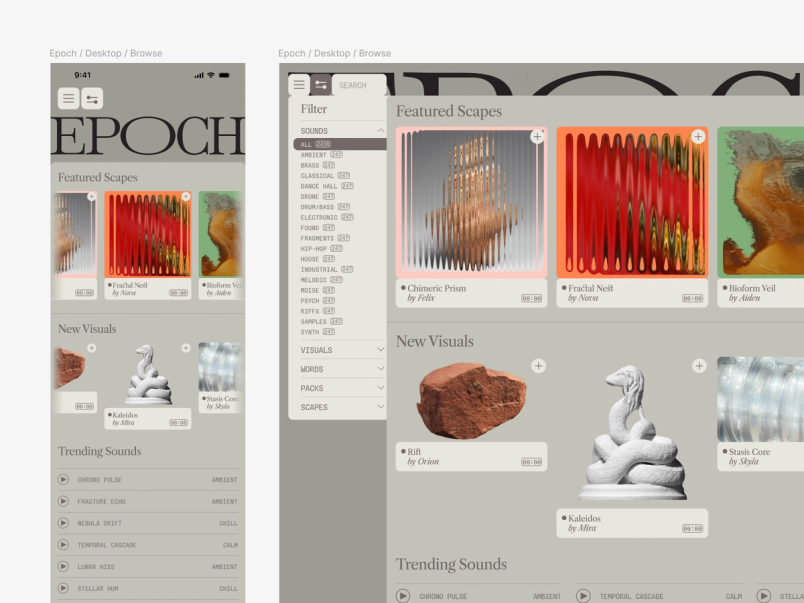
Figma Weave positions itself as an intelligent creative workflow canvas that chains AI models together for image, video, audio, and 3D editing. Instead of relying on one-off prompts, the platform lets you branch, explore, and connect nodes so every visual can be iterated on and scaled. To demonstrate the range of the tool, the team has shared five sample workflows built around assets from Epoch, a fictional sound and video shop.
The starting point for these workflows is a set of 20+ community templates that cover tasks like turning images into videos, generating 3D models, combining reference styles, and comparing image models. The five workflows below extend those templates into a continuous pipeline.
Workflow 1: Build a reusable style guide from two references
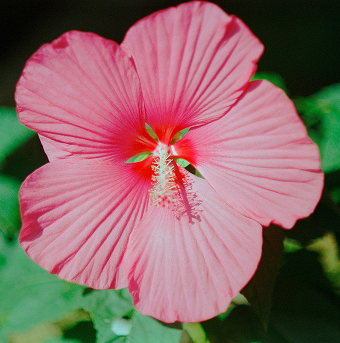
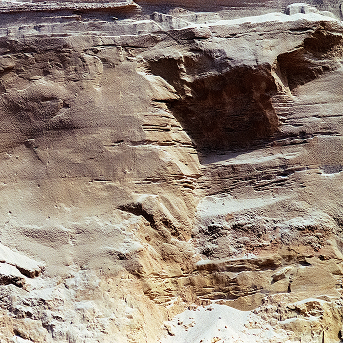
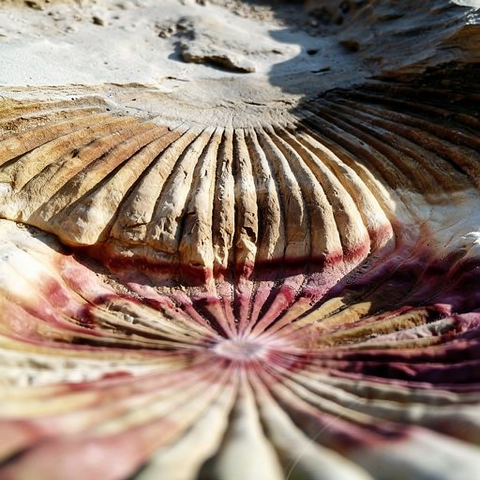
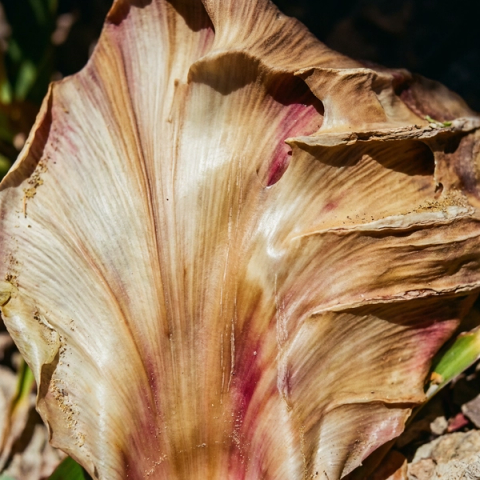
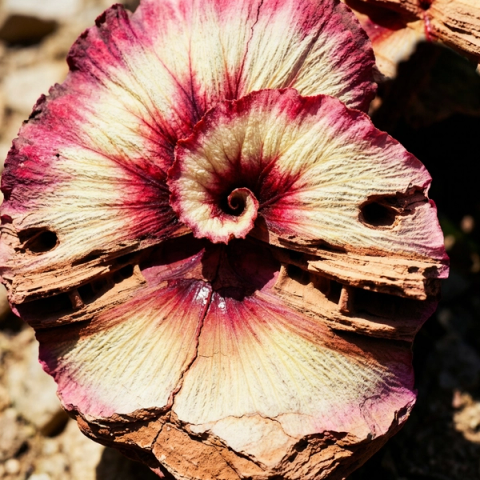
When a photoshoot isn't possible and new imagery must match an existing aesthetic, the reliable path isn't prompting from scratch—it's extracting style directly from current assets. The first workflow runs two of Epoch's reference images (a hibiscus flower and a rock face) through an Image Describer node on the canvas. That node analyzes an image, extracts key visual attributes such as texture, color, lighting, and composition, and converts them into a written description you can edit and build from.
The two descriptions are then merged into a single new style definition, with the influence of each reference adjustable until the blend feels right. Running the final output across different image generation models lets you pressure-test the style and finalize it. The result isn't a prompt but a reusable style definition that can inform every workflow that follows.
Try it yourself: Combine two of your own reference images into a new style.
Workflow 2: Deploy one style across subjects and aspect ratios
A style guide needs to do more than describe an aesthetic—it needs to generate new assets, offer controllable variations, and adapt to multiple output sizes. Workflow two takes the favorite style definitions from the first workflow and feeds them into an Any LLM node, which lets you pick any text model and supply instructions.
In this case, the instruction was to produce a master style description applicable to a new subject. Epoch's brand emphasizes natural materials, so the flower-rock style was applied to a begonia plant—preserving the material quality while changing the subject entirely. The output was six plant variations, each a different interpretation of the same visual logic.
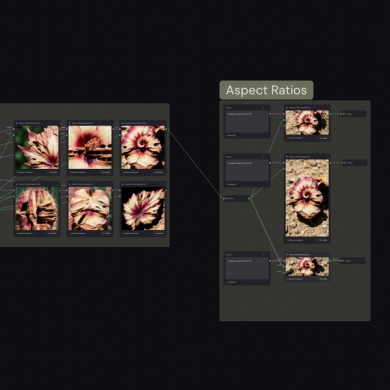
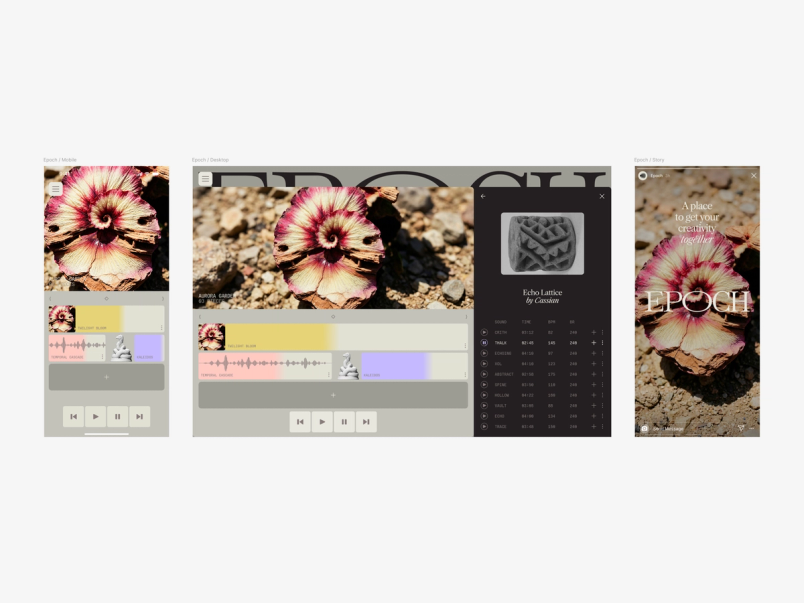
From a single favorite selection, the workflow automatically generated three aspect ratios: 1:1 for a mobile product screen, 967x420 pixels for a desktop product screen, and 9:16 for a social post, all ready for delivery into Figma Design.
Try it yourself: Take your style guide further and generate on-brand variations at any size.
Workflow 3: Compare distortion effects in a single pass
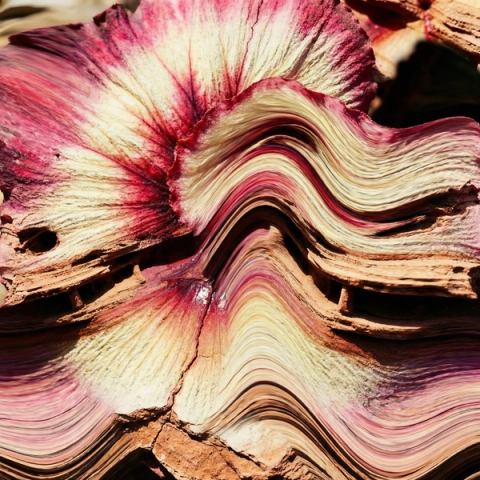
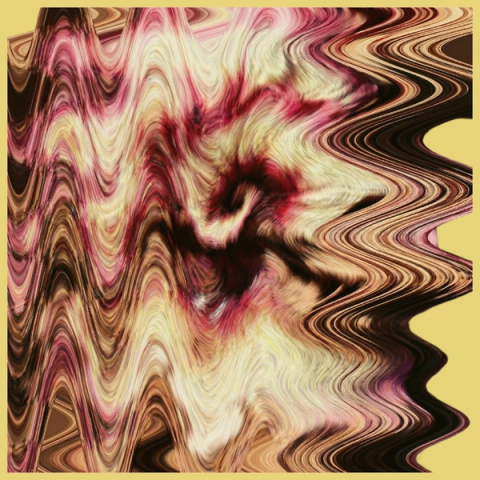
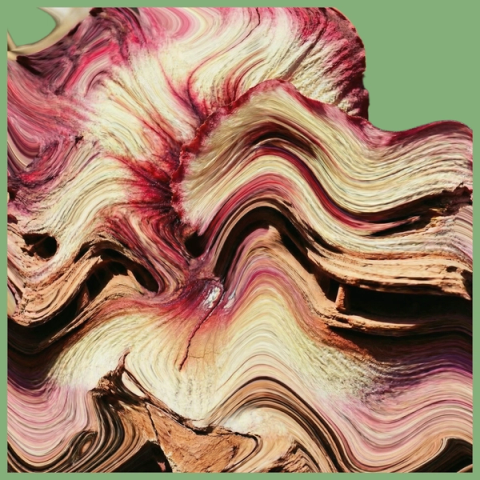
Epoch uses displacement and distortion as part of its brand language. Applying such effects consistently at scale becomes slow if done manually, one image at a time.
This workflow takes the flower-rock-plant image from workflow two plus Epoch's existing distortion references and combines them to produce eight distinct distorted outcomes at once. The backgrounds are then removed and each variation placed on Epoch's brand colors to judge which effect fits where.
The advantage is not only speed but comparison. Because all distortions run against the same image simultaneously, choosing which effect suits a particular asset becomes a confident decision rather than a guess based on memory.
Try it yourself: Apply multiple effects to the same image and find the one that fits best.
Workflow 4: Turn physical references into rotatable 3D models
Photographing a physical object pins you to whichever angle was captured. Generating a 3D model instead gives full post-capture control over composition and lighting.
Drawing on the natural elements in Epoch's branding—a leaf, a cactus, and three rocks—this workflow first generates a new white rock, then prompts front, back, left, and right views of it. These views are run through Rodin 3D V2 to produce a model that can be rotated freely. The team locks in a composition angle that works and uses the output as a still image or as an input to video. For Epoch's homepage, the model anchors the design alongside the distortion effects from the previous workflow and the brand's existing elements.
Try it yourself: Turn any physical reference into a 3D model you can rotate freely.
Bringing stills to life
Once the static brand assets were locked down, the final workflow introduced motion. Starting from the homepage produced in workflow #4, the team added a simple animation as a motion reference to drive the distorted image at the bottom of the page. The 3D rock was handled separately, using a 3D node combined with a Kling Element node so the video model understood the stone's angles and could animate it independently. The finished video was exported from Figma Weave and placed back into Figma for handoff to development.
Try it yourself: Animate your own elements and export a production-ready video.
From two references to a full brand system
Two reference images, five workflows, and a complete brand system—including new images, videos, and 3D models—produced without a single photoshoot. That is the practical result of building with Figma Weave.
Figma Weave is slated for a full integration into the Figma ecosystem later this year. Until then, the team points to a livestream on April 16, 2026 for onboarding, and invites feedback in the Figma Forum. Getting-started resources are available in the Figma Weave knowledge center and in the help center.