

Bringing Copilot into the shell
Most developers already live in the terminal—cloning repos, installing dependencies, debugging builds. The gap has been that AI assistance typically lives in a separate IDE tab or browser window. GitHub Copilot CLI closes that gap by putting the assistant directly in the command line, where the work is happening.
Copilot CLI works with existing GitHub Copilot Pro, Pro+, Business, or Enterprise plans—no separate API keys to manage. Installation requires Node v22+ and npm version 10 or later.
# 1. Install via npm
npm install -g @github/copilot

# 2. Launch Copilot CLI
copilot

# Authenticate with your GitHub account
/login
After installing and logging in with your GitHub account, the tool is ready for immediate use—debugging tests, spinning up preview deploys, or writing one-off scripts without leaving the terminal.
From fresh clone to draft PR
A typical contribution workflow shows how Copilot CLI fits into the whole development cycle, not just isolated code generation tasks.
Getting oriented
After cloning a repository and launching Copilot CLI, you can ask it to explain the project structure. It inspects the repo using find, tree, and the README, then returns a clean Markdown summary—no manual hunting through nested directories.
gh repo clone github/spec-kit
cd spec-kit
copilot
Typing / at any time shows available commands, and Ctrl+R displays logs of commands Copilot has executed on your behalf.
The same approach works for environment setup. Instead of combing through setup docs, ask Copilot to verify the build environment. It will check dependencies, install missing tools (like Go for the GitHub CLI), and confirm the project builds locally.
Finding and implementing issues
For open-source contributions, Copilot CLI can surface suitable starting points. Ask for "good first issues" ranked by difficulty, and it queries GitHub Issues through its built-in GitHub MCP server, returning a curated list with difficulty levels.
Once an issue is selected, Copilot can draft the implementation. Ask it to start working on an issue and show the diff before applying—it will create a plan, make edits, and present changes for review before anything is applied. You can use @-mentions in prompts to direct attention to specific files.
The workflow continues through packaging and sharing. Copilot can stage files, write a commit message referencing the issue number, push a branch, and open a draft pull request—all from the same terminal session.
Handling common annoyances
Copilot CLI also handles recurring terminal frustrations. If a dev server reports a port is already in use, asking "what process is using port 8080? kill it and verify the port is free" triggers the correct lsof command, shows the PID, kills the process, and confirms the port is clear—no Googling arcane flags.
Safety and permissions
Copilot always asks before running commands or accessing directories. Each execution request offers three options: allow once, allow always for that command, or deny.
Permission management is handled through session commands:
/session— view currently allowed commands/reset— clear permissions at any time/add-directory— add directories to the allowed list
Extending with MCP servers
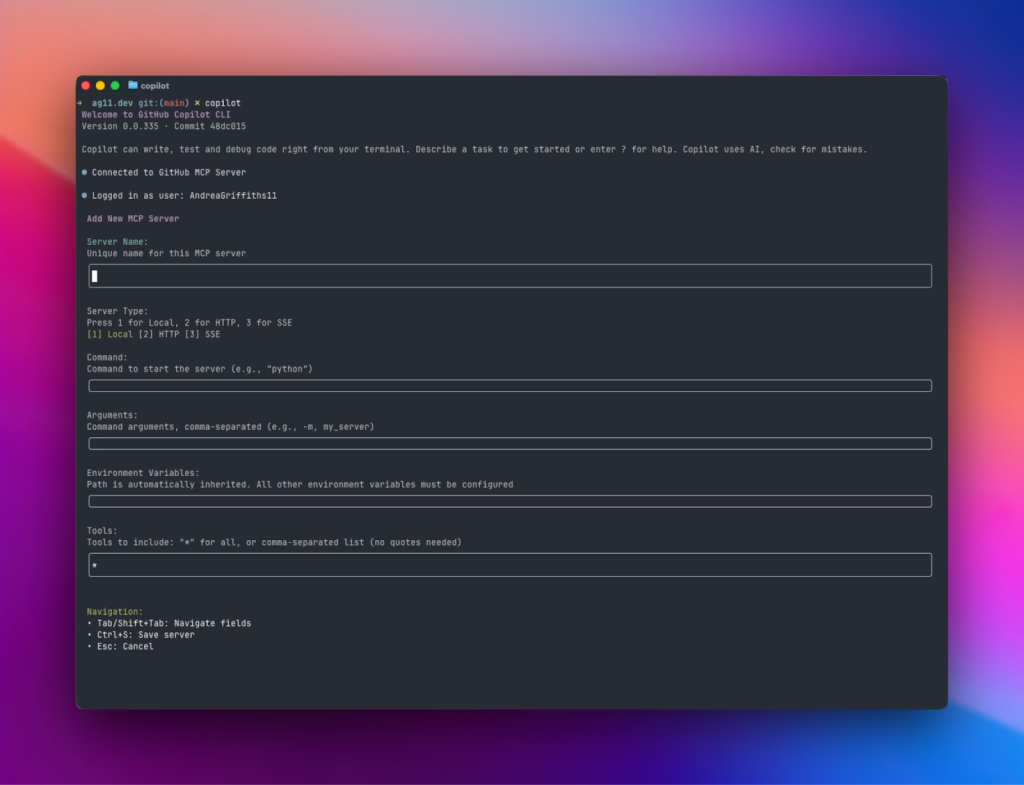
Copilot CLI ships with the GitHub MCP server pre-installed and running—this is what powers issue searches and repository interactions. Additional MCP servers can be added from the registry using /mcp, enabling integrations like Playwright for browser testing or internal company tools.
Preview status and roadmap
Copilot CLI is in public preview. Feedback shapes the roadmap, and users can share their experience directly via the /feedback command.
npm install -g copilotThe value proposition is straightforward: for developers who already spend significant time in the terminal, having AI assistance in that context eliminates constant context-switching between IDE, browser, and command line. This isn't about replacing an IDE—it's about having assistance where the work happens.


