Vectorize turns raster images into editable vector layers in Figma
Figma's new AI-powered Vectorize tool bridges the gap between raw visual inspiration and production-ready design assets. Announced as part of a growing set of image-editing features that already includes Remove background, Erase object, and Expand image, Vectorize lets designers convert raster images into editable vectors directly on the canvas—without switching applications or redrawing artwork from scratch.
The core workflow is straightforward: drag a raster file (a sketch, a photo, a scan) into Figma Design or Figma Draw, select the image, and run Vectorize in a single click. The resulting artwork behaves like any native vector layer, so designers can use existing tools to adjust curves, refine shapes, recolor, and scale.
From physical sketch to living design asset
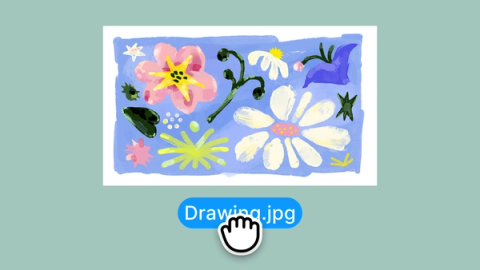
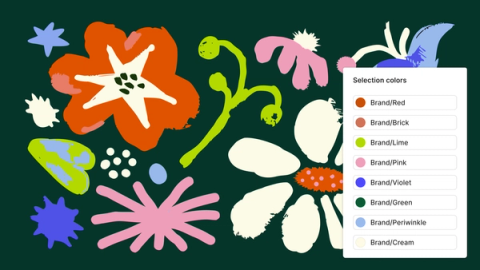
Hand-drawn illustrations and pencil sketches are a natural fit for the tool. After converting the raster image, designers can edit geometry with standard Figma controls and apply color variables to keep the palette consistent with broader brand or theme systems. The result is more than a flat import—the vector becomes a reusable asset that can evolve as the design does.


Editable typography from hand-lettering
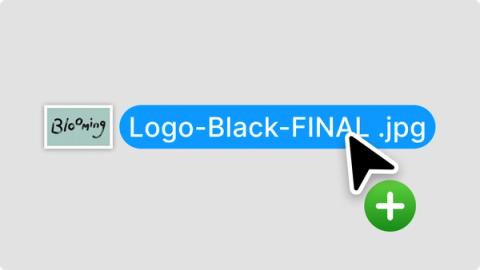
Photographs or scans of hand-drawn lettering behave like any other raster element once placed on the canvas. Running Vectorize makes each stroke and curve individually editable, turning a static image into a modifiable logo or wordmark. Designers can then remove backgrounds, select vector points, and adjust the shape and spacing of individual letters using standard editing workflows.
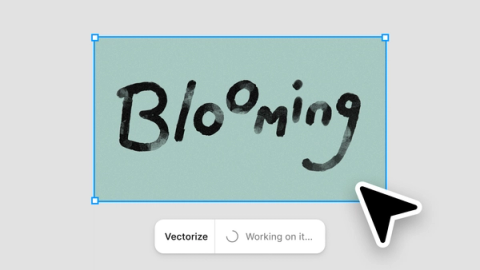
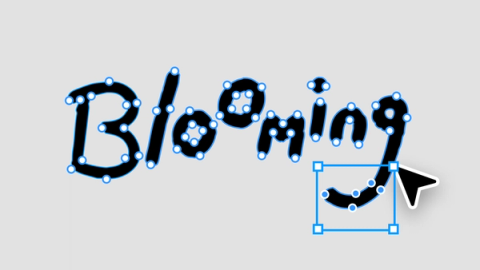
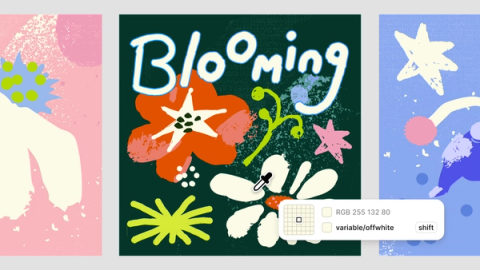
Once refined, the lettering can be dropped into a larger design context—cover art, brand assets, or interface elements that need a more distinctive typographic voice.
Reusable texture overlays with a physical feel
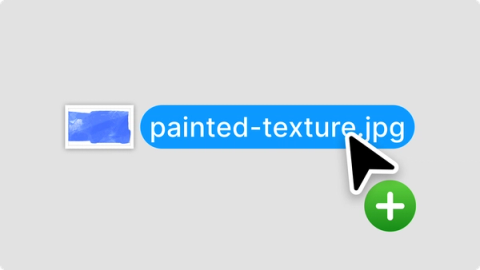
Vectorized textures also give designers a way to reintroduce imperfections into polished work. Grain, noise, or brushstrokes can be converted into vectors, where their colors can be simplified and their shapes edited. Designers can keep the organic quality of the original capture while making it easier to layer and reuse across compositions.
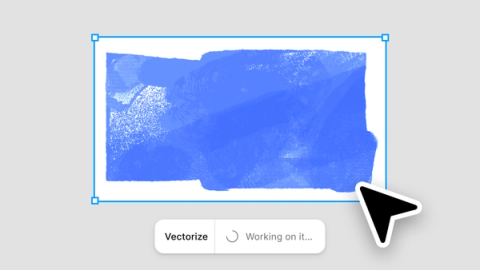
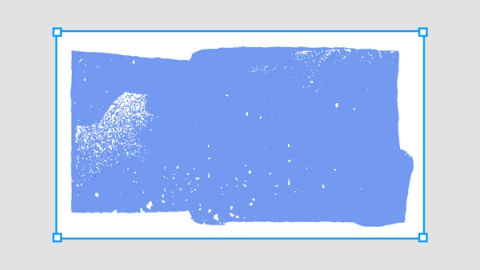

Layering an edited vectorized texture over an illustrated background—for UI details or landing page visuals—adds tactile depth and a more human feel to otherwise flat layouts.
Availability and access
Vectorize is available to Full-seat users on Professional, Organization, and Enterprise plans with AI enabled, in both Figma Design and Figma Draw. The feature is also available in Slides and Buzz (beta) for refining assets across different formats; access in those products requires Dev, Collab, or View seats. As with other AI actions in Figma, Vectorize consumes AI credits. Figma's documentation includes a step-by-step usage guide with recommendations for working with the AI image tools.


