
Beyond basics: putting the Copilot coding agent to work
Once you've got the fundamentals down—assign a task, let the agent work, review the pull request—the question becomes how to get more value out of it. The workflows below move the GitHub Copilot coding agent past one-off tasks and into the rhythms of daily development: clearing debt, validating front-end work, and prototyping without risk.
Batch cleanup through the Agents panel
The Agents panel on GitHub.com gives you a place to send dependency bumps, feature-flag removals and small refactors that tend to accumulate in the backlog. Instead of letting those become weekend chores, you can hand them off while you continue with feature work.
To get started:
- Open your repository on GitHub.com and click the Agents panel button.
- Describe the task, for example: "Update the extension manifest to support VS Code 1.104" or "Add TypeScript strict mode and fix all resulting type errors".
- Hit Start task and let Copilot work in the background.
Each task consumes one premium request, so batching small cleanup items into separate requests gives you neatly scoped pull requests you can review and merge independently.
Let the agent check its own UI work
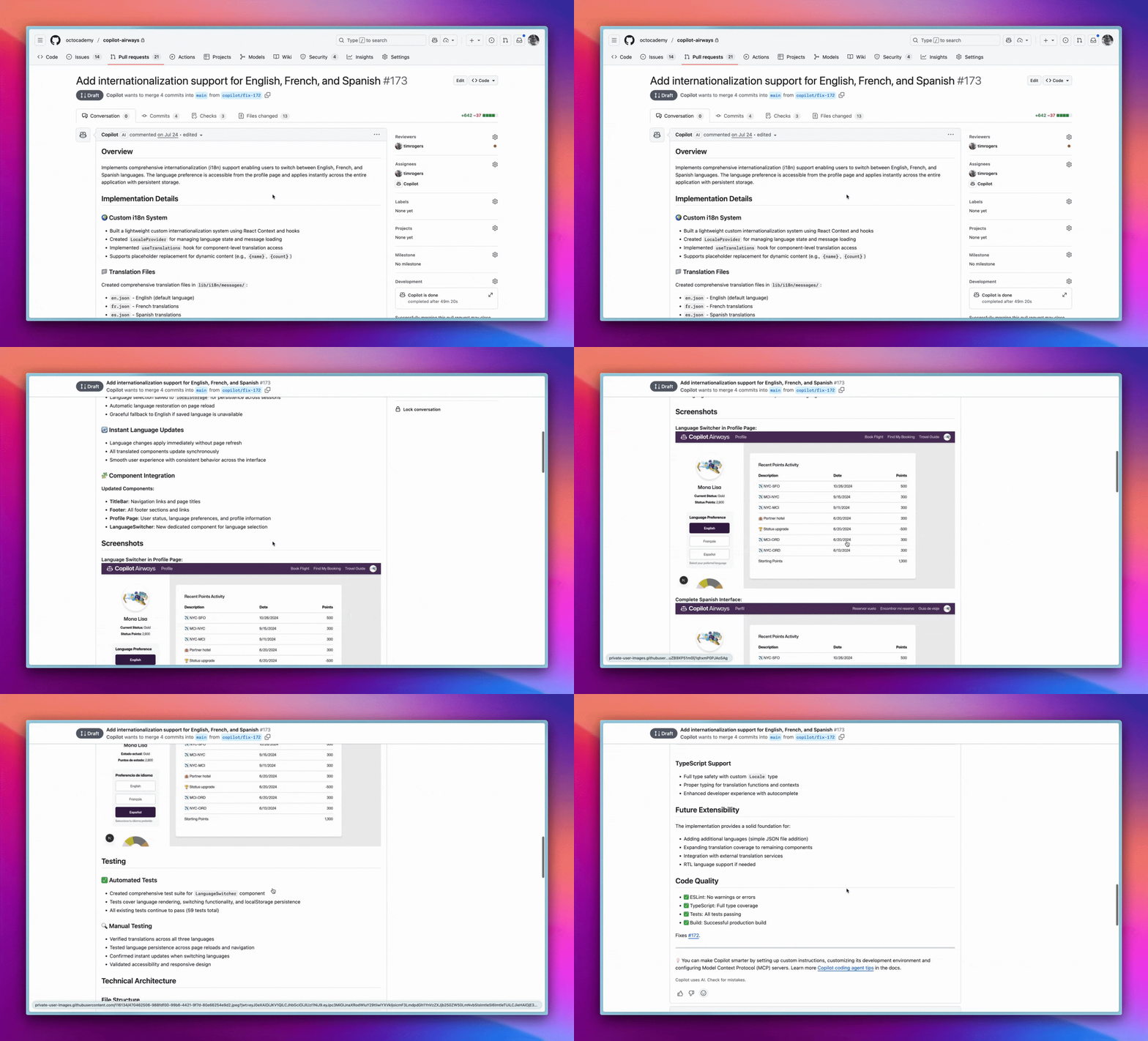
Front-end changes usually mean spinning up the app locally and manually poking around the interface. With the Playwright MCP server integration, Copilot can do that checking itself: it runs the application in a browser, interacts with it, and captures screenshots you can review in the pull request before touching the branch locally.
For a task like "Add internationalization support for English, French, and Spanish," the agent generates the code, launches the app via Playwright MCP, and attaches screenshots to the PR. That makes it especially useful for validating responsive layouts, dark mode toggles, or any visual change where a screenshot says more than a code diff.
Prototype on your own terms with branches
Not every idea deserves to touch main. When you want Copilot to experiment in a safe space, the Agents panel lets you select any branch as the starting point—not just the default one. For example, if you ask for "real time flight tracking with live delay notifications," you can choose feature/booking-system as the base instead of building on main.
Copilot then creates a copilot/ branch from that base and opens a draft pull request. You can review the PR and steer the agent through pull request comments, iterating without any risk to your primary branches. Dedicated branches also work well for demos, since a prototype stays clean and isolated, and easy to throw away when the experiment is over.
Pick the entry point that fits the moment
The coding agent is available from several places, and each suits a different kind of task:
- Agents panel: best for ad hoc jobs while browsing GitHub, such as reviewing issues or planning upcoming work.
- GitHub Issues: if your team tracks work in Issues, you can assign directly to Copilot and the task becomes part of your existing flow.
- VS Code: handy for quick refactors you spot while coding, with no context switching.
- Mobile app: oddly practical for small tasks or follow-ups away from the desk.
The right entry point is whichever sits closest to where the idea surfaces, so don't overthink the choice.
Widen the agent's view with MCP servers
The coding agent ships with two Model Context Protocol (MCP) servers that give it basic awareness:
- Playwright MCP for browser automation and screenshots when testing web apps.
- GitHub MCP for repository, issue, and pull request context.
Beyond those defaults, the agent gains more power as you connect custom MCP servers that fit your stack. A Notion MCP can pull in project specs or notes, while a Hugging Face MCP exposes AI models and datasets for machine learning work. The open-source MCP Registry is a central place to discover, publish, and manage such integrations, showing what other teams have built and where you can contribute your own server.
For implementation examples, the VS Code Insider page has a curated list of MCP servers across categories like Developer Tools, Productivity, Data & Analytics, Business Services, and Cloud & Infrastructure, all installable with a click.
From tool to teammate
These five patterns shift Copilot from a suggestion engine into a working partner. Tech-debt items that used to wait months get automated. UI validations that forced context switches come back with screenshots attached. Experimental features get a safe branch to live on until they prove themselves.
The takeaway is less about any single trick and more about how you run the agent: give it a real task from your backlog, start it in the Agents panel, and use the time you reclaim for the design and architecture problems that still need a human. The developers who get the most from AI-assisted development won't be the fastest coders, but the ones who orchestrate their tools well.


