The Messy Reality of Terminal Colors
Ask anyone who has spent serious time customizing their terminal and you'll likely hear the same story: getting colors to look right took far longer than it should have. After polling Mastodon for shared pain points, a clear pattern emerges. The problems range from unreadable default palettes to clashing themes between tools, and they're all rooted in the surprisingly fragmented way terminals handle color.
Why blue on black is so common
One of the most frequent complaints is poor contrast, particularly blue text on a black background. Run ls in a default terminal with a black background and the directory listings are rendered in a blue that's genuinely hard to read.

This goes back to the 16 ANSI colors that every terminal supports—black, red, green, yellow, blue, magenta, cyan, white, plus a "bright" variant of each. Programs output these colors via ANSI escape codes. A tiny Python script can display all 16:
def color(num, text):
    return f"\033[38;5;{num}m{text}\033[0m"

for i in range(16):
    print(color(i, f"number {i:02}"))
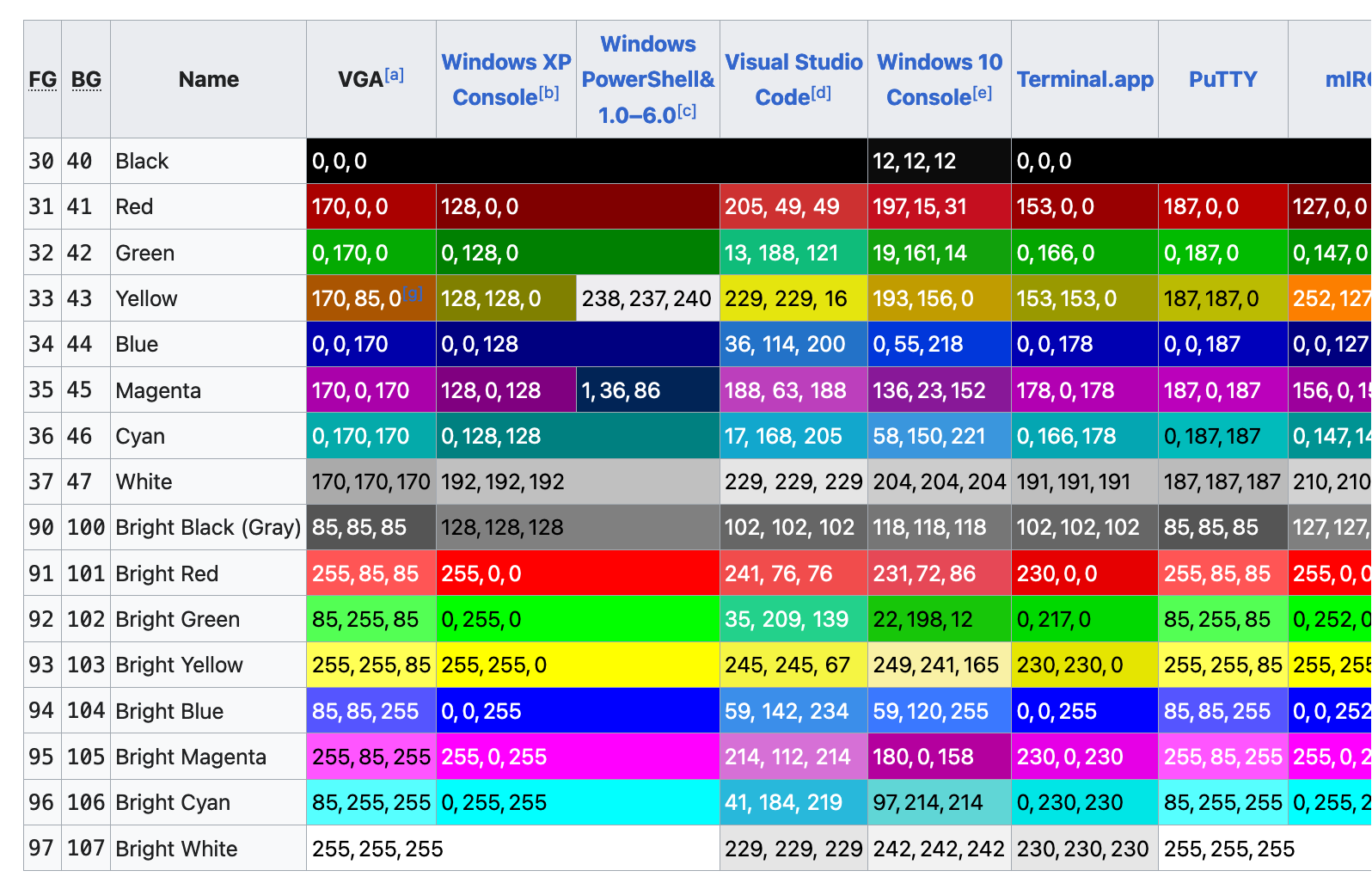
The problem is that there's no standard mapping from these color numbers to actual hex values. Each terminal emulator just picks its own shades, which leads to wild inconsistencies. The Wikipedia table showing different terminals' interpretations of the same color numbers demonstrates just how varied the defaults really are.
Reconfiguring your palette, two ways
If the default colors are unreadable or unappealing, you have two main options to fix them:
Configure the terminal emulator directly. Most modern terminals offer a way to remap colors, often with preinstalled themes that improve on the defaults.
Run a shell script. ANSI escape codes can also tell the terminal to reconfigure its colors at runtime. A good example is base16-shell, which ships a shell script that sets colors using a few different escape code conventions. The script picks the appropriate style based on the TERM environment variable.
The shell script approach has appeal because it's portable: switching terminal emulators doesn't require learning a new configuration system. It also makes it easy to keep your Vim colors in sync with your terminal if you use a coordinated theme like base16. On the other hand, not every terminal supports this runtime reconfiguration method, and the results can be inconsistent.
When programs skip the 16-color palette
Terminals actually support three distinct color systems: the basic 16 ANSI colors, an extended 256-color set, and modern 24-bit hex colors like #ffea03. When a program relies on the 256-color set, clashing with your carefully chosen 16-color theme becomes a real possibility.
Tools like fd (a find alternative) pull from the extended palette by default. The unbuffer utility reveals what's happening:
$ unbuffer fd . > out
$ vim out
^[[38;5;48mbad-again.sh^[[0m
^[[38;5;48mbad.sh^[[0m
^[[38;5;48mbetter.sh^[[0m
out
The escape code ^[[38;5;48 translates to "set the foreground color to color 48." That lime green isn't in your theme; it's one of the 256 extended colors that fd chose on its own, and it may clash badly with what you've configured.
Some of the newer generation of terminal tools—fd, bat, delta—offer their own custom themes to work around this. The default themes can clash with your background, but the upside is granular control over how the tool colors its output. bat, for instance, ships with visually appealing defaults that respect a range of terminal themes.
The Solarized gray issue
Solarized, a popular theme, highlights another subtle problem. The base16 Solarized Light variant has "bright" colors that are genuinely colored. But iTerm's default Solarized Light theme maps colors 9 through 14—the bright blue, bright red, and similar—to a series of grays.
When you run ls and it tries to use those bright colors for directories and executables, you get a very different look depending on which version of Solarized you're using. The design choice in the original Solarized theme made sense at the time: it provided the gray shades needed by the Vim Solarized colorscheme. For most other users, though, having those bright slots be actual colors is far more useful.
Background color surprises
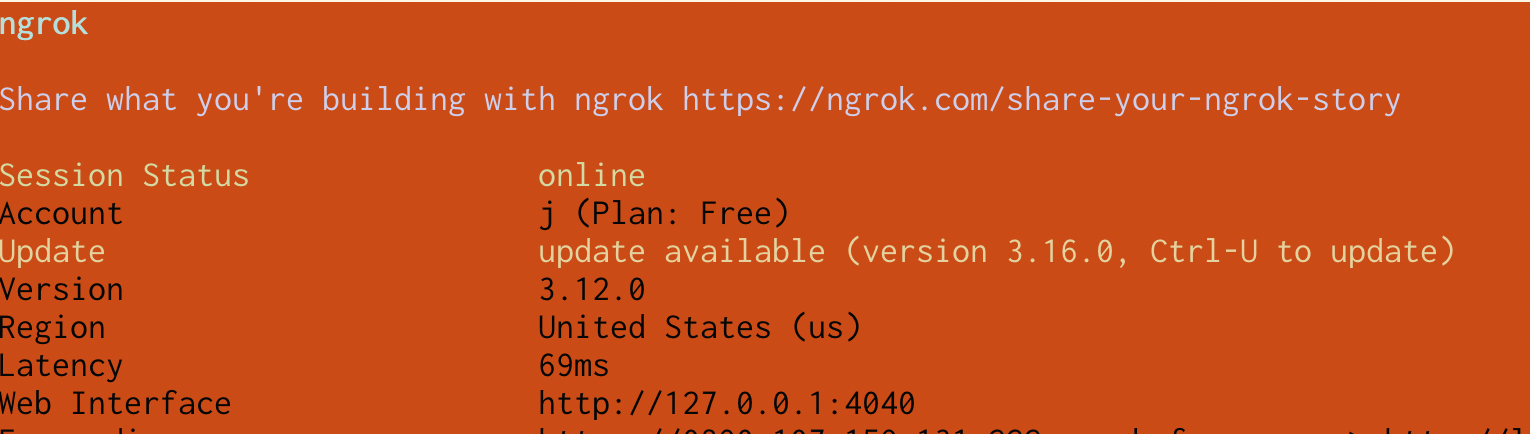
Terminal applications sometimes set their own background color using ANSI codes. That works fine until the user has remapped that specific color for their own theme. In one striking example, ngrok sets the background to color #16 ("black"), but a user's base16-shell script had remapped that slot to bright orange. The result is an unreadable mess.
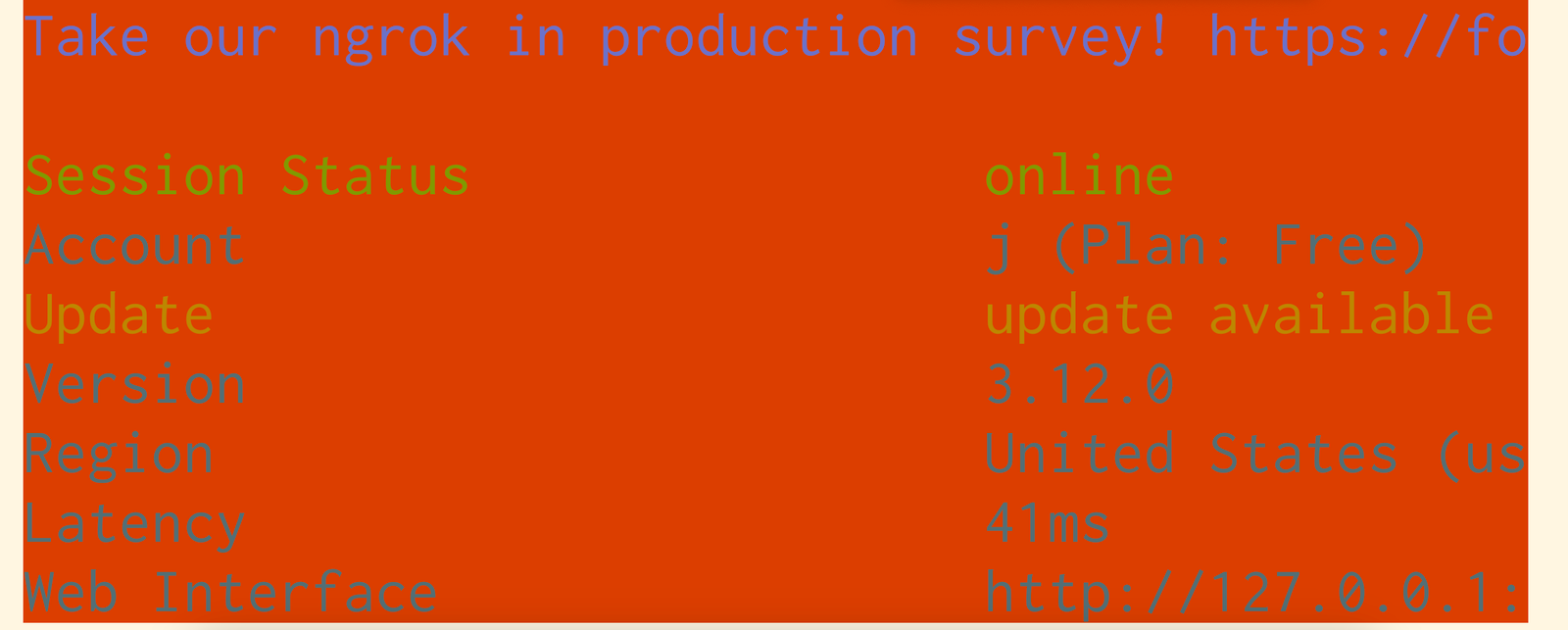
This isn't an unreasonable choice on the part of base16: it uses colors 16 through 21 to give its Vim colorschemes access to additional colors. For anyone using that integration, it's a fair trade-off. But it turns any program blindly using those color slots into a potential contrast disaster.
A simple fix: minimum contrast
Several terminals—including iTerm2, tabby, and kitty—offer a "minimum contrast" feature. The terminal automatically adjusts any colors that fall below a readable contrast threshold. For iTerm, you can set it to a fixed value, which noticeably repairs contrast disasters.
Turning on minimum contrast is a practical safety net, especially when something goes wrong at a layer you don't fully control.
The TERM variable trap
Over SSH, the TERM environment variable from your local machine follows you to the remote system. If the remote system's terminfo database—the metadata describing terminal capabilities—doesn't have an entry matching your TERM value, it can't figure out how to output colors for that terminal. One common workaround is to override the variable at connection time, for instance running TERM=xterm ssh.
When programs drop their colors
Running fd | less reportedly disables colors because fd detects it's writing to a pipe rather than a terminal and strips the escape codes. In many cases this is desirable behavior: piping output to grep doesn't need color escapes mixed in with your text.
If you genuinely want the colors preserved, unbuffer fd | less -r achieves the goal. unbuffer allocates a pseudo-TTY for the command, tricking it into thinking it's writing to a real terminal. That also solves buffering issues, which is how the tool got its name. Several commands such as fd additionally ship a --color=always flag to force color output.
Opting out of colors entirely
Not everyone wants colors from ls in the first place. Blue-on-black readability issues are a reason some users simply disable them. Easy paths:
- Run
ls --color=never. - Set
LS_COLORSto precisely control which file types get which colors—or none at all. - Set the widely supported
NO_COLOR=trueenvironment variable (a list of supporting programs is available at no-color.org).
For example, forcing every file type to color code 0 disables colors entirely:

The shift to true color in Vim
Historically, getting Vim to look right required careful coordination between your terminal theme and your Vim colorscheme. Before Vim added support for 24-bit hex colors—a feature that landed in 2016—a Vim colorscheme could only reference the 16 ANSI colors. Making things look good meant a theme like base16 had to map Vim's logical colors, cterm05 and similar, to specific ANSI numbers. Change your terminal palette and you risked breaking your editor.
That constraint has loosened considerably since Neovim 0.10, released in May 2024, turned on the termguicolors setting by default for terminals with true color support. In practice, termguicolors lets a colorscheme use any 24-bit hex value directly, eliminating the need to synchronize terminal and editor palettes. This also removes the need for base16 to hijack color slots 16–21 for the Vim integration, which was one source of the ngrok-style background problems.
Classic apps look wrong on modern themes
Some programs like nethack or midnight commander have a distinctive look built around the default ANSI 16-color palette. Pair them with a theme like Solarized and the result can feel foreign, especially to users relying on muscle memory built over decades of a specific aesthetic.
One workaround suggested in the community is to temporarily remap the palette before launching such a program, restoring the color values they expect. For instance, you could brighten yellows before starting nethack so its yellow characters remain legible after the palette shift.
Where base16 fits in
For all its complexities, the base16-shell and base16-vim pair has been a dependable solution. Setup requires only a couple of lines in your fish config plus a few .vimrc entries, and it provides a coherent look across both shell and editor.
However, it's far from universally appropriate:
- The set of built-in themes is limited.
- Base16's Solarized theme sets bright colors identical to normal colors, which can break workflows that rely on having distinct bright and normal variants.
- Color slots 16–21 are repurposed for Vim, which introduced the ngrok clash. Terminals without 256-color support, like the Linux framebuffer console, can be problematic too.
There's also an active community fork called tinted-theming that's worth exploring.
Tools and themes worth knowing
For generating new schemes, rootloops.sh is useful, alongside guides like "let's create a terminal color scheme." Popular theme families that came up repeatedly in community discussions include catpuccin, Monokai, Gruvbox, Dracula, Modus (focused on high contrast), Tokyo Night, Nord, and Rosé Pine.
Take the path of least resistance
It's easy to get lost in terminal color minutiae. Yet this domain is full of edge cases: pre-2016 Vim needed bespoke synchronization, classic TUI apps sense something wrong with modern themes, and SSH can invalidate your entire setup.
The most impactful takeaway is simple: if your terminal supports it, enable minimum contrast. That single setting neutralizes a large class of color clashes, letting you enjoy reasonably readable output even when another program steps out of line. That, more than any theme or configuration approach, is the change that seems worth making today.