Seven years in, fish still feels like magic
In 2017 I wrote about why I loved the fish shell. Seven years of daily use later, I have more reasons to love it — and a better understanding of why some of its features feel almost magical. The most recent reminder came when I realized my terminal no longer breaks when I accidentally cat a binary to it. Fish fixes the terminal.
No configuration required
In 10 years of using fish, I’ve never found a single thing I wanted to configure. My entire fish config file contains environment variables, aliases (alias ls eza, alias vim nvim), an occasional direnv hook fish | source to integrate tools like direnv, and a script to set up terminal colours. That’s it. Everything else just works the way I want.
History autosuggestions that understand context
My absolute favourite feature is the autosuggestion: as I type, fish suggests (in light grey) a matching command from my recent history. Pressing the right arrow key accepts the completion; continuing to type ignores it.

One subtle detail makes this even more powerful. Fish understands paths in suggested commands. If I run a command containing blah.txt, that command is only suggested in directories that actually contain blah.txt — it won’t pollute completions elsewhere.
So if I type bash scripts/, fish only suggests history commands whose referenced files actually exist in the current directory’s scripts/ folder, ignoring dozens of irrelevant commands from other directories. It took me years to understand how this worked; before that it just felt like fish was magically suggesting the right commands. It still feels a little like magic, and I love it.
Multiline pastes are safe
In bash, pasting multiple lines runs them all immediately, which is alarming if you didn’t actually want to execute everything. Fish pastes all lines at a single prompt so you can review before pressing Enter.
bork@grapefruit ~/work/> echo hi

                         touch blah
                         echo hi
Better tab completion and syntax highlighting
Running ls and pressing Tab displays files in a navigable grid. You can move through it with Tab, Shift+Tab, or arrow keys. Fish also supports tab completion from the middle of a filename — useful when the filename starts with an awkward character or isn’t unique. Type a distinctive substring and press Tab.
bork@grapefruit ~/work/> ls
api/  blah.py     fly.toml   README.md
blah  Dockerfile  frontend/  test_websocket.sh
Fish’s syntax highlighting is also helpful by default: commands that don’t exist are marked in red.

A prompt that has everything
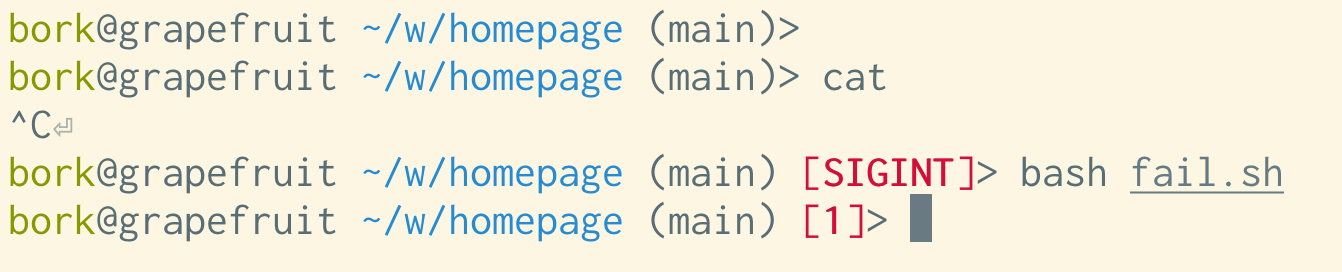
The default prompt includes username, hostname, current folder, git integration, and the exit status of the last command — including when it was interrupted by SIGINT or failed.
History that behaves the way you expect
Bash defaults to a maximum history of 500 commands (a relic of slower machines), and by default only writes history when the session ends — so a crash loses your session history. Fish is better in three ways:
- The default history size is 256,000 commands.
- Opening a new tab makes everything you’ve ever run immediately available — even commands typed in sessions still open.
- History search in an existing session shows commands from the current session plus everything that was in history when the shell started.
Commands are written continuously to the history file, but fish only loads that file once at startup. In practice this feels great. If you want fancier history in other shells, atuin and fzf are worth investigating.
History search itself is simpler too: type part of a command, press the up arrow, and fish completes from history. It’s not radically different from Ctrl+R in bash, but it avoids some of Ctrl+R’s confusing behaviours — like accidentally editing your history mid-search.
The terminal stays sane
For years I’d occasionally break my terminal in bash by catting a binary to it. The fix is in the code fish runs when displaying a prompt, which repairs several terminal states:
- Re-enables
echoso typed characters are visible - Fixes newline handling so you don’t get the weird “staircase” output
- Resets the background colour and other terminal properties
I hadn’t realized fish was the reason my terminal issues stopped — I thought I’d just stopped making mistakes. Fish was saving me from myself all along.
Relatedly, fish disables Ctrl+S, the shortcut that freezes your terminal until you remember Ctrl+Q. If you want that gone in other shells, use stty -ixon.
Loops and multiline editing are easier
Fish loop syntax is much friendlier to type than bash’s, and fish adds indentation automatically.
for i in *.yaml
  echo $i
end
Editing multiline commands is also easier: arrow keys navigate the whole multiline buffer. And when you recall a multiline command from history with the up arrow, fish displays it exactly as you typed it, rather than collapsing it onto a single line as bash does.
$ bash
$ for i in *.png
> do
> echo $i
> done
$ # press up arrow
$ for i in *.png; do echo $i; done ink
Word navigation shortcuts
Ctrl+left arrow and Ctrl+right arrow move the cursor between words. The official documentation only mentions Alt+left arrow and Alt+right arrow, which do the same thing — but in practice Ctrl works too. Your mileage may vary depending on terminal emulator keybindings: on Linux you may need the “Default (XFree 4)” keybindings instead of “Linux console”, and on macOS Ctrl+arrow switches workspaces by default. Note that Ubuntu configures /etc/inputrc to make Ctrl+left/right arrow work in bash too.
The downsides
Not every tool ships with fish integration. This has improved as fish has grown — Python’s virtualenv has supported fish for years — and the fallbacks are easy: run bash or zsh for POSIX commands, or translate simple commands yourself. My biggest daily annoyance is still remembering whether an environment variable needs set or set -x.
fish_add_path is another rough edge. I love the idea of a dedicated PATH management function, but stopped using it for two reasons:
- Sometimes it updates PATH for every future session (a universal variable), sometimes only for the current session, and the official docs couldn’t help me predict which.
- Removing a directory from PATH weeks or months later is genuinely difficult — there are workarounds but the docs were not clear.
Instead I update PATH exactly as I would in bash.
set PATH $PATH /some/directory/bin
On compatibility and adoption
Fish has relaxed its strictness over the years. When I started using it, cmd1 && cmd2 was rejected with instructions to use cmd1; and cmd2. Today fish accepts some POSIX-style syntax: && works, and export a=b sets an environment variable — though limited, since export PATH=$PATH:/whatever isn’t supported. It’s probably still better to learn set.
Making fish your default shell also has caveats. If fish is installed somewhere unusual (like /home/bork/.nix-stuff/bin/fish), you need to add it to /etc/shells, then use chsh. When you later reinstall fish somewhere else and delete the old path, you might find yourself with no valid shell and unable to open a new terminal. It’s never been a serious problem because a terminal is always open somewhere to rescue me, but the Arch wiki suggests a safer approach: configure your terminal emulator to run fish or add exec fish to your .bashrc.
I also never fully learned fish’s scripting language. I write occasional interactive for loops but all real shell scripting is still bash — I don’t think I’ve ever written a fish function or if statement.
Despite these rough edges, fish is gaining ground. A recent unscientific poll on Mastodon (2,600 responses) asked which shell people use interactively: 49% use zsh, 46% bash, 16% fish, 5% other. Sixteen percent is remarkable given that no system ships fish as the default shell, and most people never switch from whatever came preinstalled.
Who should try fish?
Fish won’t suit everyone. It suits me because I actively dislike configuring my shell — I want sensible defaults, and fish’s defaults happen to feel right. It helped that I wasn’t constantly logging into servers running other shells, so context switching was minimal. And I was willing to relearn a few basics: (seq 1 10) instead of backticks, set instead of export.
If that description sounds like you, it’s worth a try. I spend enormous amounts of time in the terminal, and fish has made that time much more pleasant.