
A debugging ladder for iOS Safari
The practical way to chase a bug in iOS Safari is escalation: rule out the cheap explanations before committing to hardware. Each step below narrows the problem down further, and you only move on when the previous step comes up clean.
Step one: assume it's just a narrow viewport
Start in desktop Chrome's device mode. It does more than shrink the page into a phone-sized box — it sends the correct User Agent String and Client Hints for the emulated device.

Step two: try desktop Safari
If device mode looks fine, check whether the bug is Safari-specific by opening the same page in Safari on the desktop. That's a couple of clicks away, and the engine is far closer to iOS Safari than desktop Chrome is.

Step three: emulate iOS
A problem that survives desktop Safari and doesn't appear in Chrome is genuinely specific to iOS Safari. On a Mac with Xcode installed, the iOS simulator is quick to launch. Running the simulator also means you can use desktop Safari's DevTools to reach into it.

Step four: move to real hardware
Some bugs only reproduce on a physical device. With a Mac, connect the phone over USB — a cable, not a wireless charging connection — and the device appears in the same Develop menu. Pick it there (with Safari open on some site) and you get a DevTools instance attached to that page.
Step five: working without a Mac
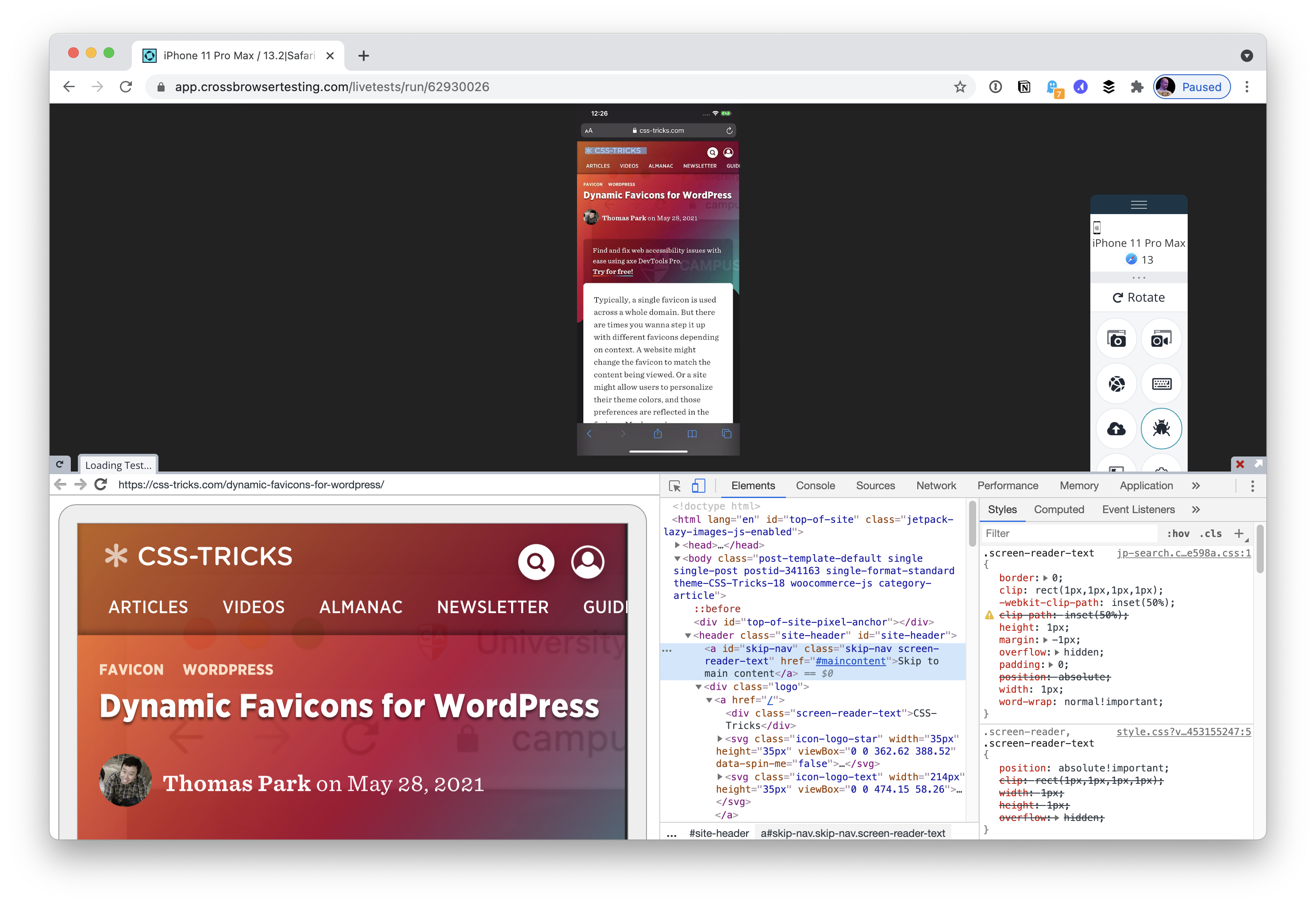
Online services such as CrossBrowserTesting let you do this from the browser, with the caveat that the experience of wandering into a store to debug on a display machine is not a real workflow. CrossBrowserTesting embeds Chrome DevTools, though the author found it somewhat janky in testing: a giant left panel rendered, the click-to-select element feature didn't work, and the WebSocket connection kept dropping. Still, it works in principle.
Step six: Inspect, including on Windows
Inspect offers a Chrome DevTools instance for a real iOS device plugged in over USB. On a Mac you'd mostly reach for it to get Chrome DevTools in place of Safari's; the roadmap adds bundling of React, Vue and Angular DevTools plus Wi-Fi testing so you don't have to plug in at all. The standout feature, though, is that it runs on Windows, which finally gives Windows-based web developers a clear path to testing on a real iOS device.