
Inspecting the console object
Browsers have shipped a developer console for years, and it has grown from a place where errors surface into a surface that also reports network requests and responses, security warnings, and other diagnostics. JavaScript reaches it through the console object, which is present in almost every browser and follows the WHATWG console spec linked from MDN's console documentation. Implementations are largely consistent, but Firefox and Chrome differ in both cosmetic and functional ways; the Chromium-based Edge behaves much like Chrome. Logging the object itself shows what a given browser actually provides.
console.log(console);Chrome exposes a memory property with basic memory usage stats, and Firefox has a name property that Chrome lacks; otherwise most of the differences are similarly trivial.
Resetting the log
A busy console fills up quickly, and DevTools provides a button to wipe it. The same result comes from console.clear(), which empties the output and prints a confirmation such as "Console was cleared."
console.clear();
The five output commands
Five commands — debug(), error(), info(), log(), and warn() — accept the same arguments and differ mainly in how browsers present and filter them.
console.debug();
console.error();
console.info();
console.log();
console.warn();
In Chrome, output is color-coded, and error and warn entries carry an icon. Firefox shows three minor differences: console.debug() is not color-coded, console.info() adds an icon, and only console.error() expands to reveal a trace of the code path that led to the call (Chrome does this for both error and warn).


Each level can be filtered individually. Firefox puts the toggles above the output; Chrome tucks them in a dropdown labeled "All levels" (or "Default" to hide verbose debug output, or a title such as "Custom levels" or "Errors only" depending on the selection). The intent of error and warn is obvious; how debug, info, and log get used is up to you, and on team projects it pays to document expectations. Logging itself accepts any JavaScript data type, though most produce much the same output.
console.log('string');
console.log(42);
console.log({object: 'object'});
console.log(['array', 'array']);
The examples show Chrome with the object and array expanded; both are collapsed by default. Firefox indicates whether the collapsed value is an object or an array, then renders like Chrome once expanded. Multiple arguments are printed inline, which is handy for pairing values such as the x and y coordinates of a mouse event.
console.log('string', 'string');
console.log(42, 1138);
console.log({object: 'object'}, {object: 'object'});
console.log(['array', 'array'], ['array', 'array']);
Substitution, template literals, and styling
The logging commands support string substitution so a value can be described in the output. The first argument is the format string, and each later argument fills one of its substitution symbols; keeping types and arguments in matching order is required to avoid unexpected results.
console.log('This is a string: %s', 'string');
console.log('This is a number: %i', 42);
console.log('This is an object: %o', {object: 'object'});
| Data type | Substitution symbol |
|---|---|
| Objects and arrays | %o or %O |
| Integers | %d or %i |
| Strings | %s |
| Floats | %f |
Where template literals are available, they produce similar results, though substitution handles objects better, so choose per use case. The two approaches can be combined in one call.
console.log(`This is a string: ${'string'}`);
console.log(`This is a number: ${42}`);
console.log(`This is an object: ${{object: 'object'}}`);
console.log('This is a string: %s. This is a number: %i', 'string', 42);
console.log(`This is a string: ${'string'}. This is a number: ${42}`);
CSS can also be applied to output. A %c placeholder consumes the next parameter as a stylesheet, and an empty string resets styling to default. The available properties are more limited than page CSS — think of it as an inline text block — but running experiments can produce messaging that draws attention to an entry, especially an error.
console.log(`This is a number: ${42}. This is an object: %o`, {object: 'object'});
console.log('%cThis is large red text', 'color: red; font-size: 30px;');

console.log('This is %cred text %cand this is %cgreen text.', 'color: red;', '', 'color: green;');
Firefox renders these styles with a slight visual difference from Chrome. Styling strings stored in variables act like reusable classes and avoid duplicating verbose declarations; combined with a template literal, they allow line breaks, and a clearStyles variable signals a reset more clearly than an empty string. Variables can also be combined to extend the styling.
console.log('%cHello there!', `
  background: white;
  border: 3px solid red;
  color: red;
  font-size: 50px;
  margin: 40px;
  padding: 20px;
`);
const clearStyles = '';
const largeText = 'font-size: 20px;';
const yellowText = 'color: yellow;';
const largeRedText = 'font-size: 20px; color: red;';
const largeGreenText = 'font-size: 20px; color: green;';


console.log(`This is %clarge red text.
%cThis is %clarge green text.
%cThis is %clarge yellow text.`,
  largeRedText,
  clearStyles,
  largeGreenText,
  clearStyles,
  largeText + yellowText
);
Conditional and counted output
console.assert() resembles console.error() except that it takes a boolean condition. A true result produces nothing; a false result prints the message with "Assertion failed:" prepended, which avoids wrapping console.error() in an if. Chrome can expand the entry to show a trace through nested function calls, valuable when functions call functions call functions — the trace lists frames in reverse code order. Firefox does not supply this trace for assert, though it does for error.
let value = 10;
console.assert(value <= 7, 'The value is greater than 7.');
let value = 10;


function function_one () {
  function_two();
}


function function_two () {
  function_three();
}


function function_three() {
  console.assert(value < 7, 'This was false.');
}


function_one();

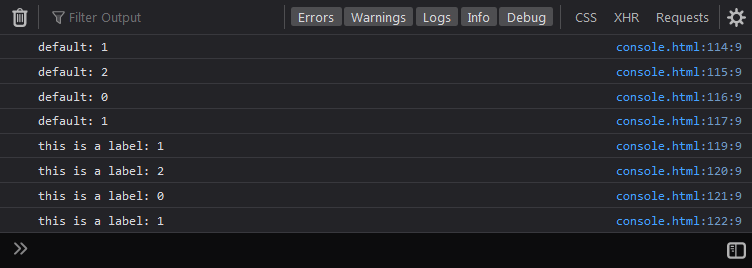
console.count() tallies how often a line runs. Used bare, it increments a single total each time it is encountered, reporting the line number along the way. Adding a label keeps separate counts per label; alternating labels each maintain their own totals, which pairs naturally with a call placed inside a function so that every invocation bumps that function's count — useful for performance bottlenecks or for gauging how much work a page does. console.countReset() resets the count for a given label, as when a loop runs a dynamic number of times. Chrome's only hint that a reset happened is that the count starts over; Firefox sets the count back to zero on screen. Labels can be anything resolvable to a string, including variables whose values change, so counts can follow those changing values.
console.count();
console.count();
console.count();
console.count('label A');
console.count('label B');
console.count('label A');
console.count('label B');
console.count('label A');
console.count('label B');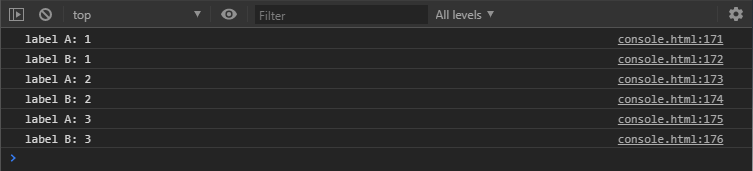
console.count();
console.count();
console.countReset();
console.count();


console.count('this is a label');
console.count('this is a label');
console.countReset('this is a label');
console.count('this is a label');
Property, element, and grouped views
console.dir() displays an object's properties and console.dirxml() displays the descendant elements of an XML/HTML element. Chrome implements these as described; Firefox aliases both to console.log(). Given the same object, the three commands look much alike, and repeating the object in one call shows one more difference: Chrome ignores the second object in console.dir() while Firefox shows both. With DOM elements the gap widens — Firefox's console.log() lists all properties of the element, while Chrome's prints its HTML. In Chrome, console.dir() supplies the properties, and console.dirxml() displays markup with children outside the DOM Inspector, even allowing some live HTML editing, though with fewer capabilities than the inspector.
const count = {
  one: 'one',
  two: 'two',
  three: 'three'
};


console.log(count);
console.dir(count);
console.dirxml(count);
dir() and dirxml() example
dir() and dirxml() example
dir() and dirxml() double example
dir() and dirxml() double example
console.log() DOM example.
console.log() DOM exampleconsole.group() sets a relationship among entries until console.groupEnd(), which closes the most recently opened group. Without a parameter the group identifies itself as console.group in Chrome and as <no group label> in Firefox; a string parameter becomes its label. Groups collapse via the arrow beside the label, start collapsed when opened with console.groupCollapsed(), and can be nested. Labels can take string styles to stand out in the output.
console.group();
console.log('one');
console.log('two');
console.log('three');
console.groupEnd();


console.group('this is a label');
console.log('one');
console.log('two');
console.log('three');
console.groupEnd();
group() exampleconsole.group('outer group');
console.log('outer one');
console.log('outer two');
console.group('inner group');
console.log('inner one');
console.log('inner two');
console.log('inner three');
console.groupEnd();
console.log('outer three');
console.groupEnd();
group() exampleconsole.group('%cstyled group', 'font-size: 20px; color: red;');
console.log('one');
console.log('two');
console.log('three');
console.groupEnd();
group() exampleTabular display
console.table() renders arrays and objects in structured form. Chrome keeps an expandable view beneath the table as in console.log() and offers basic column sorting on heading clicks; Firefox's presentation is slightly different visually.
let basicArray = [
  'one',
  'two',
  'three'
];
console.table(basicArray);
table() example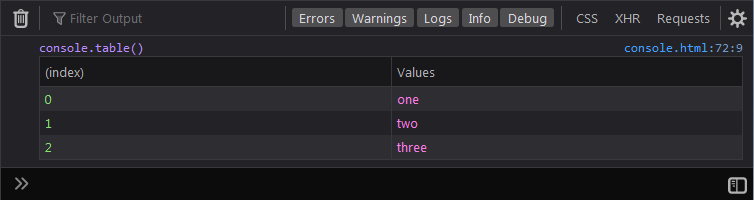
table() examplelet basicObject = {
one: 'one',
two: 'two',
three: 'three'
};
console.table(basicObject);
table() exampleAn array of objects lays out one column per repeated key, the pattern seen with records such as user information. Every key found in any object becomes a column, and cells for missing keys are left empty. An array of arrays uses the inner arrays' indices as column labels, leaving blanks where a shorter array has no value. Mixing types complicates it: in an array of arrays containing an object, the object's contents require expanding the row beneath the table in Chrome, while Firefox lets you expand the object inside the table. An object whose values are arrays behaves like an array of arrays but labels each row with a key. Each additional data type in the mix makes the table more complex.
let arrayOfObjects = [
  {
    one: 'one',
    two: 'two',
    three: 'three'
  },
  {
    one: 'one',
    two: 'two',
    three: 'three'
  },
  {
    one: 'one',
    two: 'two',
    three: 'three'
  }
];
console.table(arrayOfObjects);
table() examplelet arrayOfArraysWithObject = [
['one', 'two', {three: 'three', four: 'four'}],
['one', 'two', {three: 'three', four: 'four'}],
['one', 'two', {three: 'three', four: 'four'}]
];
console.table(arrayOfArraysWithObject);
table() example
table() exampleTimers and traces
Timing uses a shared label across three commands: console.time() starts a timer, console.timeLog() reports an interim reading, and console.timeEnd() stops it. Both browsers print comparable results — measured times are not identical but usually close enough. Firefox notes that the timer has ended; Chrome leaves you to infer it once the label stops appearing. In the example, the first four lines come from console.timeLog('this is a timer'); and the last from console.timeEnd('this is a timer');.
console.time('this is a timer');
console.timeLog('this is a timer');
console.timeEnd('this is a timer');
time() example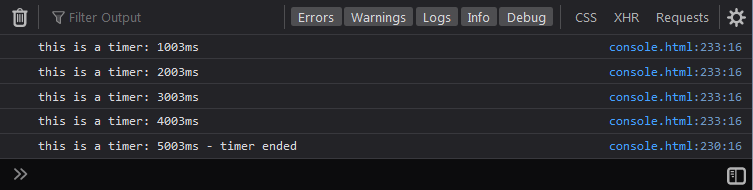
time() exampleconsole.trace() prints a stack trace showing the path to the call, resembling error() and warn() without their urgency. It accepts a string label, or other data types whose handling matches console.log(). The debugger statement, which is not part of the console object but a command the console responds to, pauses execution as a breakpoint would, opening the source at the relevant line when the function runs.
function whatsInHere() {
  debugger;
  // rest of the code
}
Console-only utilities
The following are utilities supplied by the browser rather than methods of the console object: they carry no console. prefix, cannot be invoked from JavaScript, and must be typed in the console. Support varies by browser.
$0refers to the element currently selected in the DOM inspector, a shortcut around methods such asgetElementByIdorquerySelector.$1through$4reach back through selection history; Firefox offers$0but not the history shortcuts.$('element')stands in fordocument.querySelector('element'), and$$('elements')fordocument.querySelectorAll('elements').$x('//element')evaluates an XPath expression and returns matching elements as an array, e.g.$x('//div'), or$x('//div[descendant::span]')for divs containing a span — the equivalent of CSS Selectors Level 4's:has, unsupported in browsers. These are basic XPath examples only.clear()matchesconsole.clear()without the clearing message.getEventListeners(object)reports the listeners registered on a DOM element, e.g.getEventListeners($0), and each entry expands for details. Firefox lacks this function but offers similar information in the DOM inspector via the "event" badge, where each registered event expands to its code.
console.log($0);
etEventListeners() example