

A clearer view of your security tooling
Developers often find themselves balancing multiple application security tools — some open source, some third-party — across their workflow. GitHub's code scanning already supports integrating a variety of code analysis tools alongside the native CodeQL engine. Now, a new tool status page helps you keep tabs on each of those tools.
The feature provides detailed information about the security tools that upload results to code scanning, whether you run a single engine like CodeQL or a more complex stack. Its goal is straightforward: quickly confirm your code analysis tools are operating correctly, and when they aren't, pinpoint exactly what needs attention.
Reading tool statuses
You can reach the tool status page by clicking the new "tool status" button located at the top of the code scanning page. A status appears for any tool that has run at least one analysis on your repository's default branch. Each tool is assigned one of three possible states: not working, needs attention, or working. Even if a tool receives a status alert, you'll still see the results of any scans it has completed.
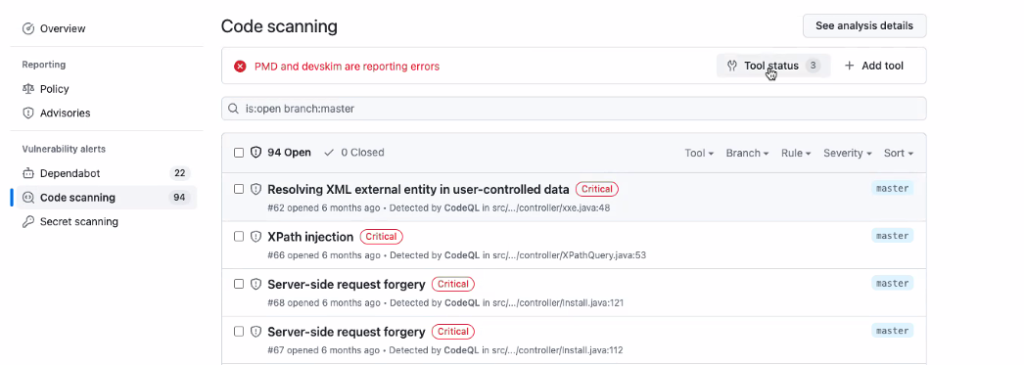
In the resulting view, the "Tools" sidebar lists the tools currently running in your repository. Status indicators are visible at a glance — a yellow icon signals "needs attention," while a red icon means "not working."
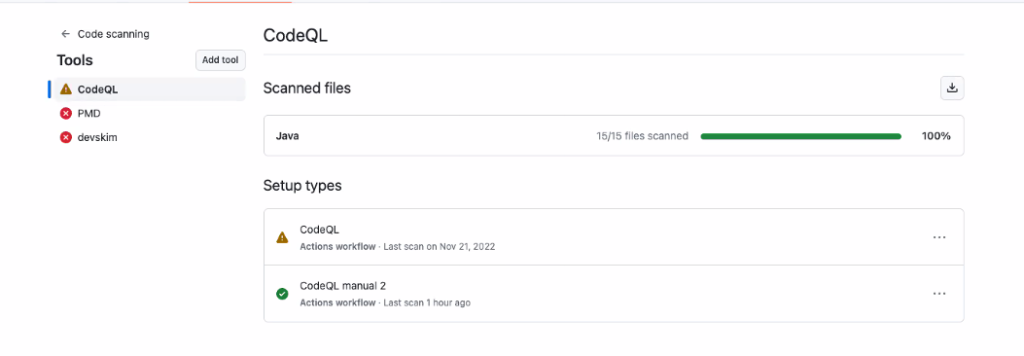
Clicking into a specific tool, such as CodeQL, reveals an error in the configuration when one exists. Selecting the error displays details about what went wrong, allowing you to troubleshoot the configuration and resolve the problem efficiently.
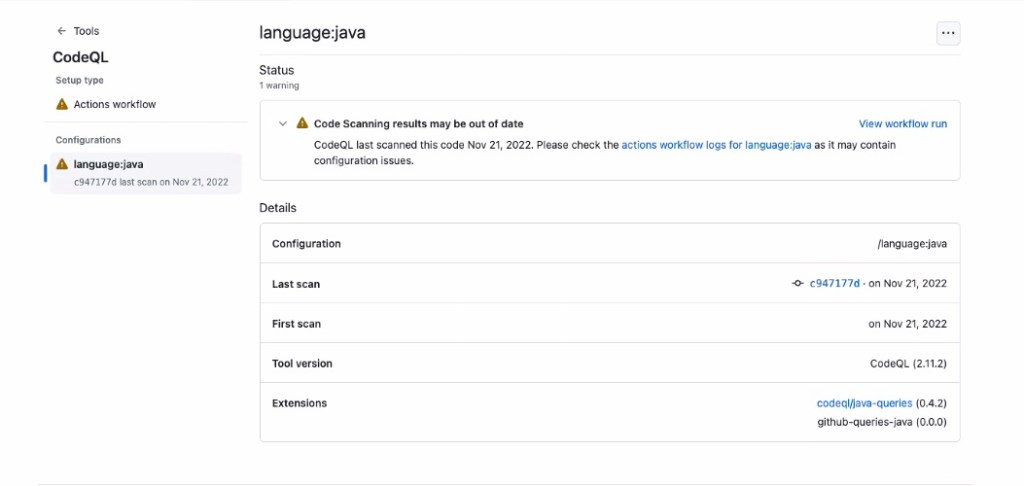
The tool status page is designed to simplify configuration troubleshooting for CodeQL and other code analysis engines. For more about orchestrating application security with code scanning, refer to the application security orchestration blog post.
Additional security resources
GitHub's security features aim to balance strong software security with developer experience. For guidance on enabling these features in your repositories, consult the getting started guide.