

Why Your z-index: 9999 Isn't Working
It's a frustratingly common experience: you set z-index to an absurdly high value, certain your element will appear above everything else — and yet it stays buried. The culprit is often a stacking context you didn't realize you created.
In CSS, stacking contexts introduce an imaginary z-axis perpendicular to the screen. When certain properties are applied, an element and all its children are grouped into a self-contained sub-stack. Think of your webpage as a desk: each HTML element is a piece of paper. The last one placed sits on top. The root stacking context is the desk itself, formed by the <html> element.
Now imagine folders. Properties like position with a declared z-index, opacity, transform, and filter act like folders, lifting an element and its children out of the main stack and grouping them into a separate sub-stack. For positioned elements, this occurs when you set a z-index value other than auto. For properties like opacity, transform, and filter, the stacking context is created automatically.
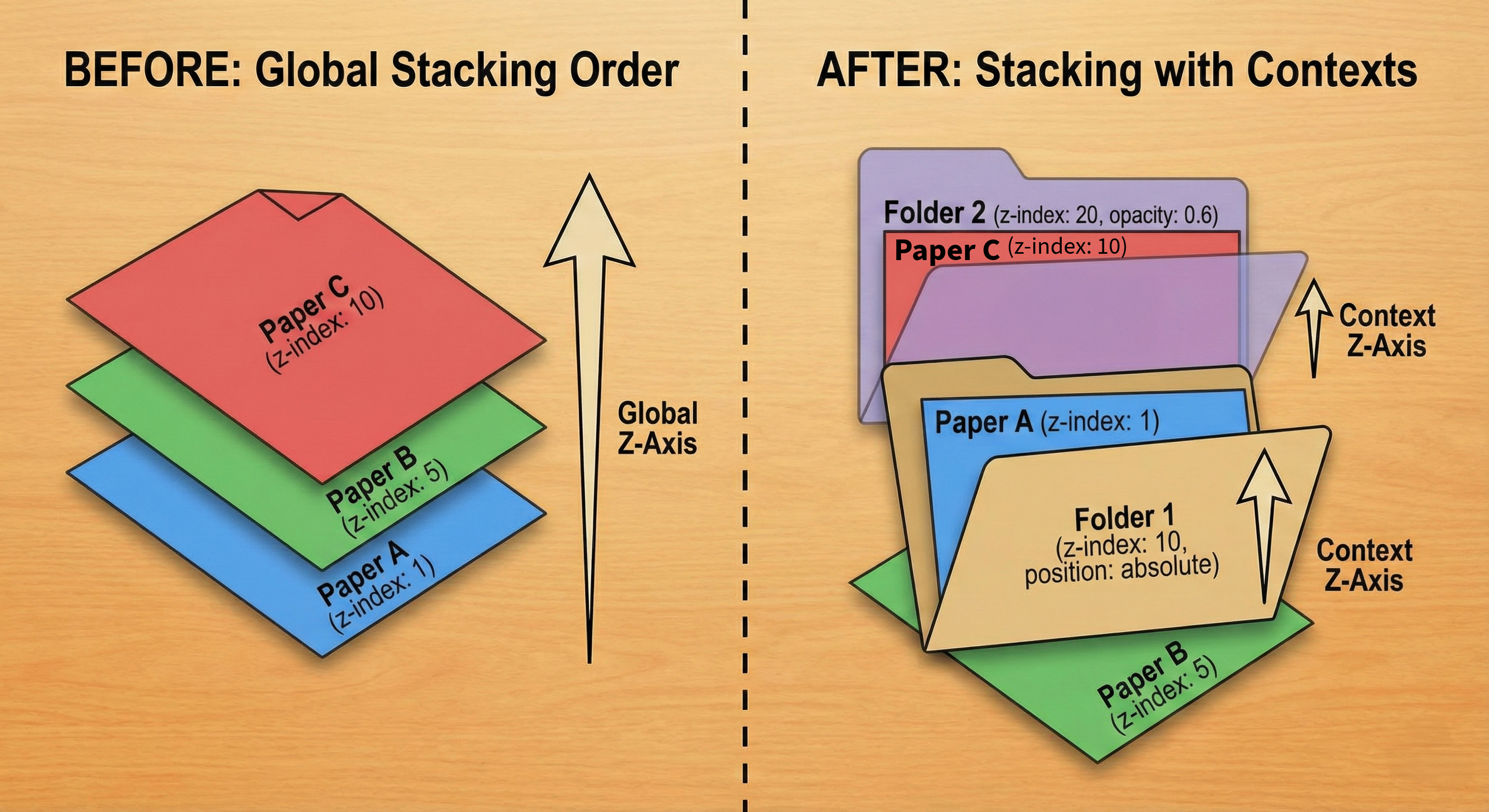
Once a child element is inside a parent's stacking context, it can never escape that folder or be placed between elements in a different folder. Its z-index is only relevant within its own folder.
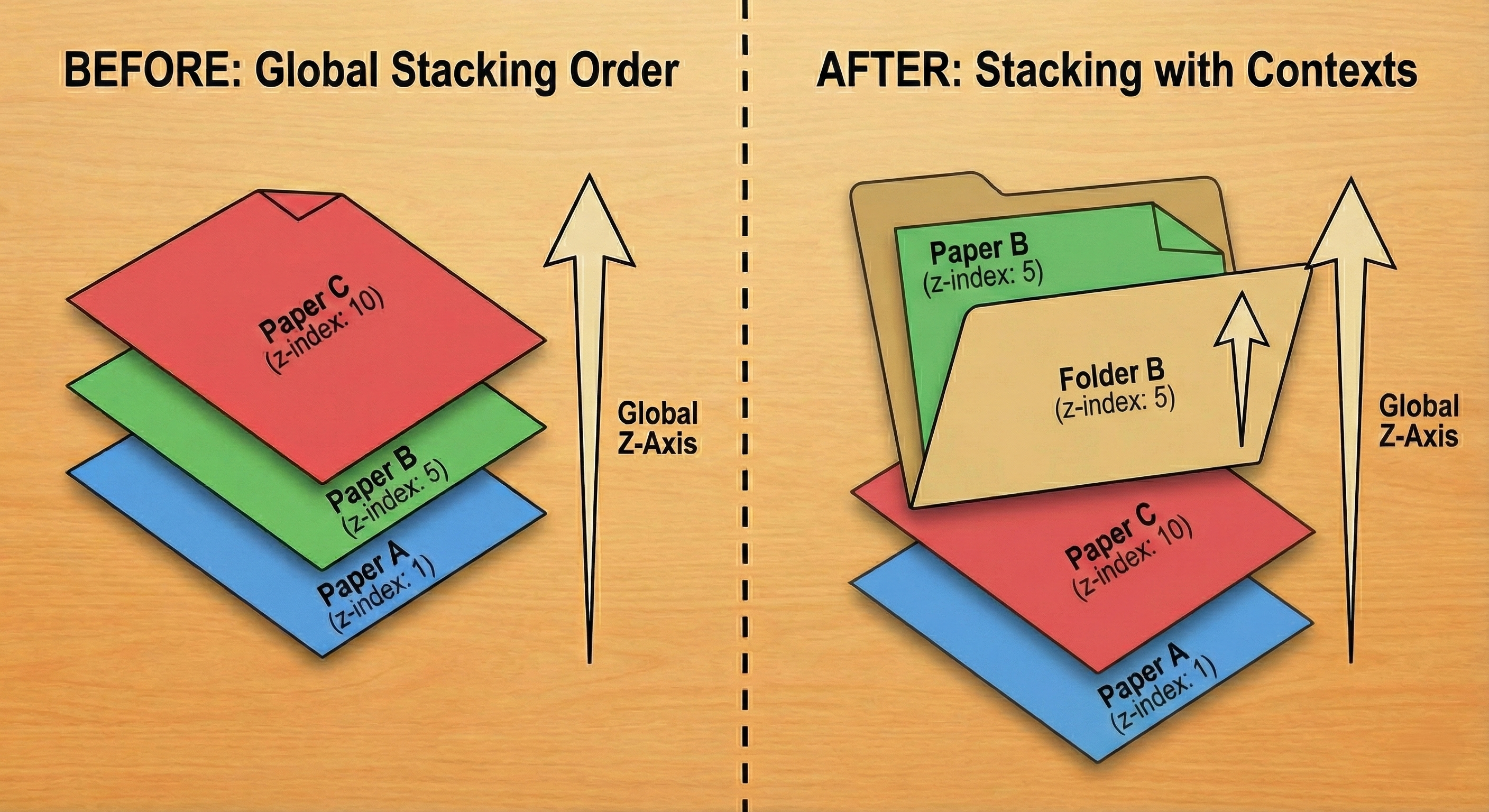
Consider two folders on your desk, each representing a stacking context:
<div class="folder-a">Folder A</div>
<div class="folder-b">Folder B</div>
.folder-a { z-index: 1; }
.folder-b { z-index: 2; }
Now, inside Folder A, place a "special" page with z-index: 9999. Inside Folder B, put a plain page with z-index: 5.
<div class="folder-a">
   <div class="special-page">Special Page</div>
</div>

<div class="folder-b">
  <div class="plain-page">Plain Page</div>
</div>
.special-page { z-index: 9999; }
.plain-page { z-index: 5; }
Which page appears on top? The plain page in Folder B. The browser ignores the child papers entirely and stacks the folders first: Folder B (z-index: 2) sits above Folder A (z-index: 1). The "special" page with z-index: 9999 remains at the bottom of the overall stack because its value only matters inside Folder A. Stacking contexts can also be nested, like folders inside folders, and the same principle holds: a child can never escape its parent's folder.
Why transform and opacity Create Contexts
These properties don't create stacking contexts for visual reasons. They do it for browser performance. When you apply transform, opacity, filter, or perspective, the browser anticipates that the element might move, rotate, or fade, so it prepares to handle those changes independently.
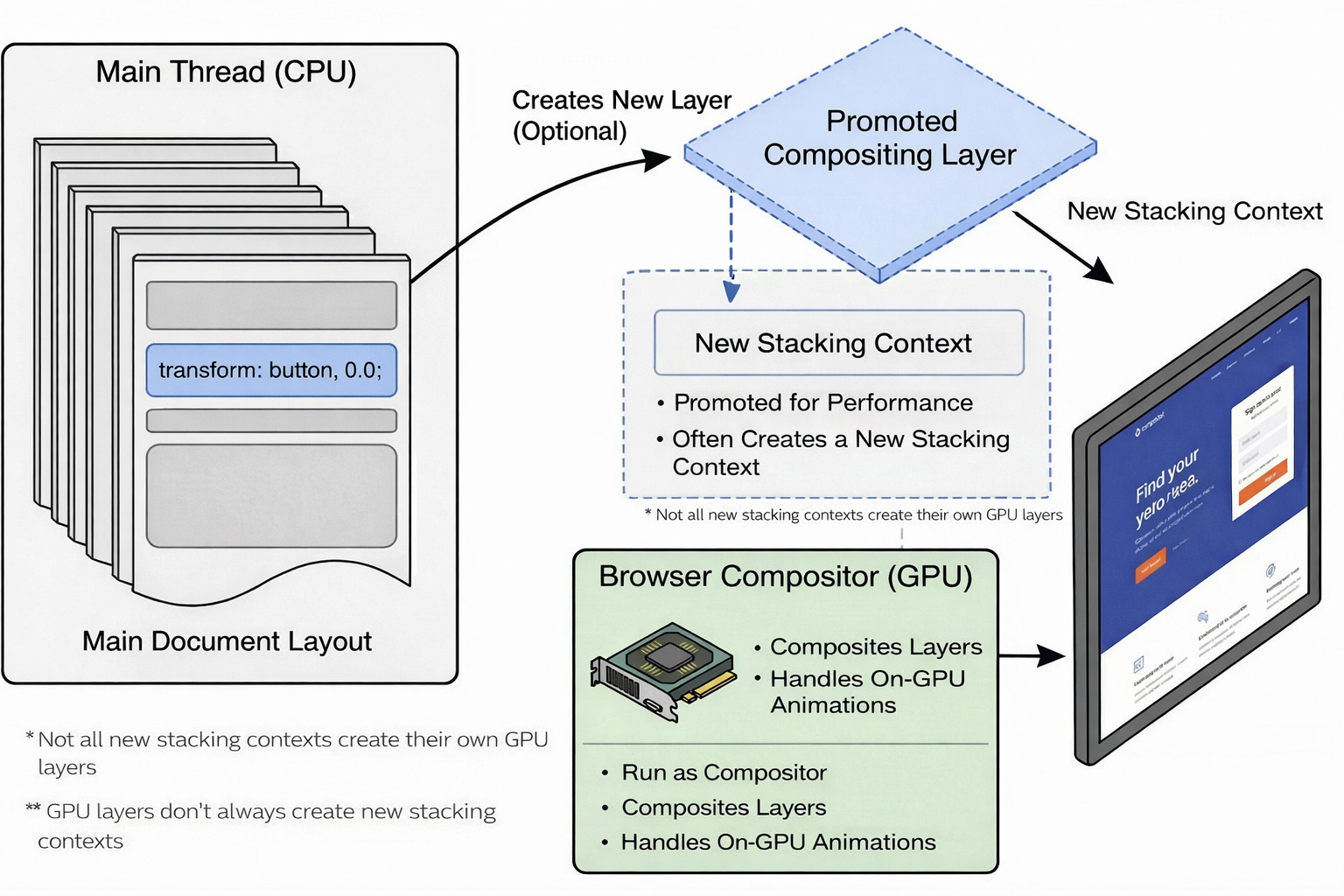
By creating a separate stacking context, the browser can manage animations and visual effects more efficiently without recalculating how those elements interact with the rest of the page. The tradeoff is a "flattening" effect: everything inside that context gets grouped and treated as a single unit when determining what sits on top of what. This is why a transform or opacity value you didn't intend to affect stacking can silently change it. Given how many CSS properties trigger this behavior, it's easy to create a stacking context without intending to.
Three Common Stacking Failures
The Trapped Modal
Modals are a classic example because they must appear on a top layer above all other content. Consider a header container with its own stacking context set to z-index: 1, containing a modal trigger. The main content sits at z-index: 2.
See the Pen [Scenario 1: The Trapped Modal (Problem) [forked]](https://codepen.io/smashingmag/pen/pvbddjd) by Shoyombo Gabriel Ayomide.
Clicking "Open Modal" reveals the problem: the overlay and modal appear behind the main content. Even though the modal and its overlay have z-index values of 9998 and 9999, they're trapped inside the header's lower-ordered stacking context. The main container, with its modest z-index: 2, sits above them because the browser stacks the parent containers first.
The Submerged Dropdown
A similar situation occurs with dropdown menus. Hovering over a "services" link shows the dropdown behind the main content — again because the dropdown lives in a stacking context with a lower order. In the following example, the main container even has a margin-top set so you can clearly see the dropdown peeking out from behind.
See the Pen [Scenario 2: The Submerged Dropdown (Problem) [forked]](https://codepen.io/smashingmag/pen/zxBPPvm) by Shoyombo Gabriel Ayomide.
The Clipped Tooltip
This scenario isn't about which element has the higher z-index at all. It's about overflow: hidden doing exactly what it's designed to do: preventing content from visually escaping its container — even when that content carries z-index: 1000.
See the Pen [Scenario 3: The Clipped Tooltip (Problem) [forked]](https://codepen.io/smashingmag/pen/GgqOOoo) by Shoyombo Gabriel Ayomide.
Developers often trust z-index to override any obscurity issue, but that trust is misplaced. While powerful, z-index works only within the constraints of its stacking context. Before reaching for a huge value, remember that it might solve the immediate problem but create a bigger one that even z-index: infinity cannot fix.
The real fix requires understanding what creates the stacking context around your element in the first place.
Follow The Trapping Chain
When an element is hidden or clipped, it is rarely the element itself that is at fault. More often than not, an ancestor has created a lower-level stacking context, and its children are paying the debt. The obscured element is not the problem; an ancestor has placed it in a context that sits below another sibling context in the stack.
Tracking down that ancestor is a straightforward exercise in disciplined inspection. In DevTools, start with the problem element and climb the DOM tree, checking each parent level for properties that trigger a stacking context and comparing its position to its siblings. Follow this checklist:
- Inspect the problem element. Right-click the hidden modal, dropdown, or tooltip and select “Inspect.”
- Check its styles. In the “Styles” or “Computed” pane, verify that the element has the expected high
z-index(e.g.,z-index: 9999;). - Climb the DOM tree. In the “Elements” panel, select the element’s immediate parent.
- Investigate the parent’s styles. Scan the parent’s CSS for any property that creates a new stacking context: positioning, visual effects, or containment.
- Repeat. If the immediate parent is clean, move to its parent and repeat step 4. Keep climbing until you find the culprit.
Applying this checklist to the three scenarios reveals each trap:
- The trapped modal. The
.modal-contenthasz-index: 9999, but its grandparent, the.header, hasposition: absoluteandz-index: 1. The modal’s highz-indexis contained inside az-index: 1context. - The submerged dropdown. The
.dropdown-menuhasz-index: 100, but.navbarhasposition: relativeandz-index: 1. Sibling.contenthasposition: relativeandz-index: 2. The browser stacks the contextual folders, and content (2) sits above navbar (1). - The clipped tooltip. The
.tooltiphasz-index: 1000, but its ancestor.card-containerclips any child rendering outside its boundaries withoverflow: hidden, regardless ofz-indexvalues.
Faster Detection Tools
Climbing the DOM tree works but is slow. Several tools streamline the search.
Microsoft Edge and Firefox offer a “3D View” or “Layers” panel that visually explodes the page into its stacked layers, revealing exactly how contexts group.
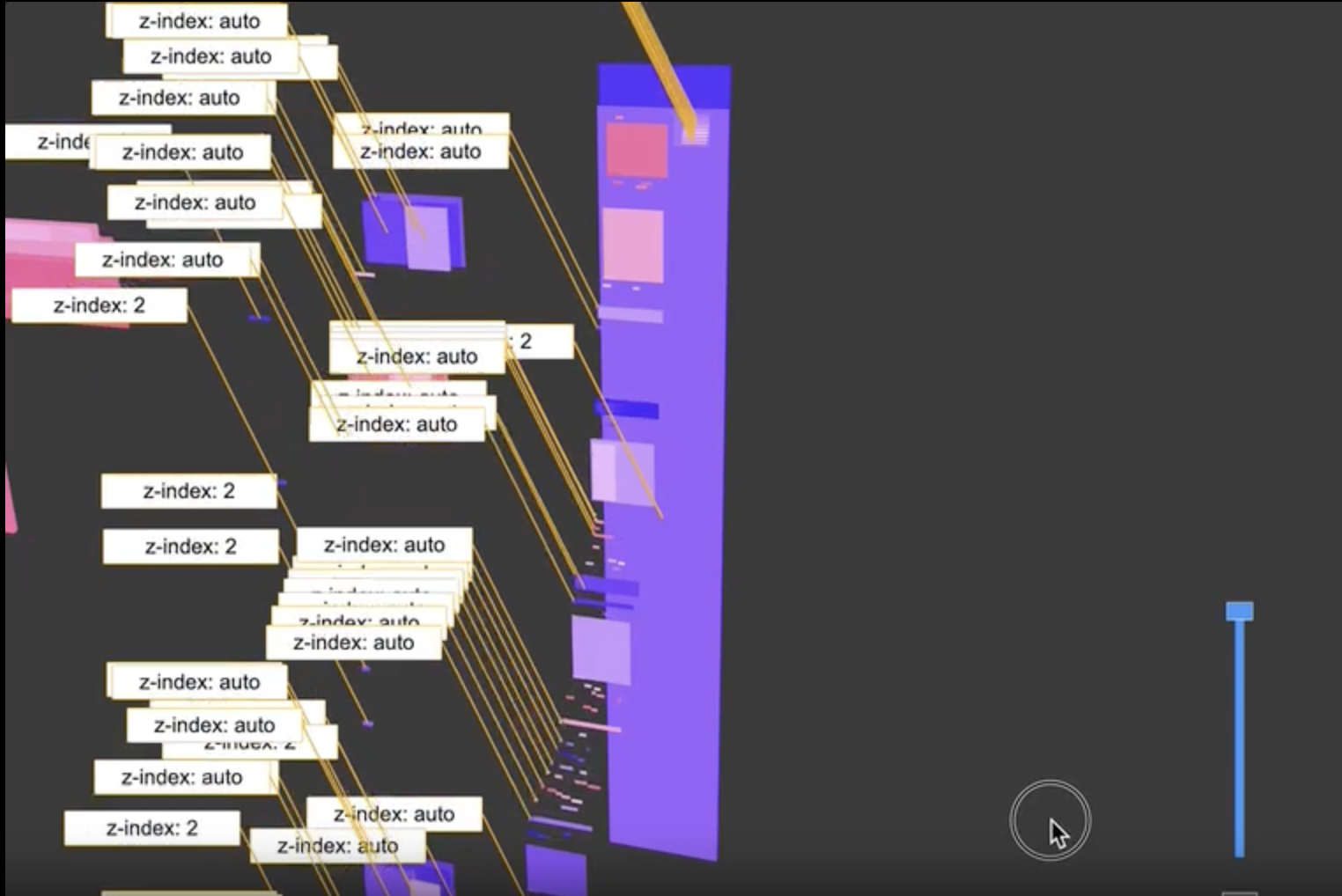
A quick glance shows the modal trapped in a low-level layer and names the responsible parent.
Browser extensions add another layer of convenience. The “CSS Stacking Context Inspector” Chrome extension, for example, adds a z-index tab to DevTools that surfaces information about elements creating stacking contexts.
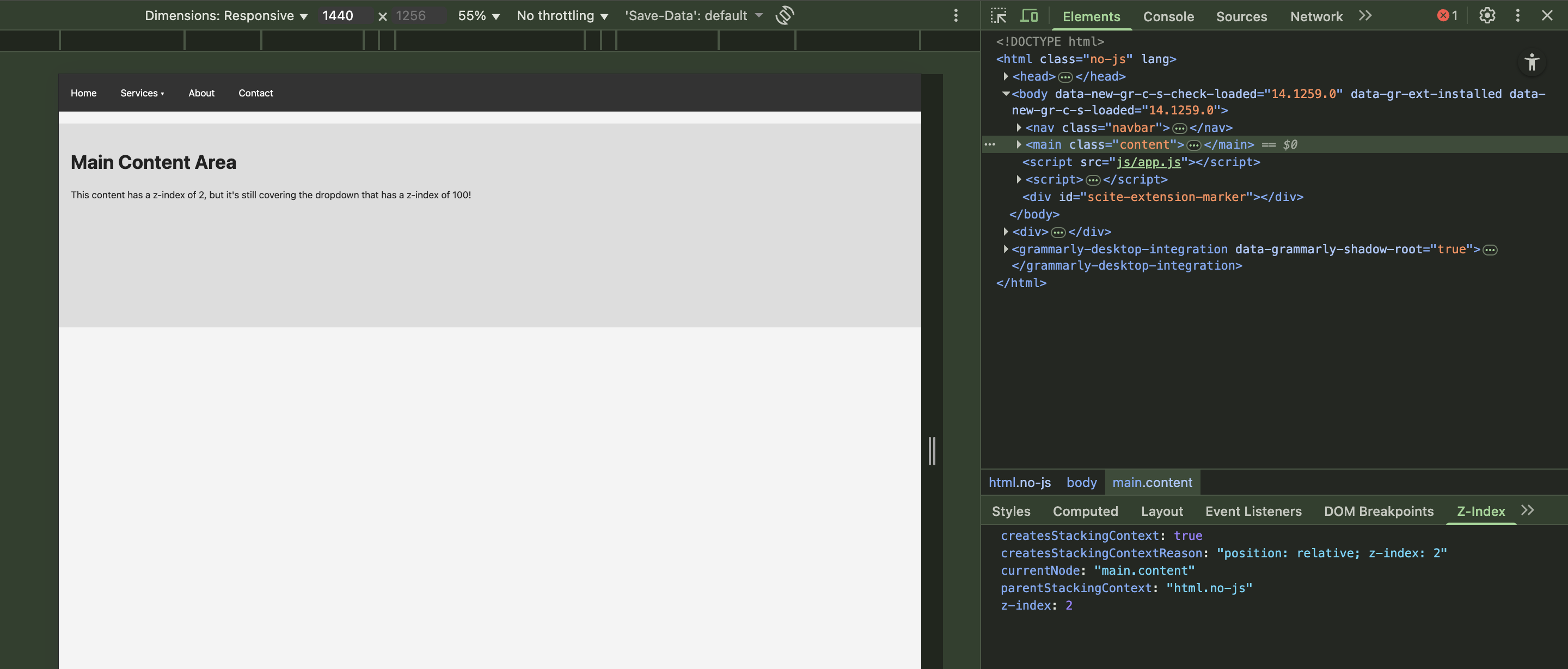
You can even address these issues during development. An extension for VS Code highlights potential stacking context problems directly in the editor.
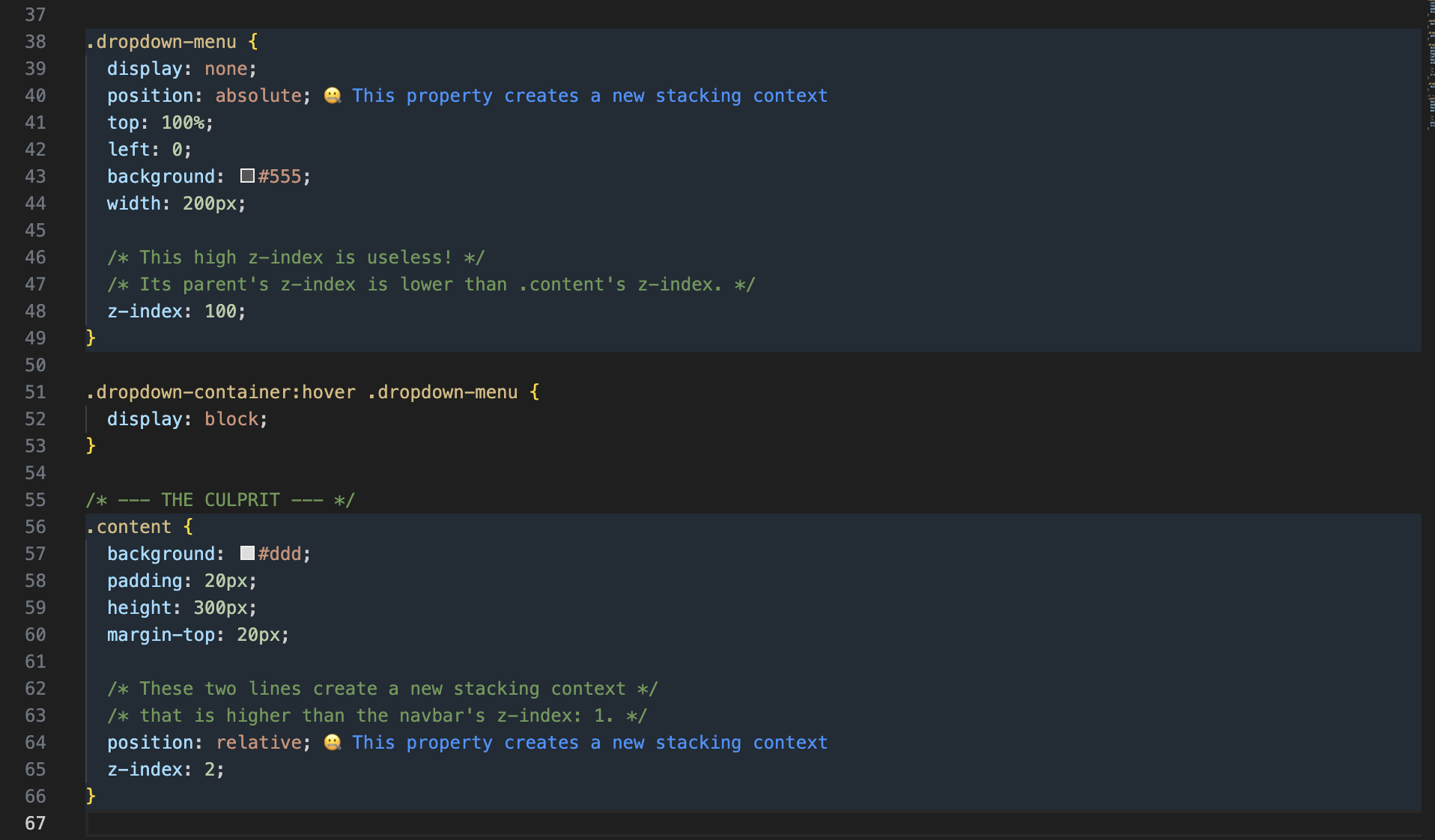
Escaping The Trap
Once you have identified the root cause, several remedies exist. Choose the option that fits your constraints.
Restructure The HTML
The cleanest fix is often to move the problem element out of the trapping parent entirely. This reshapes the DOM and eliminates the issue at its source. For the trapped modal, relocate .modal-container from the header to a direct child of <body>.
<header class="header">
  <h2>Header</h2>
  <button id="open-modal">Open Modal</button>
  <!-- Former position -->
</header>
<main class="content">
  <h1>Main Content</h1>
  <p>This content has a z-index of 2 and will still not cover the modal.</p>
</main>

<!-- New position  -->
<div id="modal-container" class="modal-container">
  <div class="modal-overlay"></div>
  <div class="modal-content">
    <h3>Modal Title</h3>
    <p>Now, I'm not behind anything. I've gotten a better position as a result of DOM restructuring.</p>
    <button id="close-modal">Close</button>
  </div>
</div>
Clicking “Open Modal” now positions the modal in front of everything else as intended.
See the Pen [Scenario 1: The Trapped Modal (Solution) [forked]](https://codepen.io/smashingmag/pen/azZVVNP) by Shoyombo Gabriel Ayomide.
Adjust The Parent Context In CSS
If the structure cannot change without breaking the layout, remember that the parent establishes the context. Remove the CSS property triggering the context. If the property serves a purpose, raise the parent’s z-index above its siblings to lift the entire container.
For the submerged dropdown, increasing .navbar’s z-index above .content’s value brings the dropdown in front of the content.
.navbar {
  background: #333;
  /* z-index: 1; */
  z-index: 3;
  position: relative;
}
The .dropdown-menu now appears in front of the content without issue.
See the Pen [Scenario 2: The Submerged Dropdown (Solution) [forked]](https://codepen.io/smashingmag/pen/YPWEEWz) by Shoyombo Gabriel Ayomide.
Use Portals In Frameworks
In React or Vue, a Portal renders a component’s HTML anywhere in the document, typically directly under document.body, while maintaining the logical connection to its original parent for props, state, and events. This escapes stacking context traps because the rendered output physically exists outside the problematic parent.
ReactDOM.createPortal(
  <ToolTip />,
  document.body
);
This ensures dropdown content is not hidden behind its parent, even when the parent carries overflow: hidden or a lower z-index.
For the clipped tooltip, a Portal rescued it from overflow: hidden by placing it in the document body and positioning it above the trigger inside the container.
See the Pen [Scenario 3: The Clipped Tooltip (Solution) [forked]](https://codepen.io/smashingmag/pen/myEqqEe) by Shoyombo Gabriel Ayomide.
Creating Contexts Intentionally
Sometimes you need to create a stacking context. All common methods come with side effects except isolation: isolate. When applied to an element, that element’s children are stacked relative to each other and within that context, immune to external influence.
Consider a negative z-index use case. A .card has text and a white background, and you want a decorative shape behind the text but on top of the background. Without a stacking context on the card, z-index: -1 sends the shape to the bottom of the root stacking context, hiding it behind the card’s background.
See the Pen [Negative z-index (problem) [forked]](https://codepen.io/smashingmag/pen/QwEOOEM) by Shoyombo Gabriel Ayomide.
Declaring isolation: isolate on the card fixes this.
See the Pen [Negative z-index (solution) [forked]](https://codepen.io/smashingmag/pen/MYeOOeG) by Shoyombo Gabriel Ayomide.
The .card becomes a stacking context. The decorative shape on the :before pseudo-element with z-index: -1 now goes to the very bottom of that parent context, placing it behind the text and in front of the background as intended.
Summary
When z-index appears erratic, it is usually a trapped stacking context. Identify the ancestor that created the low-level context, then restructure, adjust the parent, or use a Portal to free the element.
References
- Stacking context (MDN)
- Z-index and stacking contexts (web.dev)
- “How to Create a New Stacking Context with the Isolation Property in CSS”, Natalie Pina
- “What The Heck, z-index??”, Josh Comeau


