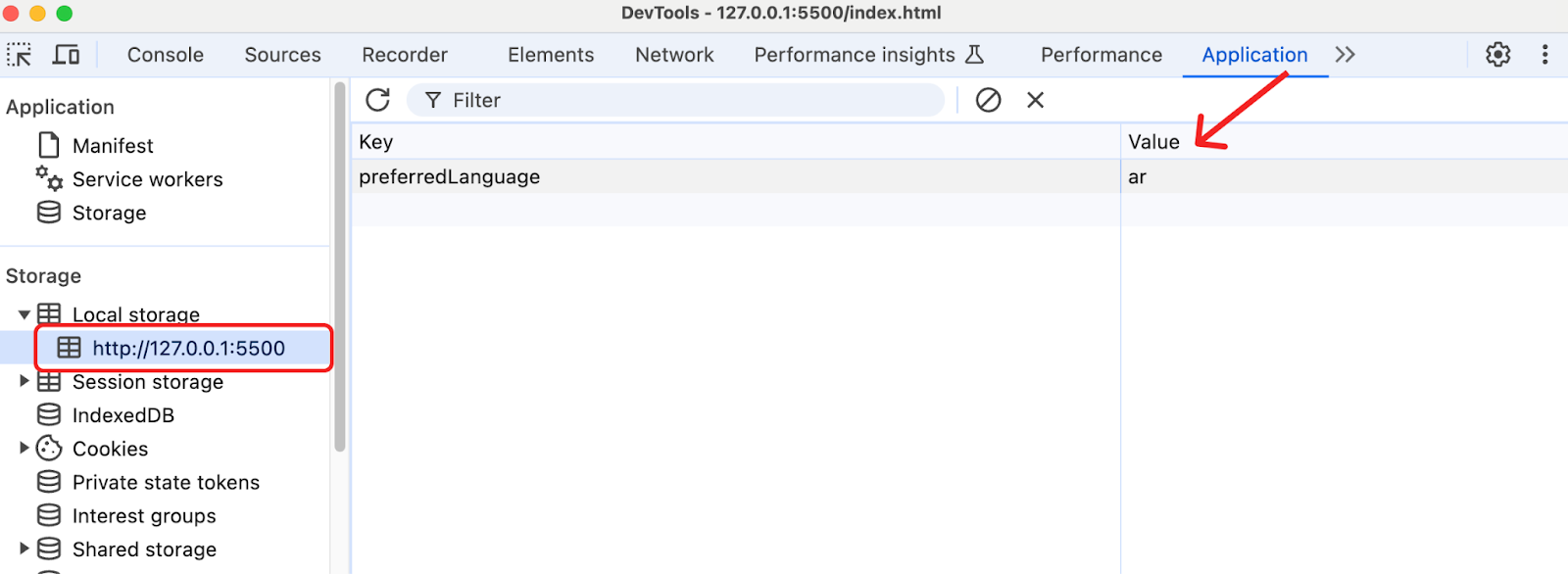
Browsers validate form controls natively: required fields, min/max on range sliders, and pattern-based checks on email inputs all work without scripts, and a failed check yields a built-in error message. That default text is often sufficient — until you need more specific wording, particularly when showing translated messages across different browsers.
Replacing default messages with the Constraints API
The Constraints API gives control over validation output on individual inputs or on the form element itself. Consider a simple input:
<form id="myForm">
  <label for="fullName">Full Name</label>
  <input type="text" id="fullName" name="fullName" placeholder="Enter your full name" required>
  <button id="btn" type="submit">Submit</button>
</form>
To override the default text, grab the element and call setCustomValidity() with the message you want:
const fullNameInput = document.getElementById("fullName");
fullNameInput.setCustomValidity("This is a custom error message");
The custom message then replaces the browser's own when the submit button is clicked.

Approach one: derive the language from the browser
Read the browser's language setting, check whether the app supports it, and return the matching translation; if the language isn't supported, fall back to a default. Starting from the markup above, define a translation object inside the script tags — here covering English, Swahili, and Arabic:
const translations = {
  en: {
    required: "Please fill this",
    email: "Please enter a valid email address",

  },
  sw: {
    required: "Sehemu hii inahitajika",
    email: "Tafadhali ingiza anwani sahihi ya barua pepe",
  },
  ar: {
    required: "هذه الخانة مطلوبه",
    email: "يرجى إدخال عنوان بريد إلكتروني صالح",
  }
};
The next step extracts those labels and matches them against the browser's language:
// the translations object
const supportedLangs = Object.keys(translations);
const getUserLang = () => {
  // split to get the first part, browser is usually en-US
  const browserLang = navigator.language.split('-')[0];
  return supportedLangs.includes(browserLang) ? browserLang :'en';
};

// translated error messages
const errorMsgs = translations[getUserLang()];// form element
const form = document.getElementById("myForm");// button elementconst btn = document.getElementById("btn");// name input
const fullNameInput = document.getElementById("fullName");// wrapper for error messaging
const errorSpan = document.getElementById("error-span");

// when the button is clicked…
btn.addEventListener("click", function (event) {  // if the name input is not there…
  if (!fullNameInput.value) {    // …throw an error
    fullNameInput.setCustomValidity(errorMsgs.required);    // set an .error class on the input for styling
    fullNameInput.classList.add("error");
  }
});
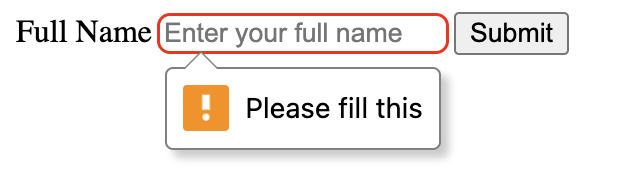
getUserLang() performs the comparison and returns either a supported language or the English fallback. Running the example shows the custom message when the button is clicked.
Approach two: store the visitor's preference in localStorage
The alternative lets visitors choose their own language. Present a <select> of <option> tags, then persist the selection to localStorage for later lookup.
<label for="languageSelect">Choose Language:</label>
<select id="languageSelect">
  <option value="en">English</option>
  <option value="sw">Swahili</option>
  <option value="ar">Arabic</option>
</select>

<form id="myForm">
  <label for="fullName">Full Name</label>
  <input type="text" id="fullName" name="fullName" placeholder="Enter your full name" required>
  <span id="error-span"></span>
  <button id="btn" type="submit">Submit</button>
</form>
A script then reads localStorage and uses the saved preference to produce the translated validation message:
// the <select> element
const languageSelect = document.getElementById("languageSelect");
// the <form> element
const form = document.getElementById("myForm");
// the button element
const btn = document.getElementById("btn");
// the name input
const fullNameInput = document.getElementById("fullName");
const errorSpan = document.getElementById("error-span");
// translated custom messages
const translations = {
  en: {
    required: "Please fill this",
    email: "Please enter a valid email address",
  },
  sw: {
    required: "Sehemu hii inahitajika",
    email: "Tafadhali ingiza anwani sahihi ya barua pepe",
  },
  ar: {
    required: "هذه الخانة مطلوبه",
    email: "يرجى إدخال عنوان بريد إلكتروني صالح",
  }
};
// the supported translations object
const supportedLangs = Object.keys(translations);
// get the language preferences from localStorage
const getUserLang = () => {
  const savedLang = localStorage.getItem("preferredLanguage");
  if (savedLang) return savedLang;

  // provide a fallback message
  const browserLang = navigator.language.split('-')[0];
  return supportedLangs.includes(browserLang) ? browserLang : 'en';
};

// set initial language
languageSelect.value = getUserLang();

// update local storage when user selects a new language
languageSelect.addEventListener("change", () => {
  localStorage.setItem("preferredLanguage", languageSelect.value);
});
// on button click
btn.addEventListener("click", function (event) {
  // take the translations
  const errorMsgs = translations[languageSelect.value];
  // ...and if there is no value in the name input
  if (!fullNameInput.value) {
    // ...trigger the translated custom validation message
    fullNameInput.setCustomValidity(errorMsgs.required);
    // set an .error class on the input for styling
    fullNameInput.classList.add("error");
  }
});
The script initializes the select with the stored value, writes the selection back to localStorage, and retrieves it when needed. A change event on the <select> updates the stored preference, while the original fallback stays in place for a consistent experience.
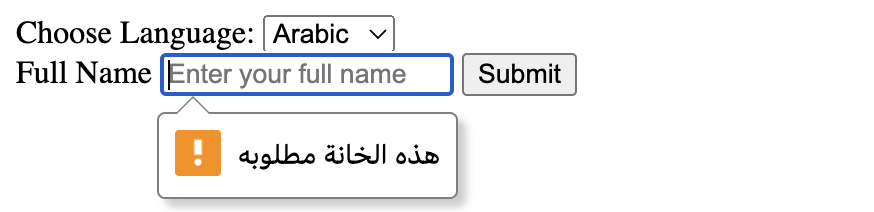
In DevTools, the chosen value is visible in localStorage once a language preference has been selected.