
SVG Favicons in Action
SVG favicons are a familiar topic to regular readers, yet few sites actually ship one. The reason is not that the task is impossible; it is that a useful SVG favicon usually requires editing an SVG file by hand, and a favicon often feels too small to deserve that time.
The goal here is a working SVG favicon built for real. Have the vector file of a logo ready; by the end the favicon will be ready to use.
Is SVG worth it for an icon this small?
SVG is a vector format with real advantages over PNG: it scales, and since it is just code, it is often more compact than its binary counterpart.
Those advantages matter less for a favicon than one might assume. Desktop favicons are small — at most 64×64 — and icons can ship in several resolutions, so scaling is not needed. File size can even go the other way: a 48×48 PNG favicon is commonly smaller than its SVG equivalent.
The real payoff is dark mode support: the ability to show a different icon depending on the brightness of the browser tab's background.
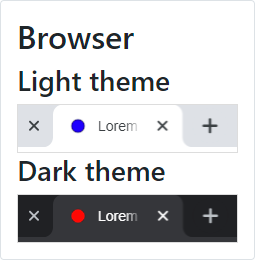
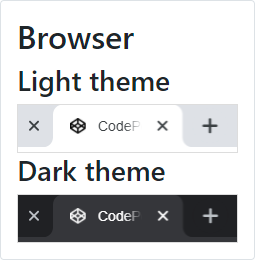
That is the icon this article prepares.
How it works
The dark mode support relies on a CSS trick: a <style> tag can be embedded directly inside SVG, and a media query can detect the user's theme preference.
<svg>
  <style>
    @media (prefers-color-scheme: dark) {
      // Your dark styles here
    }
  </style>

  <!-- more stuff -->

</svg>
The light/dark variation is limited only by imagination — for instance, changing the color of all lines:
<svg>
  <style>
    path { fill: black; }
    @media (prefers-color-scheme: dark) {
      path { fill: white; }
    }
  </style>

  <!-- more stuff -->

</svg>
Writing these styles is where the difficulties start. Vector editors such as Adobe Illustrator or InkScape have not integrated CSS and media queries; they can handle them in principle, but not through their mouse-only workflow, so code must be typed.
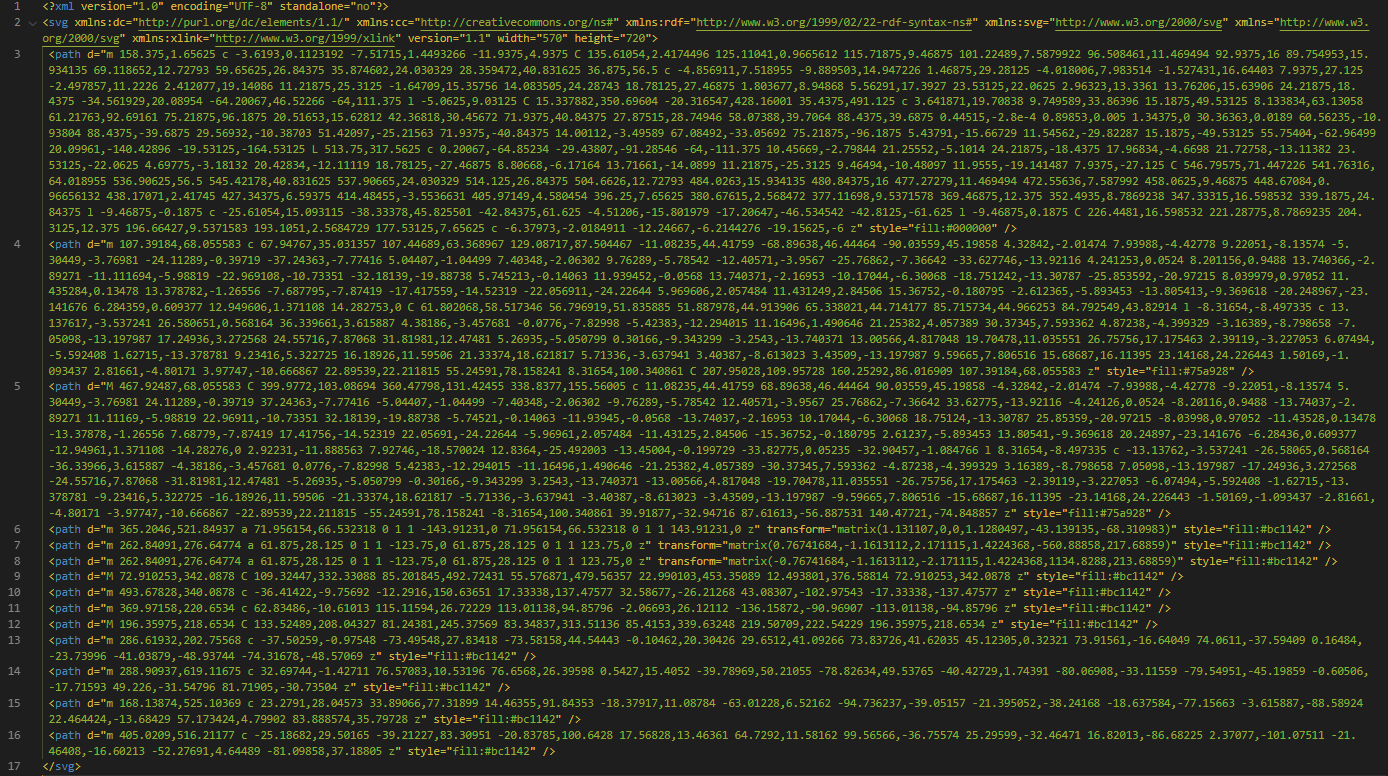
Writing the CSS by hand is the obvious front-end answer, but SVG is often hard to read. It is an XML dialect, close to HTML, yet images are cluttered with long path declarations and other markup rarely seen in day-to-day work. The Raspberry Pi logo, for example, is more than 8KB of raw data, which makes manual editing tedious.
A practical approach: adjust contrast, not design
Doing something creative with the icon — replacing a color, inverting everything, reshaping a form — is the wrong time investment when preparing a favicon. A favicon should almost always be the website's logo: its appearance and message have already been decided. Preparing the favicon is fine-tuning the logo to the small space a browser tab offers. Often the logo works as-is, scaled down; sometimes margin is added to make it square.
What motivates a dark icon is contrast. Many logos are designed for light backgrounds, and where they aren't, a second version exists for darker backgrounds.
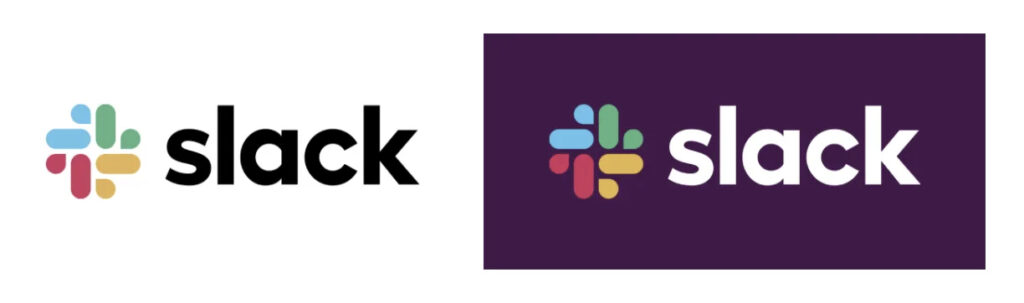
Either manually or with a tool, the light-compatible logo gets picked first, since desktop tabs are traditionally white or light gray. The problem appears in dark mode.


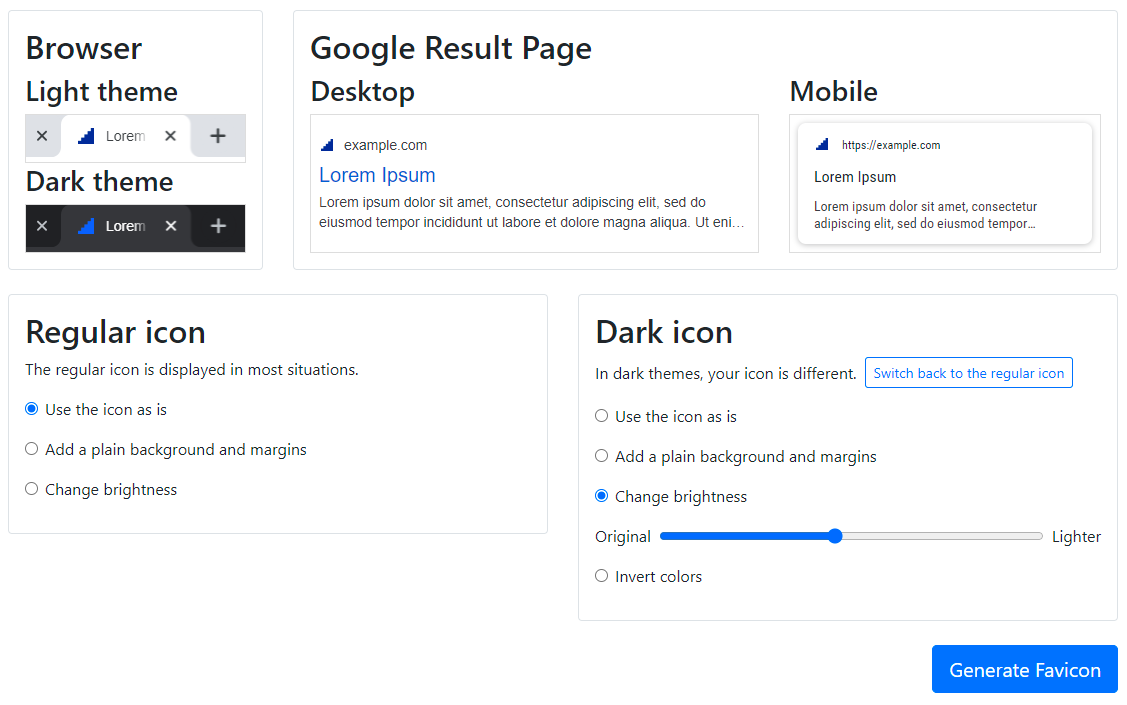
The solution is straightforward: a brighter icon is sometimes needed for dark mode. For a colorful but too-dark logo, CSS filters can add brightness:
<svg>
  <style>
    @media (prefers-color-scheme: dark) {
      :root {
        filter: brightness(2);
      }
    }
  </style>

  <!-- more stuff -->
</svg>
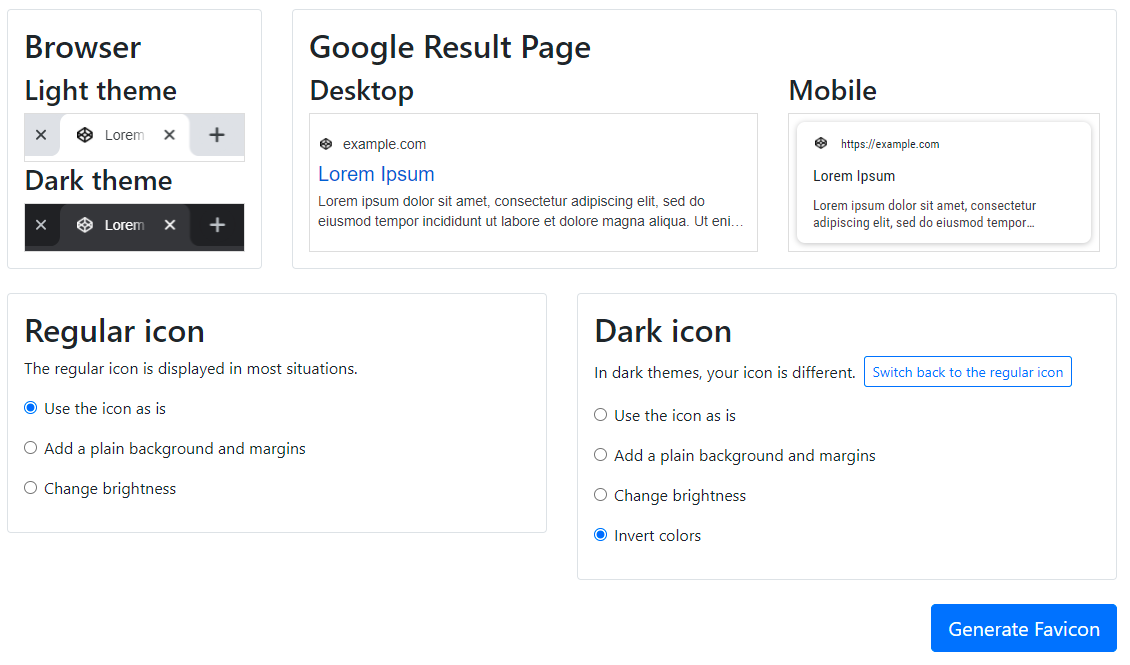
For a logo in shades or gray, the colors can be inverted instead:
<svg>
  <style>
    @media (prefers-color-scheme: dark) {
      :root {
        filter: invert(100%);
      }
    }
  </style>

  <!-- more stuff -->

</svg>
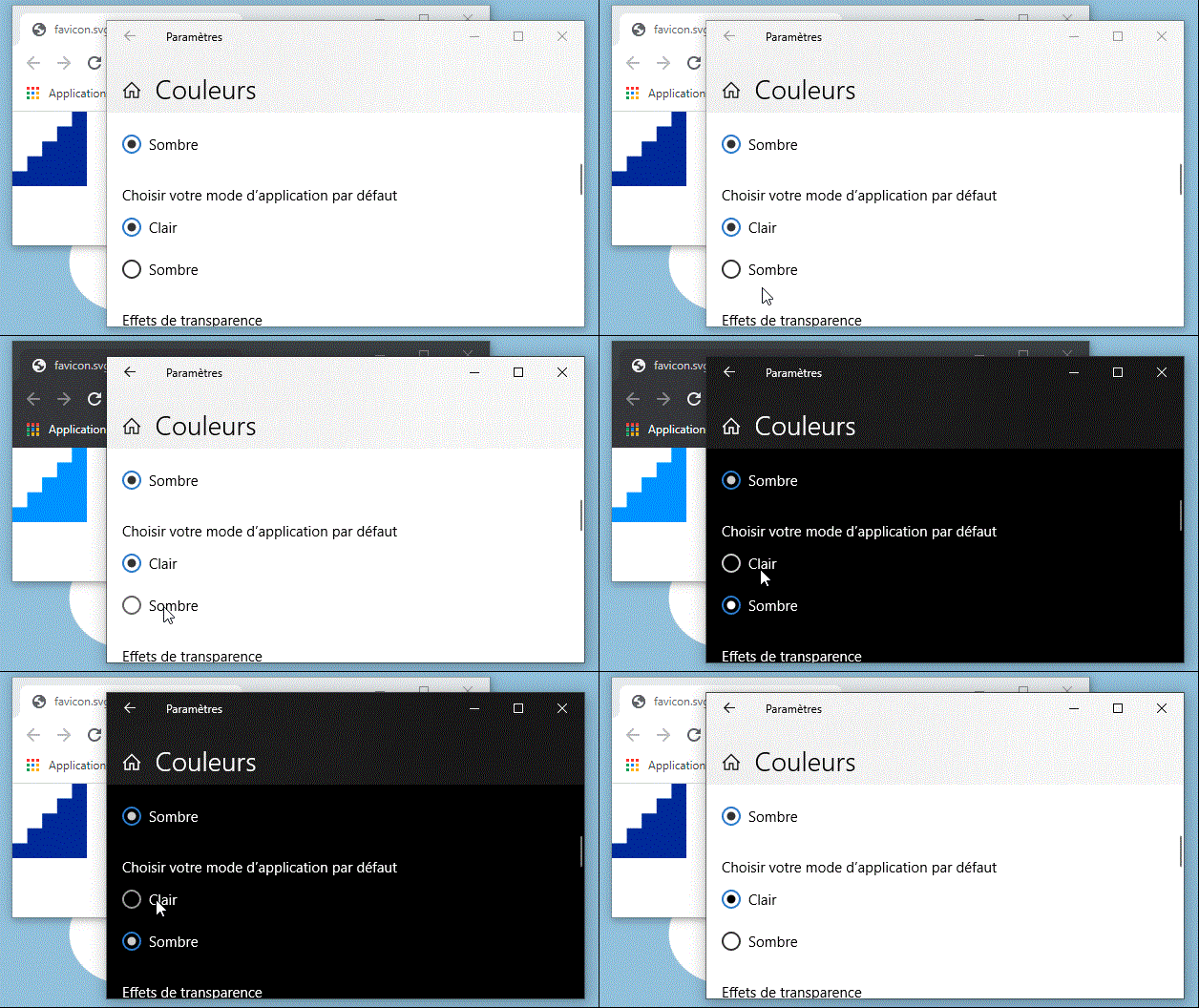
To try it, open the SVG logo in a text editor and place either <style> snippet just before the closing </svg> tag. Open the logo in a browser, switch from light to dark and back (Windows or Mac), and adjust the brightness or invert filters as needed.
Doing it faster with a dedicated editor
The brightness approach originates in the SVG favicon editor added to RealFaviconGenerator. The online tool includes everything discussed above: submit an SVG logo to preview the favicon in tabs and Google result pages.
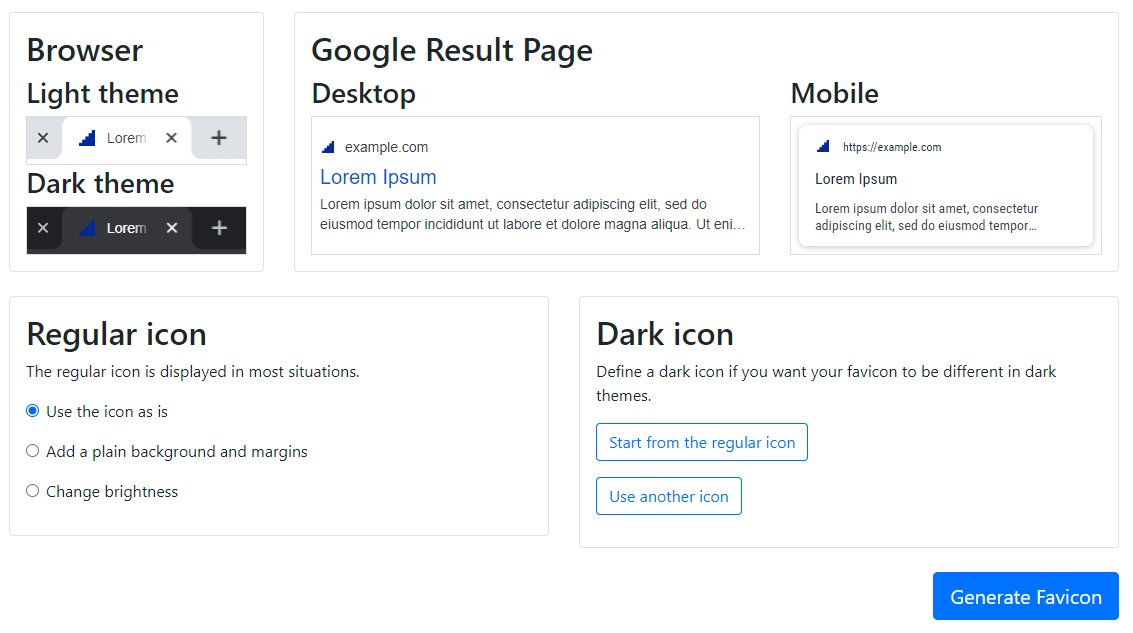
The editor can then be used to produce the final icon. In the example below, the dark icon is made lighter using the brightness filter behind the scenes:
Grayscale logos benefit from the invert filter as well:
Clicking "Generate Favicon" produces a favicon fine-tuned for light and dark modes in under a minute.
Conclusion
Beyond coolness, SVG favicons solve a problem PNG counterparts cannot. The ability to use SVG this way has existed for only about a year, and so far it seems seldom used. With intentional purpose and proper tooling, SVG favicons may find their place among the favicon classics.