Building on the basics of block registration, this walkthrough takes a custom WordPress block further by pulling dynamic content from an external API and rendering it on the front end of the theme. The example block displays football rankings sourced from Api-Football, a RapidAPI-provided service. It is one installment in a series covering external API data in custom blocks, alongside front-end rendering, back-end rendering, a settings UI, saving block settings, and working with live API data.

Scaffolding the plugin
Rather than assembling a block from scratch, the project is bootstrapped with the @wordpress/create-block package, which produces the folder structure. After running the init command from the command line, drop the resulting project folder into wp-content/plugins on a local WordPress install, then activate it from the Plugins screen.
npx @wordpress/create-block football-rankings
From the plugin directory at /wp-content/plugins/football-rankings, only three files matter for now: edit.js, index.js, and football-rankings.php. The remaining generated files are necessary to the project but not to this exercise.
Fetching and persisting the data
RapidAPI's dashboard generates the scripts needed to request the 2021 Premier League standings, and JSONCrack can produce a visual representation of the response if you want to inspect its structure.
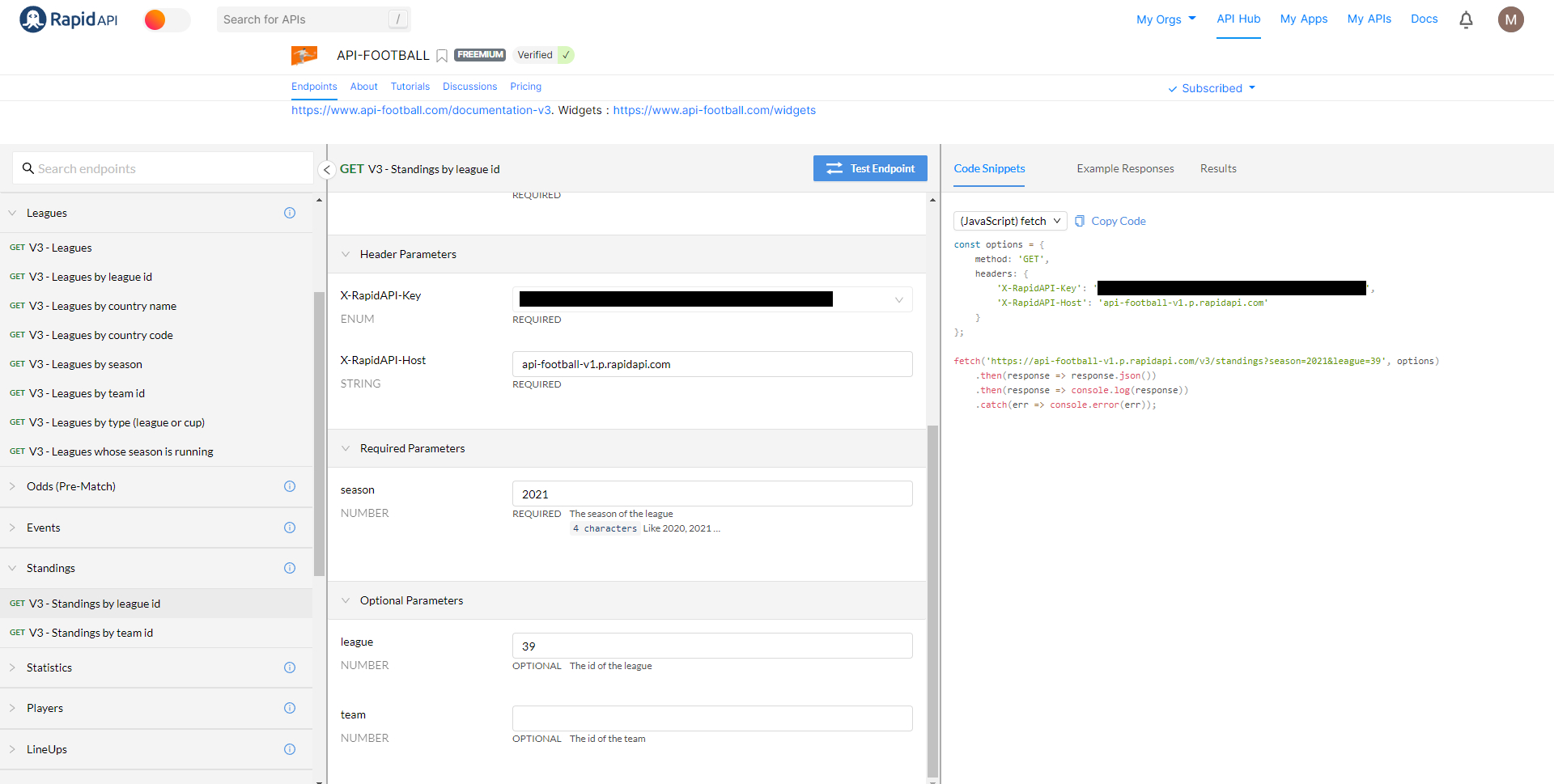
The RapidAPI fetch code goes inside edit.js, wrapped in a React useEffect() hook with an empty dependency array so it fires only once on page load. Without that guard, the Block Editor would call the API on every re-render; wp.data.subscribe() can be used to observe this if you care to check. The useEffect() import and the wrapped fetch() look like this:
/**
* The edit function describes the structure of your block in the context of the
* editor. This represents what the editor will render when the block is used.
*
* @see https://developer.wordpress.org/block-editor/reference-guides/block-api/block-edit-save/#edit
*
* @return {WPElement} Element to render.
*/

import { useEffect } from "@wordpress/element";

export default function Edit(props) {
  const { attributes, setAttributes } = props;

  useEffect(() => {
    const options = {
      method: "GET",
      headers: {
        "X-RapidAPI-Key": "Your Rapid API key",
        "X-RapidAPI-Host": "api-football-v1.p.rapidapi.com",
      },
    };

    fetch("https://api-football-v1.p.rapidapi.com/v3/standings?season=2021&league=39", options)
      .then( ( response ) => response.json() )
      .then( ( response ) => {
        let newData = { ...response };
        setAttributes( { data: newData } );
        console.log( "Attributes", attributes );
      })
      .catch((err) => console.error(err));
}, []);

  return (
    <p { ...useBlockProps() }>
      { __( "Standings loaded on the front end", "external-api-gutenberg" ) }
    </p>
  );
}
The return function stays essentially intact, with a note marking the front-end output. Rendering the standings inside the Block Editor as well is possible but deliberately left out here to keep the focus on the front end.
Storing the response as a block attribute
Fetched data has to live somewhere in WordPress, which is the job of the attributes.data object. Because the response is JSON, data.type must be declared as an object — any other type causes WordPress to silently skip saving, with no error surfaced for debugging. The definition goes in index.js:
registerBlockType( metadata.name, {
  edit: Edit,
  attributes: {
    data: {
      type: "object",
    },
  },
  save,
} );
Once the type is set correctly, saving a draft post in the Block Editor writes the data to the database. It can be inspected in the wp_posts.post_content field using phpMyAdmin, Sequel Pro, Adminer, or a similar tool.

Outputting the data on the front end
There are several ways to render the data in the theme. This approach takes the attributes stored in the database and passes them as a parameter through the render_callback function in football-rankings.php.
To keep concerns separated and that PHP file readable, two new files go in the plugin's build folder: frontend.js and frontend.css. Since @wordpress/create-block supports SCSS, a frontend.scss file in the src directory compiles to that CSS. This complements the existing editor.css and style.css, which cover back-end and shared styles respectively, by isolating styles intended only for the front end.
The files are registered from football-rankings.php like this:
/**
* Registers the block using the metadata loaded from the `block.json` file.
* Behind the scenes, it registers also all assets so they can be enqueued
* through the block editor in the corresponding context.
*
* @see https://developer.wordpress.org/reference/functions/register_block_type/
*/
function create_block_football_rankings_block_init() {
  register_block_type( __DIR__ . '/build', array(
    'render_callback' => 'render_frontend'
  ));
}
add_action( 'init', 'create_block_football_rankings_block_init' );

function render_frontend($attributes) {
  if( !is_admin() ) {
    wp_enqueue_script( 'football_rankings', plugin_dir_url( __FILE__ ) . '/build/frontend.js');
    wp_enqueue_style( 'football_rankings', plugin_dir_url( __FILE__ ) . '/build/frontend.css' ); // HIGHLIGHT 15,16,17,18
  }

  ob_start(); ?>

  <div class="football-rankings-frontend" id="league-standings">
    <div class="data">
      <pre>
        <?php echo wp_json_encode( $attributes ) ?>
      </pre>
    </div>
    <div class="header">
      <div class="position">Rank</div>
      <div class="team-logo">Logo</div>
      <div class="team-name">Team name</div>
      <div class="stats">
        <div class="games-played">GP</div>
        <div class="games-won">GW</div>
        <div class="games-drawn">GD</div>
        <div class="games-lost">GL</div>
        <div class="goals-for">GF</div>
        <div class="goals-against">GA</div>
        <div class="points">Pts</div>
      </div>
      <div class="form-history">Last 5 games</div>
    </div>
    <div class="league-table"></div>
  </div>

  <?php return ob_get_clean();
}
Because render_callback() is in use for the attributes, enqueueing is handled manually, following the Block Editor Handbook's guidance. Both files sit inside an !is_admin() condition so nothing loads on the editor screen. The new files then need to be compiled by npm, which is configured in the scripts section of package.json:
"scripts": {
  "build": "wp-scripts build src/index.js src/frontend.js",
  "format": "wp-scripts format",
  "lint:css": "wp-scripts lint-style",
  "lint:js": "wp-scripts lint-js",
  "packages-update": "wp-scripts packages-update",
  "plugin-zip": "wp-scripts plugin-zip",
  "start": "wp-scripts start src/index.js src/frontend.js"
},
An alternative is declaring the files in the block metadata inside block.json:
"viewScript": [ "file:./frontend.js", "example-shared-view-script" ],
"style": [ "file:./frontend.css", "example-shared-style" ],
The package.json route was chosen here only because render_callback() is already being used.
Rendering the JSON into markup
This example targets a single block; a real implementation covering multiple blocks on a page would need document.querySelectorAll() with the block's specific ID. The script waits for the window to load, then pulls key objects out of the JSON and applies them to the front-end markup. The attributes data is converted into a JSON object to make it easier to read, with values assigned to HTML for the league logo, team logos, and statistics.
The "Last 5 games" column requires manual adjustment: the API returns that data as a string, and converting it to an array allows each of a team's last five matches to be rendered as a separate HTML element.
import "./frontend.scss";

// Wait for the window to load
window.addEventListener( "load", () => {
  // The code output
  const dataEl = document.querySelector( ".data pre" ).innerHTML;
  // The parent rankings element
  const tableEl = document.querySelector( ".league-table" );
  // The table headers
  const tableHeaderEl = document.querySelector( "#league-standings .header" );
  // Parse JSON for the code output
  const dataJSON = JSON.parse( dataEl );
  // Print a little note in the console
  console.log( "Data from the front end", dataJSON );

  // All the teams
  let teams = dataJSON.data.response[ 0 ].league.standings[ 0 ];
  // The league logo
  let leagueLogoURL = dataJSON.data.response[ 0 ].league.logo;
  // Apply the league logo as a background image inline style
  tableHeaderEl.style.backgroundImage = `url( ${ leagueLogoURL } )`;

  // Loop through the teams
  teams.forEach( ( team, index ) => {
    // Make a div for each team
    const teamDiv = document.createElement( "div" );
    // Set up the columns for match results
    const { played, win, draw, lose, goals } = team.all;

    // Add a class to the parent rankings element
    teamDiv.classList.add( "team" );
    // Insert the following markup and data in the parent element
    teamDiv.innerHTML = `
      <div class="position">
        ${ index + 1 }
      </div>
      <div class="team-logo">
        <img src="${ team.team.logo }" />
      </div>
      <div class="team-name">${ team.team.name }</div>
      <div class="stats">
        <div class="games-played">${ played }</div>
        <div class="games-won">${ win }</div>
        <div class="games-drawn">${ draw }</div>
        <div class="games-lost">${ lose }</div>
        <div class="goals-for">${ goals.for }</div>
        <div class="goals-against">${ goals.against }</div>
        <div class="points">${ team.points }</div>
      </div>
      <div class="form-history"></div>
    `;

    // Stringify the last five match results for a team
    const form = team.form.split( "" );

    // Loop through the match results
    form.forEach( ( result ) => {
      // Make a div for each result
      const resultEl = document.createElement( "div" );
      // Add a class to the div
      resultEl.classList.add( "result" );
      // Evaluate the results
      resultEl.innerText = result;
      // If the result a win
      if ( result === "W" ) {
        resultEl.classList.add( "win" );
      // If the result is a draw
      } else if ( result === "D" ) {
        resultEl.classList.add( "draw" );
      // If the result is a loss
      } else {
        resultEl.classList.add( "lost" );
      }
      // Append the results to the column
      teamDiv.querySelector( ".form-history" ).append( resultEl );
    });

    tableEl.append( teamDiv );
  });
});
Styling is left open. The source provides a full set of styles as a starting point, written in SCSS, which the scaffold supports out of the box. Use npm run start to watch the SCSS files and compile them on save, or npm run build on each save to compile the SCSS and build the rest of the plugin bundle.
SCSS
body {
  background: linear-gradient(to right, #8f94fb, #4e54c8);
}

.data pre {
  display: none;
}

.header {
  display: grid;
  gap: 1em;
  padding: 10px;
  grid-template-columns: 1fr 1fr 3fr 4fr 3fr;
  align-items: center;
  color: white;
  font-size: 16px;
  font-weight: 600;
  background-repeat: no-repeat;
  background-size: contain;
  background-position: right;
}

.frontend#league-standings {
  width: 900px;
  margin: 60px 0;
  max-width: unset;
  font-size: 16px;

  .header {
    .stats {
      display: flex;
      gap: 15px;

      & > div {
        width: 30px;
      }
    }
  }
}

.league-table {
  background: white;
  box-shadow:
    rgba(50, 50, 93, 0.25) 0px 2px 5px -1px,
    rgba(0, 0, 0, 0.3) 0px 1px 3px -1px;
  padding: 1em;

  .position {
    width: 20px;
  }

  .team {
    display: grid;
    gap: 1em;
    padding: 10px 0;
    grid-template-columns: 1fr 1fr 3fr 4fr 3fr;
    align-items: center;
  }

  .team:not(:last-child) {
    border-bottom: 1px solid lightgray;
  }

  .team-logo img {
    width: 30px;
  }

  .stats {
    display: flex;
    gap: 15px;
  }

  .stats > div {
    width: 30px;
    text-align: center;
  }

  .form-history {
    display: flex;
    gap: 5px;
  }

  .form-history > div {
    width: 25px;
    height: 25px;
    text-align: center;
    border-radius: 3px;
    font-size: 15px;
  }

  .form-history .win {
    background: #347d39;
    color: white;
  }

  .form-history .draw {
    background: gray;
    color: white;
  }

  .form-history .lost {
    background: lightcoral;
    color: white;
  }
}
The end result is a block plugin that requests data from an API, persists it to the WordPress database via block attributes, parses it, and renders it as HTML in the theme. The same data could also be rendered in the Block Editor; keeping this installment scoped to the front end simply demonstrates how fetching, storing, and rendering fit together.