

From Webcam To Gesture Recognition
Motion controls in the browser are achieved by combining three ingredients: webcam video data, machine learning for hand tracking, and JavaScript logic to interpret gestures. With just these pieces, you can build applications that respond to hand movements as if by magic.
The foundation is video capture. The getUserMedia API requests camera access and returns a MediaStream. That stream can be attached to a <video> element's srcObject property, after which you can draw frames to a <canvas> at your chosen interval.
const constraints = {
  audio: false, video: { width, height }
};

navigator.mediaDevices.getUserMedia(constraints)
  .then(function(mediaStream) {
    video.srcObject = mediaStream;
    video.onloadedmetadata = function(e) {
      video.play();
      setInterval(drawVideoFrame, 100);
    };
  })
  .catch(function(err) { console.log(err); });

function drawVideoFrame() {
  context.drawImage(video, 0, 0, width, height);
  // or do other stuff with the video data
}
For hand tracking, Google's open-source MediaPipe library takes video frame data and outputs landmarks — coordinates for 21 key points on each detected hand. A standard setup loads the library, starts video recording, and draws the landmarks onto a canvas for visualization.
<script src="https://cdn.jsdelivr.net/npm/@mediapipe/camera_utils/camera_utils.js" crossorigin="anonymous"></script>
<script src="https://cdn.jsdelivr.net/npm/@mediapipe/control_utils/control_utils.js" crossorigin="anonymous"></script>
<script src="https://cdn.jsdelivr.net/npm/@mediapipe/drawing_utils/drawing_utils.js" crossorigin="anonymous"></script>
<script src="https://cdn.jsdelivr.net/npm/@mediapipe/hands/hands.js" crossorigin="anonymous"></script>

<video class="input_video"></video>
<canvas class="output_canvas" width="1280px" height="720px"></canvas>

<script>
const videoElement = document.querySelector('.input_video');
const canvasElement = document.querySelector('.output_canvas');
const canvasCtx = canvasElement.getContext('2d');

function onResults(handData) {
  drawHandPositions(canvasElement, canvasCtx, handData);
}

function drawHandPositions(canvasElement, canvasCtx, handData) {
  canvasCtx.save();
  canvasCtx.clearRect(0, 0, canvasElement.width, canvasElement.height);
  canvasCtx.drawImage(
      handData.image, 0, 0, canvasElement.width, canvasElement.height);
  if (handData.multiHandLandmarks) {
    for (const landmarks of handData.multiHandLandmarks) {
      drawConnectors(canvasCtx, landmarks, HAND_CONNECTIONS,
                     {color: '#00FF00', lineWidth: 5});
      drawLandmarks(canvasCtx, landmarks, {color: '#FF0000', lineWidth: 2});
    }
  }
  canvasCtx.restore();
}

const hands = new Hands({locateFile: (file) => {
  return `https://cdn.jsdelivr.net/npm/@mediapipe/hands/${file}`;
}});
hands.setOptions({
  maxNumHands: 1,
  modelComplexity: 1,
  minDetectionConfidence: 0.5,
  minTrackingConfidence: 0.5
});
hands.onResults(onResults);

const camera = new Camera(videoElement, {
  onFrame: async () => {
    await hands.send({image: videoElement});
  },
  width: 1280,
  height: 720
});
camera.start();

</script>
The handData object passed to MediaPipe's results callback contains multiHandLandmarks, an array of coordinate sets. Each set represents one hand, with values normalized from 0 to 1 relative to the canvas size. Note that the first hand detected is not necessarily the right or left; use handData.multiHandedness[0].label to identify it. You can also limit tracking to one hand with maxNumHands: 1 for performance.
{
  multiHandLandmarks: [
    // First detected hand.
    [
      {x: 0.4, y: 0.8, z: 4.5},
      {x: 0.5, y: 0.3, z: -0.03},
      // ...etc.
    ],

    // Second detected hand.
    [
      {x: 0.4, y: 0.8, z: 4.5},
      {x: 0.5, y: 0.3, z: -0.03},
      // ...etc.
    ],

    // More hands if other people participate.
  ]
}
A visual map of these landmarks shows the structure of the hand:
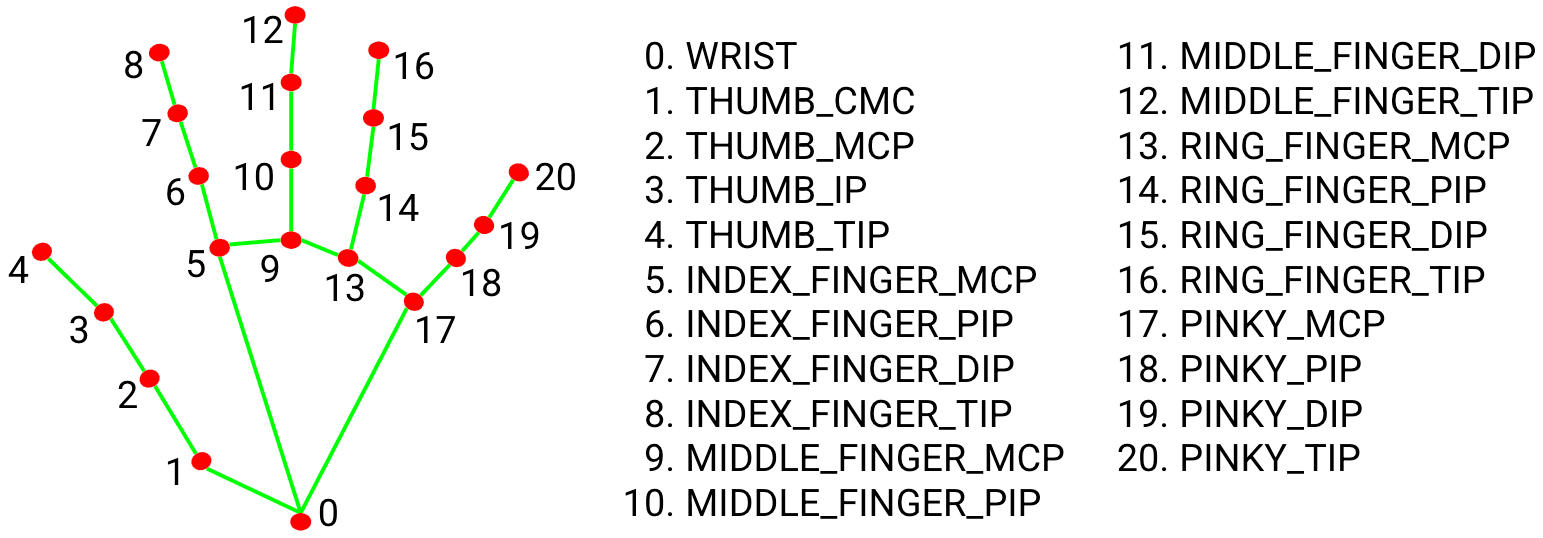
To build a virtual cursor, you track a specific landmark such as the middle segment of the index finger — often steadier than the fingertip.
const handParts = {
  wrist: 0,
  thumb: { base: 1, middle: 2, topKnuckle: 3, tip: 4 },
  indexFinger: { base: 5, middle: 6, topKnuckle: 7, tip: 8 },
  middleFinger: { base: 9, middle: 10, topKnuckle: 11, tip: 12 },
  ringFinger: { base: 13, middle: 14, topKnuckle: 15, tip: 16 },
  pinky: { base: 17, middle: 18, topKnuckle: 19, tip: 20 },
};
Markup for a cursor element uses an absolutely positioned <div>. The visual part sits in a ::after pseudo-element, with a transform to keep it centered over the actual coordinates. A transition smooths the movement.
<div class="cursor"></div>
.cursor {
  height: 0px;
  width: 0px;
  position: absolute;
  left: 0px;
  top: 0px;
  z-index: 10;
  transition: transform 0.1s;
}

.cursor::after {
  content: '';
  display: block;
  height: 50px;
  width: 50px;
  border-radius: 50%;
  position: absolute;
  left: 0;
  top: 0;
  transform: translate(-50%, -50%);
  background-color: #0098db;
}
When moving the cursor, use the transform property rather than left/top. transform is applied at the final stage of the browser’s rendering pipeline, so changes require far less repeated work than layout-triggering properties.
function getCursorCoords(handData) {
  const { x, y, z } = handData.multiHandLandmarks[0][handParts.indexFinger.middle];
  const mirroredXCoord = -x + 1; /* due to camera mirroring */
  return { x: mirroredXCoord, y, z };
}

function convertCoordsToDomPosition({ x, y }) {
  return {
    x: `${x * 100}vw`,
    y: `${y * 100}vh`,
  };
}

function updateCursor(handData) {
  const cursorCoords = getCursorCoords(handData);
  if (!cursorCoords) { return; }
  const { x, y } = convertCoordsToDomPosition(cursorCoords);
  cursor.style.transform = `translate(${x}, ${y})`;
}

function onResults(handData) {
  if (!handData) { return; }
  updateCursor(handData);
}
Pinch Detection Without The Jitters
With the cursor working, the next layer is gesture detection. A pinch is defined as the thumb and forefinger coordinates being close enough together. The threshold varies by use case; differences of 0.08, 0.08, and 0.11 for the x, y, and z axes respectively work well.
function isPinched(handData) {
  const fingerTip = handData.multiHandLandmarks[0][handParts.indexFinger.tip];
  const thumbTip = handData.multiHandLandmarks[0][handParts.thumb.tip];
  const distance = {
    x: Math.abs(fingerTip.x - thumbTip.x),
    y: Math.abs(fingerTip.y - thumbTip.y),
    z: Math.abs(fingerTip.z - thumbTip.z),
  };
  const areFingersCloseEnough = distance.x < 0.08 && distance.y < 0.08 && distance.z < 0.11;

  return areFingersCloseEnough;
}
The challenge is that raw coordinate comparison is unreliable — slight finger movements cause rapid flickering between pinched and unpinched states. The solution is a debounce with a timer: when a potential pinch state change occurs, wait for a short uninterrupted period before registering the change. If the state fluctuates during the wait, cancel the timer and try again.
To manage this, you first track the current gesture state:
const OPTIONS = {
  PINCH_DELAY_MS: 60,
};

const state = {
  isPinched: false,
  pinchChangeTimeout: null,
};
Then define custom events to react to gestures cleanly:
const PINCH_EVENTS = {
  START: 'pinch_start',
  MOVE: 'pinch_move',
  STOP: 'pinch_stop',
};

function triggerEvent({ eventName, eventData }) {
  const event = new CustomEvent(eventName, { detail: eventData });
  document.dispatchEvent(event);
}
The state-update function implements the debounce logic. It starts a timer when the fingers pass the detection threshold. If the wait completes uninterrupted, it updates the state and fires a pinch_start or pinch_stop event. If the change is purely transient, the timer resets. For continuous motion while pinched, it dispatches a pinch_move event.
function updatePinchState(handData) {
  const wasPinchedBefore = state.isPinched;
  const isPinchedNow = isPinched(handData);
  const hasPassedPinchThreshold = isPinchedNow !== wasPinchedBefore;
  const hasWaitStarted = !!state.pinchChangeTimeout;

  if (hasPassedPinchThreshold && !hasWaitStarted) {
    registerChangeAfterWait(handData, isPinchedNow);
  }

  if (!hasPassedPinchThreshold) {
    cancelWaitForChange();
    if (isPinchedNow) {
      triggerEvent({
        eventName: PINCH_EVENTS.MOVE,
        eventData: getCursorCoords(handData),
      });
    }
  }
}

function registerChangeAfterWait(handData, isPinchedNow) {
  state.pinchChangeTimeout = setTimeout(() => {
    state.isPinched = isPinchedNow;
    triggerEvent({
      eventName: isPinchedNow ? PINCH_EVENTS.START : PINCH_EVENTS.STOP,
      eventData: getCursorCoords(handData),
    });
  }, OPTIONS.PINCH_DELAY_MS);
}

function cancelWaitForChange() {
  clearTimeout(state.pinchChangeTimeout);
  state.pinchChangeTimeout = null;
}
This function is called on every frame of hand data, so it slots into the onResults callback:
function onResults(handData) {
  if (!handData) { return; }
  updateCursor(handData);
  updatePinchState(handData);
}
With reliable state changes, you can map the events to any behavior you like — the custom events enable drag, drop, and move interactions.
document.addEventListener(PINCH_EVENTS.START, onPinchStart);
document.addEventListener(PINCH_EVENTS.MOVE, onPinchMove);
document.addEventListener(PINCH_EVENTS.STOP, onPinchStop);

function onPinchStart(eventInfo) {
  const cursorCoords = eventInfo.detail;
  console.log('Pinch started', cursorCoords);
}

function onPinchMove(eventInfo) {
  const cursorCoords = eventInfo.detail;
  console.log('Pinch moved', cursorCoords);
}

function onPinchStop(eventInfo) {
  const cursorCoords = eventInfo.detail;
  console.log('Pinch stopped', cursorCoords);
}
Putting Gestures To Work
Once gesture state is stable, the same pattern powers a variety of motion-controlled interfaces. Demonstrations include movable playing cards and an apartment floor plan where furniture images respond to pinch-based drag gestures.
The complete recipe — camera data through getUserMedia, hand coordinates from MediaPipe, and debounced gesture recognition — gives you the building blocks to design your own web-based motion control experiences.


