

Handling Multiple Languages in Vue
Applications reaching users across borders commonly need to speak the user's language, not just the developer's. Doing that by building and maintaining separate codebases per locale defeats the purpose of having a web app. Vue applications can handle this with the Vue I18n plugin, which integrates localization features and lets users switch between configured locales without a page reload or duplicate code.
Internationalization (i18n) is the process of planning a product so it can be adapted to specific languages and regions. Work is organized for localization (l10n), or adaptation to a given market. The practical payoff is a single codebase supporting every locale; less repetitive work, simpler maintenance, and easier acceptance in different markets. Without it, reaching users in even two countries would mean maintaining separate applications and domains.
Adding the Plugin
Vue I18n can be added to an app in several ways: via direct CDN download, via NPM or Yarn, or as a plugin through the Vue CLI 3.x generator. The simplest setup route is the CLI method, which prompts for configuration.
vue add i18nRunning the CLI generator asks for several options:
- The default locale for the application (the source example uses
enfor English). - A fallback locale that backs up missing translations for other locales.
- A directory where locale JSON files are stored, defaulting to
locales. - Whether to enable component-based localization inside single-file components.
After the setup completes, the plugin adds a locales folder to the project. That folder contains a JSON file matching the configured default locale, for example en.json. The file is where plain-text strings are declared for that language. When a user switches locales, the app fetches text from the JSON file that matches the active locale.
{
  "message": "hello i18n !!"
}
This is a message property used in a template with the syntax {{ $t('message') }}, where the rendered result is the property's value. Component-based localization is supported by a separate demo component: an <i18n> block inside a single-file component stores locale data that overrides or supplements what is in the main en.json. Using that tag requires the vue-i18n-loader, which the CLI asks about during install. References are made with $t(''), looking up text from the plugin's configured sources.
Options for Text Formatting
Beyond static strings, the plugin offers formatting options useful for dynamic or richer presentation.
Named Formatting
Named formatting supports interpolation of a value inside a predefined message template. This is helpful for personalized greetings or messages that include a username. In a sample page, a message such as hello can include a placeholder tied to a form field. The template calls $t with a message key and provides an object with the placeholder name. The value entered in the form becomes the displayed value when the message renders.
{
  "formattingTitle": "How to format your texts",
  "name": "What is your Name?",
  "hello": "Hi {name}, today is a good day"
}
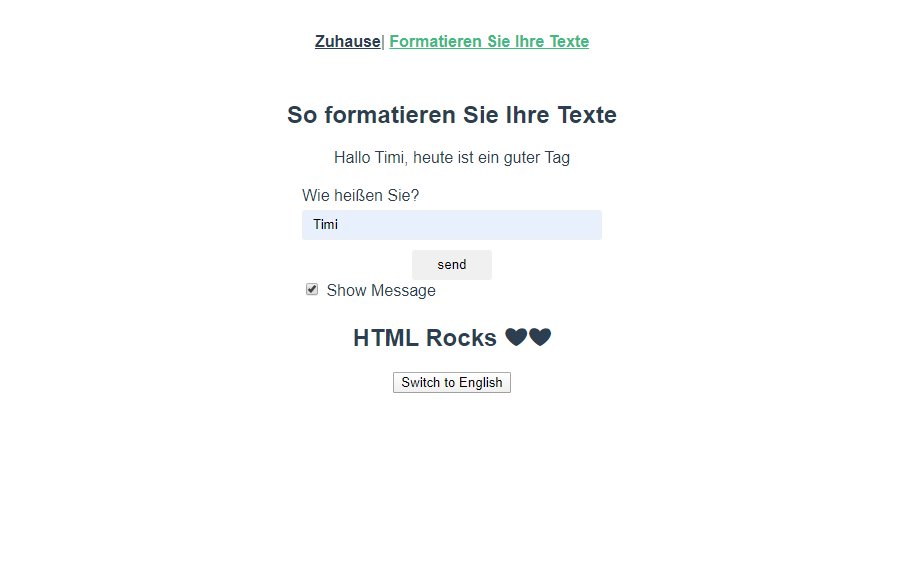
The result reads naturally in the browser after a user submits their name, with the message appearing above the form. The locale file syntax for such placeholders is:
"hello": "Hello, {name}!"HTML and Raw HTML Formatting
The plugin also renders markup inside translation values instead of only plain text. This allows storing richer content in locale definitions. Using Vue's HTML directive tells the template to render it accordingly — the browser processes it as an actual DOM element rather than an escaped string.
A locale file can include a property with nested HTML:
{
  "htmlText": "<h1>HTML Rocks ❤❤</h1>"
}
The template binds it to a container using the v-html directive. This works well for intentional, controlled content like headings.
<div v-html="$t('htmlText')"></div>Locale Switching In Practice
To add a new locale, drop a file with that locale’s tag into your locale folder:
locale abbrevation + json
//eg en.json, fr.json, ru.json, de.json
Once the file exists and contains your translated strings, you can reference any of them in two ways. For a single text, use:
<p>{{ $t('hello', 'de') }} </p>That renders the value of the hello key from the German locale file, assuming the key is defined there. To switch the entire application globally, manipulate this.$i18n.locale:
console.log(this.$i18n.locale)
// prints 'en.json' because 'en' is my selected locale
this.$i18n.locale = 'de'
// sets your locale to 'de'
As a concrete example, create de.json in the locale folder with translated values that mirror your existing en.json content:
{
"home": "Zuhause",
"formatting": "Formatieren Sie Ihre Texte",
"formattingTitle": "So formatieren Sie Ihre Texte",
"name": "Wie heißen Sie?",
"hello": "Hallo {name}, heute ist ein guter Tag",
"htmlText": "HTML Rocks ❤❤
"
}To let users toggle between the two, add a button and its handler in your formatting.vue component:
<template>
  <section>
    <!-- existing div element -->
    <div v-html="$t('htmlText')"></div>
    <button @click="switchLocale">Switch to {{locale}}</button>
  </section>
</template>
<script>
export default {
  data() {
    return {
      name: "",
      showMessage: false,
      locale: "Deutsch"
    };
  },
  methods: {
    switchLocale() {
      this.$i18n.locale = this.locale === "English" ? "en" : "de";
      this.locale = this.$i18n.locale === "en" ? "Deutsch" : "English";
    }
  }
};
</script>
The template binds a click event that flips the active locale. The locale data property reflects the current language name (English or Deutsch). The switchLocale method sets this.$i18n.locale with a ternary that picks de when English is active and en otherwise.
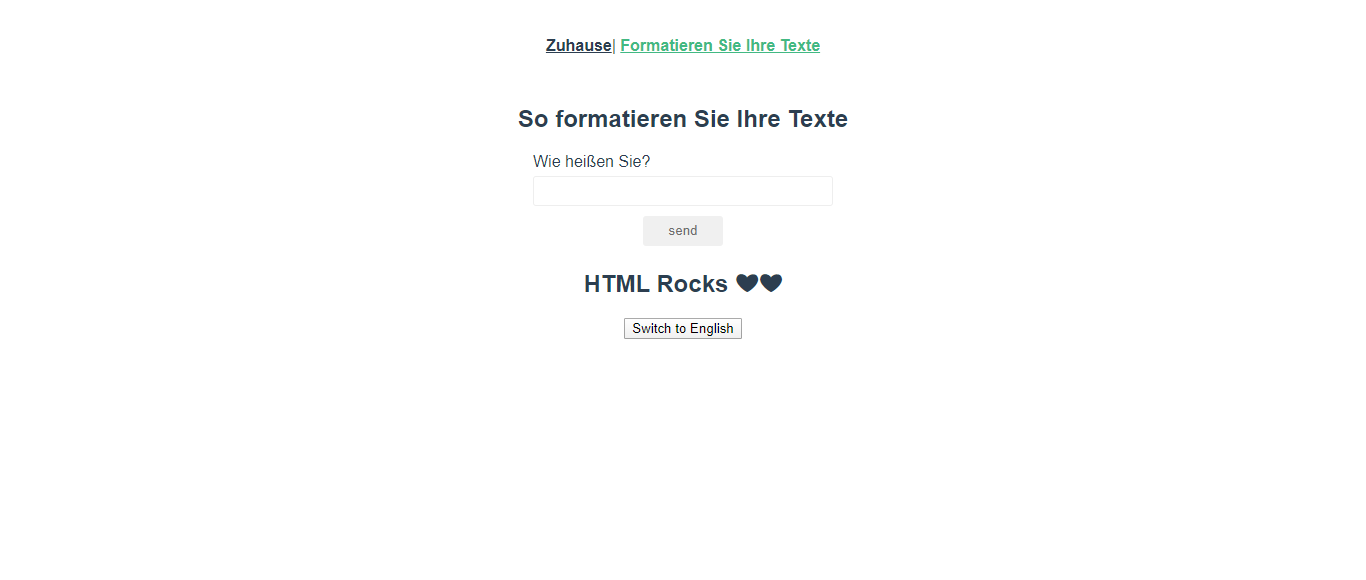
In the browser, the page renders with the default locale first:

Clicking the button changes every translated string on the page, both in the component and globally:
Submitting the form with your name demonstrates that the new locale is applied to all dynamic content as well:
Fallback Handling And Pluralization
Missing Translations Fall Back Gracefully
When a key is not translated in the currently selected locale, Vue I18n does not crash. Instead, it falls back to the default locale and logs a warning. Consider adding a key to en.json that has no German equivalent:
  {
  "fallbackLocale": "Fallback Localization",
  "placeholder": "This is the fallback text"
}
In de.json, only include a different key:
{
  "fallbackLocale": "Fallback-Lokalisierung"
}
In formatting.vue, you can then ask for a specific locale with the second parameter, as shown here:
<template>
  <section>
    <!-- last button -->
    <button @click="switchLocale">Switch to {{locale}}</button>
    <div>
      <h1>{{ $t('fallbackLocale') }}</h1>
    </div>

  </section>
</template>
</style>
The placeholder request explicitly targets German (de). Since no German translation exists, the plugin returns the English default and warns about the missing entry. The rendered heading and text demonstrate this behavior:
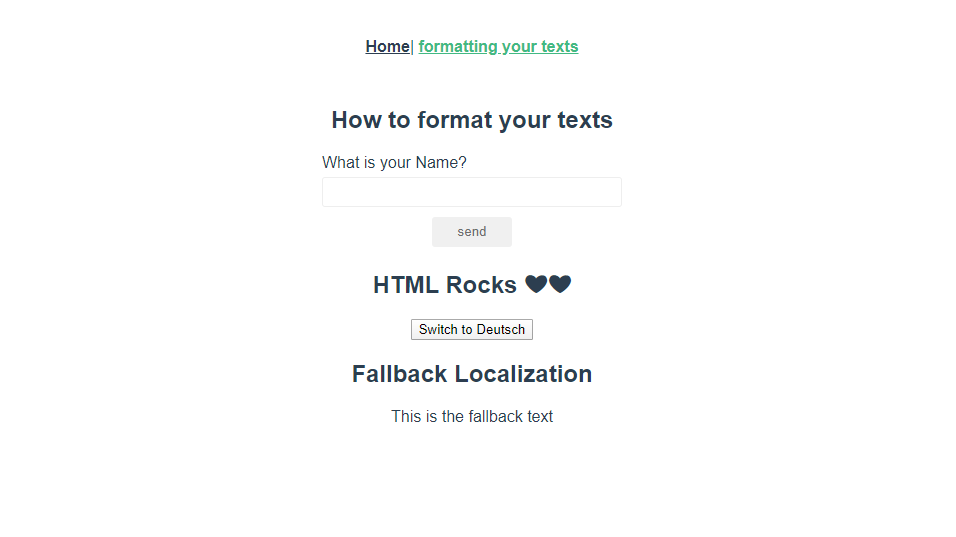
You can inspect the console for the warning that accompanies this fallback:
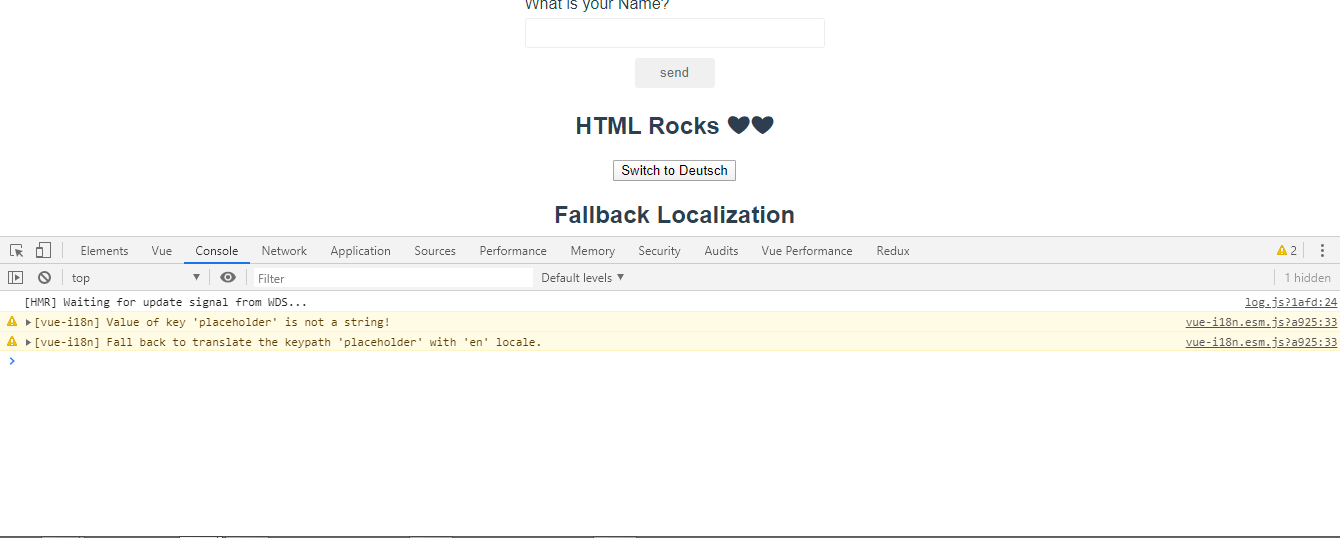
Plural Forms With The Pipe Separator
Pluralization handles cases like a shopping cart where the displayed word depends on a count. Define all plural variants in your locale file using the pipe character | as the delimiter:
{
  "developer": "no developer | one developer | {n} developers"
}
The variable inside the pluralized string can have any name; here it is n, which matches the second argument passed to the $tc function in your template:
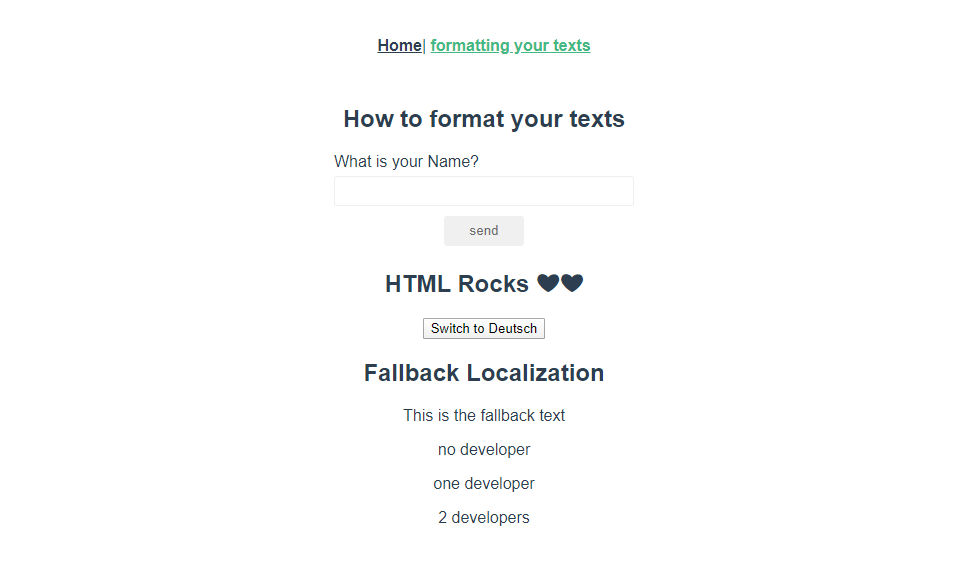
<p>{{ $tc('developer', 0) }}</p>
<p>{{ $tc('developer', 1) }}</p>
<p>{{ $tc('developer', 2) }}</p>
The three calls pass 0, 1, and 2 respectively, and the plugin selects the correct form for each:
Component-Scoped Translations
Sometimes a translation is only relevant within a single component, or a global key needs a context-specific wording in one place. Component-based localization lets you define these translations locally, and these local definitions always take precedence over their global counterparts.
The scaffolded Helloi18n.vue component, generated during plugin installation, demonstrates this pattern. Define your own translations inside its <i18n> element:
<i18n>
{
  "en": {
    "hello": "Hello, {name}, this is i18n in SFC!",
    "greetings": "Component-Based Localization",
    "placeholder": "This is a component-based fallback text"
  }
}
</i18n>
These keys — hello, greetings, and placeholder — also exist in the global en.json file, but the component’s versions override them.
Add the component’s template markup to display those locally translated texts:
<template>
  <div>
    <h1>{{ $t("greetings") }}</h1>
    <p v-if="name.length > 0">{{ $t('hello', {name: name }) }}</p>
    <p>{{ $t('placeholder') }}</p>
  </div>
</template>
<script>
export default {
  name: "HelloI18n",
  props: ["name"]
};
</script>
The heading shows the local greetings string, while the paragraph uses named formatting to insert the name prop into the local hello translation.
To use this component on the formatting.vue page, import and register it:
<script>
// @ is an alias to /src
import HelloI18n from "@/components/HelloI18n.vue";
export default {
  // existing code
  components: {
    HelloI18n
  }
};
Then place it in the template, passing the name value captured from the form input:
<template>
  <section>
    <!-- existing code -->
    <HelloI18n :name="name" />
  </section>
</template>
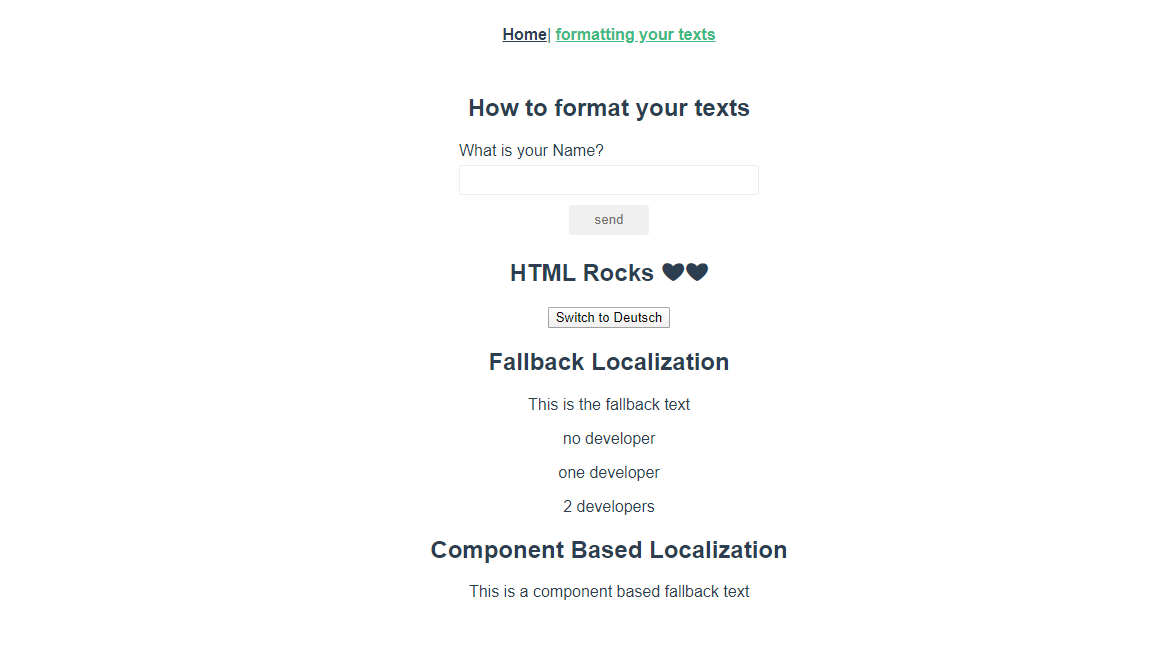
Viewing the page in the browser confirms that the local translations take effect even though identical keys exist globally:
The Vue I18n plugin offers additional capabilities beyond what this walkthrough covers, including date/time localization, number formatting, complex locale message syntax, and lazy-loading translation files. Exploring the full documentation for these features will round out your internationalization setup.


