

Resizing Job Bars with Event Delegation
Users should be able to change a job's duration by dragging the right edge of its bar. The granularity of that change should match the timeline view: whole days when zoomed to year-month level, whole hours at day level.
- Resizing starts with a
mousedownon the drag handle. - The bar follows the cursor via
mousemoveevents. - Releasing the mouse fires
mouseupand completes the operation.
Adding a mousedown listener to each individual GanttJob element would create an excessive number of listeners for charts with many jobs. Instead, the chart relies on event delegation: a single listener on the parent container (gantt-container) detects clicks on any job's resize handle.
var makeJobsResizable = function(){
    if(checkElements()){
      var container = shadowRoot.querySelector("#gantt-container");
      container.addEventListener("mousedown", _handleMouseDown, false);
    }
 }.bind(this);

 var _handleMouseDown = function(e){
    if(e.target.tagName == "GANTT-JOB"){
       this.selectedJobElement = e.target;
       if(this.selectedJobElement.isMouseOverDragHandle(e)){
          this.selectedJob = this.jobs.find(j => j.id == e.target.id);
          document.addEventListener("mousemove", _handleMouseMove, false);
          document.addEventListener("mouseup", _handleMouseUp, false);
          //use this to disable drag and drop behavior in resize mode
       e.preventDefault();
       }
    }
}.bind(this);
This handler first verifies the click target is a GanttJob element. It then checks that the click occurred on the drag handle itself via the isMouseOverDragHandle function. Only then are the mousemove and mouseup listeners attached for the duration of the resize action.
isMouseOverDragHandle = function(e){
      var panel = this.shadowRoot.querySelector(".job");
      var current_width = parseInt(getComputedStyle(panel, '').width);
      if (e.offsetX >= (current_width - this._HANDLE_SIZE)) {
        return true;
      }
      return false;
}.bind(this);
//should match the width setting of the drag handle in the file "GanttJob.css" _HANDLE_SIZE = 4;
The mousemove handler determines which time segment the cursor is over. Each gantt-item carries the date for its segment in the data-date attribute, which becomes the job's new end date. The update method on the GanttJob element then refreshes the bar's length. On mouseup, the selection is cleared and the mousemove listener is removed.
This resizing logic is activated by calling makeJobsResizable at the end of the initJobs function. The existing clear function in YearMonthRenderer.js must also remove the new mousedown and mouseup listeners. The same approach is applied to the DateTimeRenderer.js file.
Editing Jobs Through a Dialog
Double-clicking a job bar opens an editing dialog for adjusting the job's start and end dates. The dialog is itself a web component called GanttJobDialog.
The dialog receives these properties from the outside:
job— the job object being edited;level— the current zoom level (year-monthorday);xPosandyPos— coordinates for the dialog's position, relative to the job bar.
The render function generates the appropriate form controls based on the zoom level: <input type="date"> fields for the year-month view, and <input type="datetime-local"> fields for the day view. The inputs are pre-filled with the job's current data.
The save button handler performs three tasks: it reads the new dates from the inputs and assigns them to the job object, dispatches a CustomEvent named save to notify the caller, and hides the dialog. The cancel button dispatches a cancel CustomEvent without modifying the data.
const template = document.createElement('template');
  template.innerHTML =
   `<style>
       @import "./styles/GanttJob.css";
    </style>
    <dialog>
        <h4 id="job_title">Edit Task</h4>
        <form action="#">
        <p>
            <label for="start">Start</label>
            <input id="start_input" name="start">
        </p>
        <p>
            <label for="start">End</label>
            <input id="end_input" name="start">
        </p>
        <p>
            <input type="button" id="cancel_button" value="Cancel">
            <input type="button" id="save_button" value="Save">
        </p>
        </form>
    </dialog>`;
  export default class GanttJobDialog extends HTMLElement {
    constructor() {
      super();
      this.attachShadow({ mode: 'open' });
      this.shadowRoot.appendChild(template.content.cloneNode(true));
    }
    _job;
    _xPos;
    _yPos;
    _level = "year-month";
    connectedCallback()
        this._render();
    }
    disconnectedCallback() {
      this.shadowRoot.querySelector("#cancel_button").removeEventListener("click", this._handleCancel);
      this.shadowRoot.querySelector("#save_button").removeEventListener("click", this._handleSave);
      document.removeEventListener("click", this._handleClickOutside);
    }
    _render(){
        var dialogElement = this.shadowRoot.querySelector("dialog");
        dialogElement.style.left = this._xPos+"px";
        dialogElement.style.top = this._yPos+"px";
        if(this.level == "year-month"){
           this.shadowRoot.querySelector("#start_input").type = "date";
           this.shadowRoot.querySelector("#end_input").type = "date";
           this.shadowRoot.querySelector("#start_input").value = `${this.job.start.getFullYear()}-${this.zeroPad(this.job.start.getMonth()+1)}-${this.zeroPad(this.job.start.getDate())}`;
           this.shadowRoot.querySelector("#end_input").value = `${this.job.end.getFullYear()}-${this.zeroPad(this.job.end.getMonth()+1)}-${this.zeroPad(this.job.end.getDate())}`;
        }else{
           this.shadowRoot.querySelector("#start_input").type = "datetime-local";
           this.shadowRoot.querySelector("#end_input").type = "datetime-local";
           this.shadowRoot.querySelector("#start_input").value = `${this.job.start.getFullYear()}-${this.zeroPad(this.job.start.getMonth()+1)}-${this.zeroPad(this.job.start.getDate())}T${this.zeroPad(this.job.start.getHours())}:00`;
           this.shadowRoot.querySelector("#end_input").value = `${this.job.end.getFullYear()}-${this.zeroPad(this.job.end.getMonth()+1)}-${this.zeroPad(this.job.end.getDate())}T${this.zeroPad(this.job.end.getHours())}:00`;
        }
        this.shadowRoot.querySelector("#cancel_button").addEventListener("click", this._handleCancel);
        this.shadowRoot.querySelector("#save_button").addEventListener("click", this._handleSave);
        document.addEventListener("click", this._handleClickOutside);
    }
    _handleCancel = function(e){
        var dialogElement = this.shadowRoot.querySelector("dialog");
        this.dispatchEvent(new CustomEvent("cancel"));
        dialogElement.style.visibility = "hidden";
    }.bind(this);

    _handleSave = function(e){
        var dialogElement = this.shadowRoot.querySelector("dialog");
        this.job.start = new Date(this.shadowRoot.querySelector("#start_input").value);
        this.job.end = new Date(this.shadowRoot.querySelector("#end_input").value);
        this.dispatchEvent(new CustomEvent("save"));
        dialogElement.style.visibility = "hidden";
    }.bind(this);

    //when clicking outside the dialog, the dialog should be canceled as well
    _handleClickOutside = function(e){
        var dialogElement = this.shadowRoot.querySelector("dialog");
        //we need to check whether the click was triggered inside or outside the dialog
        var items = this.shadowRoot.elementsFromPoint(e.offsetX, e.offsetY);
        var close = true;
        items.forEach(item => {
            if(item.tagName == “DIALOG”){
                close = false;
                return;
            }
        });
        if(close){
            this.dispatchEvent(new CustomEvent("cancel"));
            dialogElement.style.visibility = "hidden";
        }
    }.bind(this);

    set job(newValue){
        this._job = newValue;
        this._render();
    }
    get job(){
        return this._job;
    }
    set xPos(newValue){
        this._xPos = newValue;
        this._render();
    }
    set yPos(newValue){
        this._yPos = newValue;
        this._render();
    }
    set level(newValue){
       this._level = newValue;
    }
    get level(){
       return this._level;
    }
    zeroPad(n){return n<10 ? "0"+n : n;}
}
window.customElements.define('gantt-job-dialog', GanttJobDialog);
The dblclick listener for opening the dialog follows the same event delegation pattern, attached once to gantt-container and removed in the clear function. Adding the makeJobsEditable function in YearMonthRenderer.js configures this behavior:
var makeJobsEditable = function(){
  if(checkElements()){
    var container = shadowRoot.querySelector("#gantt-container");
    container.addEventListener("dblclick", _handleDblClick, false);
  }
}.bind(this);

var _handleDblClick = function(e){
  if(e.target.tagName == "GANTT-JOB"){
    var jobElement = e.target;
    jobElement._handleDblClick();
  }
}
The actual event handling occurs in the GanttJob component. It initializes a GanttJobDialog instance and inserts it into the DOM as a child of the job bar. The save and cancel handlers both remove the dialog from the DOM; the save handler additionally refreshes the bar's length and forwards its own CustomEvent — named editjob — back to the renderer (YearMonthRenderer or DateTimeRenderer).
Back in YearMonthRenderer.js, initJobs is extended with a handler for the editjob event, which repositions the job within the chart if its start time changed. A call to makeJobsEditable is also added. The identical modifications are made to DateTimeRenderer.js.
What’s Still Missing In A Hand-Rolled Gantt Chart
The editing enhancements added so far make the chart noticeably more interactive, but a few usability gaps remain. When you drop a job bar, its left edge—the start time—snaps to the cell under the cursor, rather than to the cell the bar’s left side actually overlaps. Users would expect the drop to land exactly where the bar’s start point falls, irrespective of where on the bar the mouse happens to be.
Beyond that, production-ready charts need smoother behavior in other areas: the chart should adapt fluidly to viewport size, and editing dialogs should reposition themselves so they never overflow the available space.
There are also Gantt-specific rules missing from this generic scheduling component. When the chart is used as a task-oriented Gantt view, a job should not be allowed to move between rows. Additional configuration options, such as sequential task dependencies and hierarchical task-to-subtask grouping, would be required to make the component truly Gantt-like.
For professional deployments, users typically expect an even longer list of capabilities:
- reordering rows in a WBS tree of tasks and subtasks;
- filtering, sorting, and inline cell editing;
- tracking data changes;
- zooming across views with different time granularity (days, months, years);
- dependencies between tasks;
- non-working time;
- tooltips;
- and more.
If the plan is to keep growing your own component, these are the features to tackle next.
When A Library Makes More Sense
Building and maintaining a full-featured Gantt widget in-house is significant work. Third-party JavaScript Gantt libraries bundle pre-built, polished components that can save you that effort—often with a single file import followed by simple data configuration, much like the way VanillaGanttChart is initialized at the top of the index.js file in this project.
Here are three commercial options worth evaluating.
Syncfusion JavaScript Gantt Chart
Syncfusion’s Gantt control is positioned as a tool for “display and manage hierarchical tasks with timeline details.” Its getting-started documentation covers initializing a basic chart with options for task editing, filtering, sorting, and defining task relationships. A minimal chart with Syncfusion looks like this:
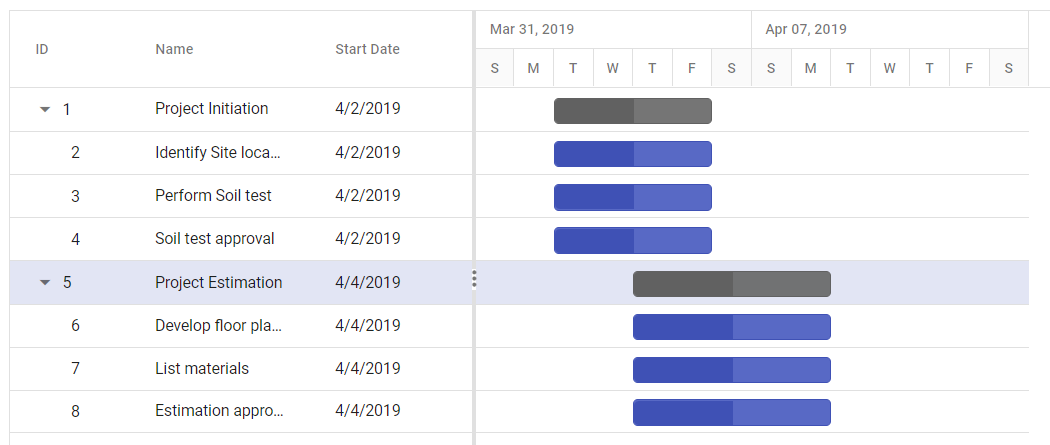
From there, the chart’s behavior can be extended through the library’s broader option set.
Bryntum Gantt
Bryntum markets its Gantt as “a super-fast and fully customizable Gantt chart suite.” After downloading a free trial, you receive a build folder with CSS and JavaScript files that you integrate directly into your app, then configure your own chart. The getting-started guide walks through a basic setup:
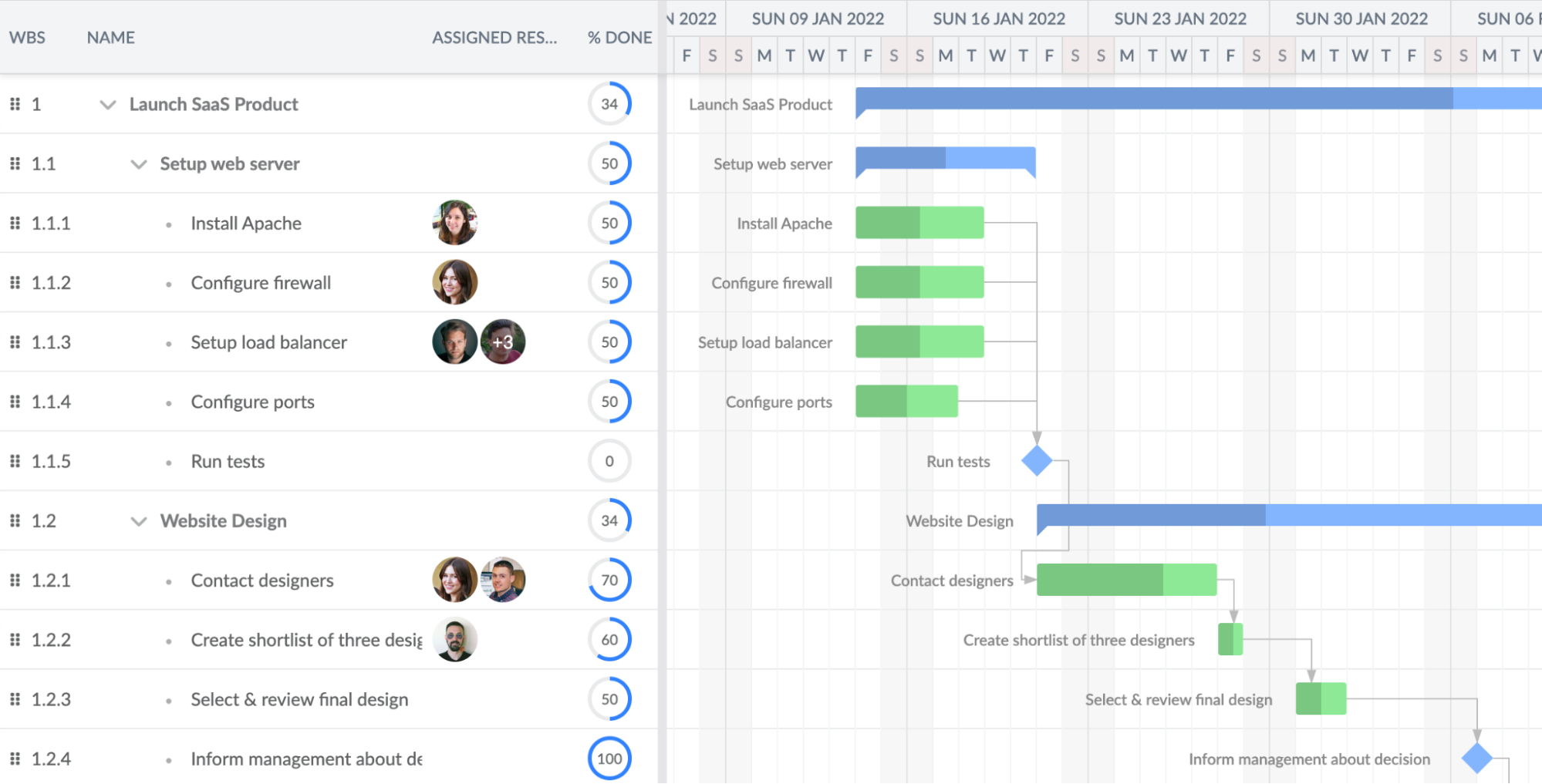
The full documentation covers extensive customization, including integration with frameworks like Angular, React, and Vue, plus structured CRUD data management for loading and saving. An examples gallery gives a visual tour of the feature set:
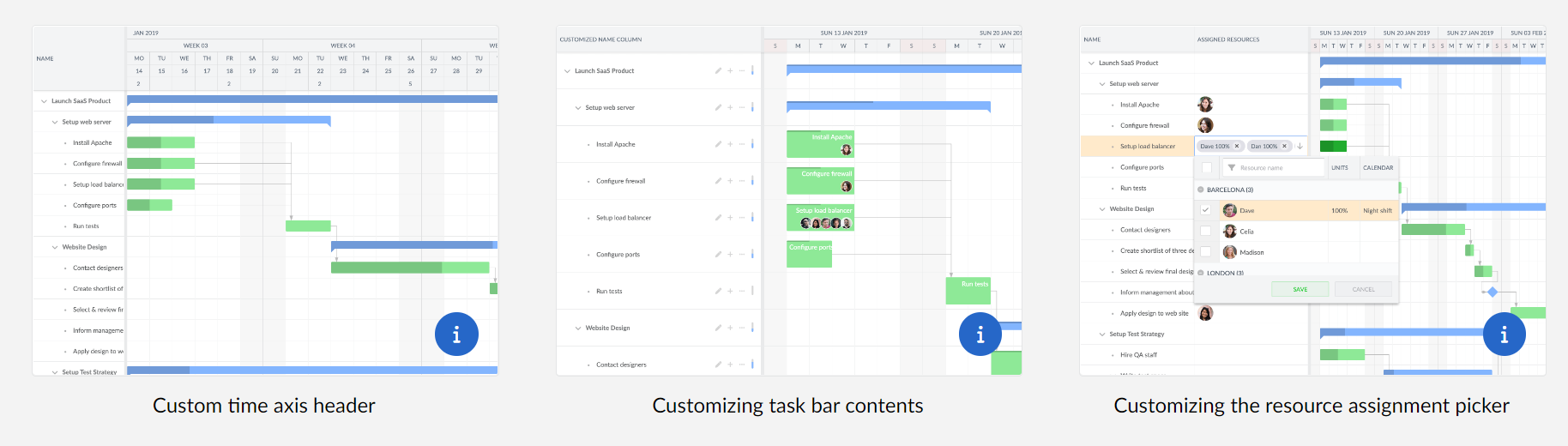
Bryntum also offers a separate Scheduler product aimed specifically at resource planning workloads.
Webix Gantt
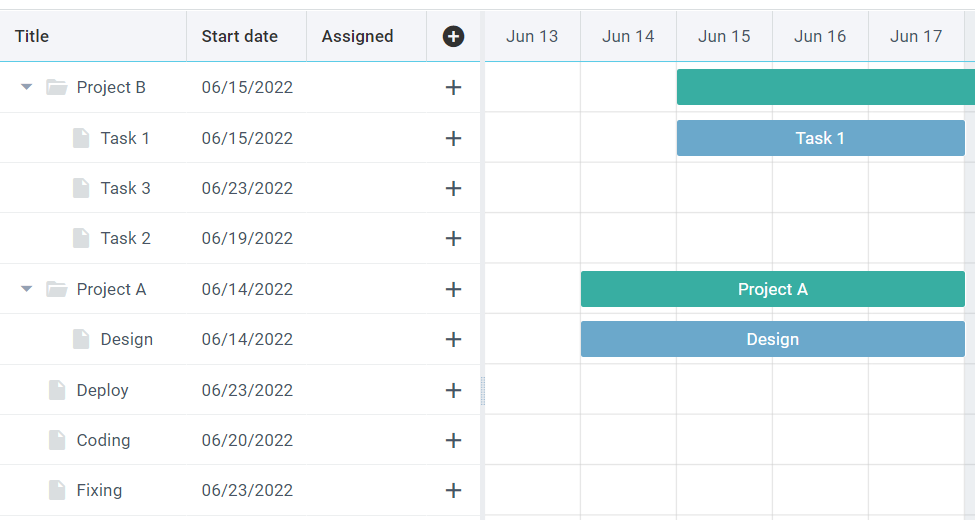
Webix provides another commercial Gantt library with rich functionality. Installation, setup, and configuration steps are documented in detail, and a full-screen interactive demo lets you try the tool before committing:
Final Thoughts
Gantt charts remain a core visualization for project management, planning, and task organization, and there are multiple viable paths to embedding one in a web app. The two parts of this article demonstrated building an interactive chart from scratch, exercising CSS grids, Web Components, and JavaScript event handling along the way. For anything beyond straightforward needs, the commercial JavaScript libraries mentioned above are powerful, ready-made alternatives that remove the burden of ongoing widget maintenance.


