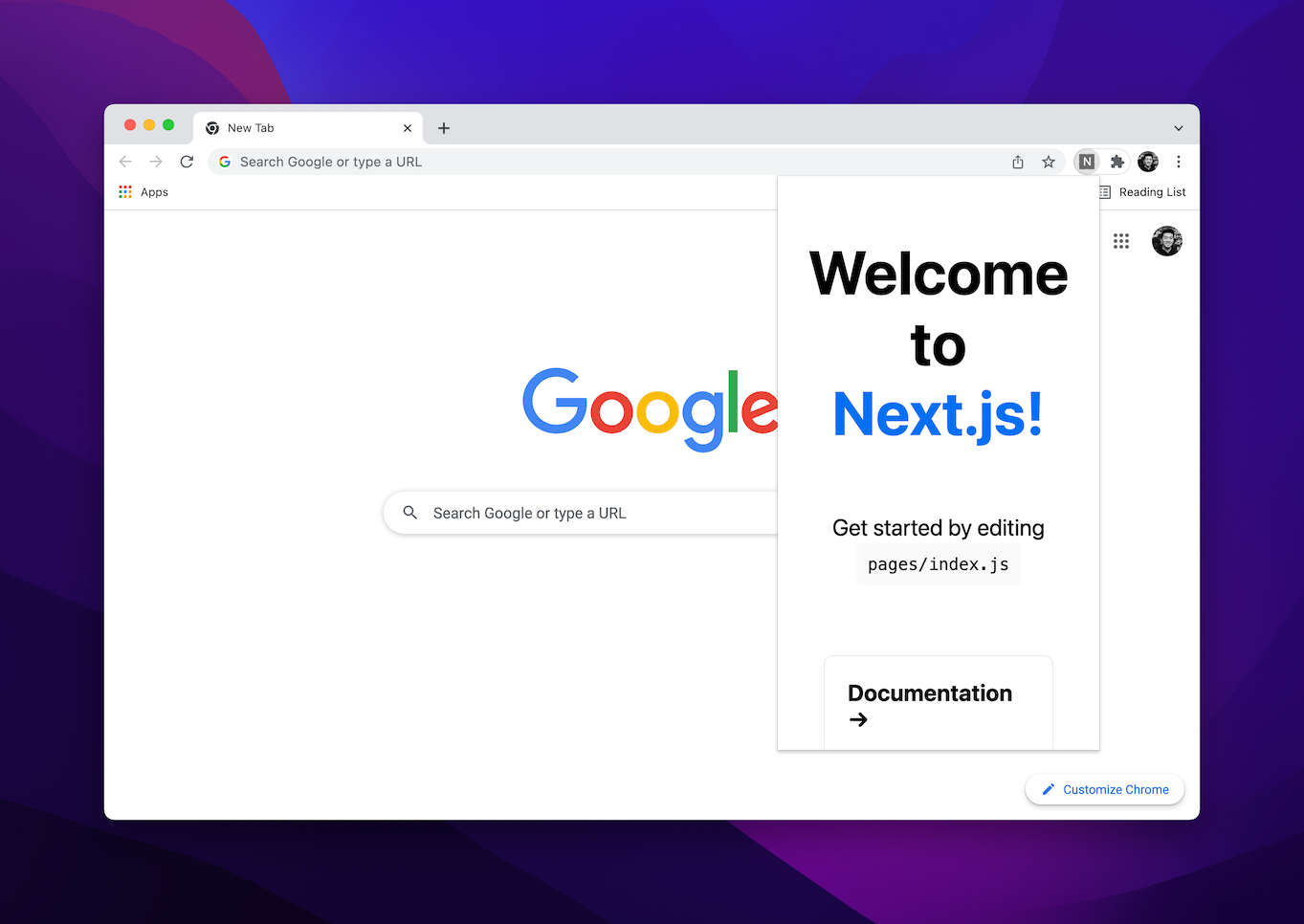
Exporting Next.js for extension use
The motivation for rebuilding a project as a Next.js Chrome extension is code organization: React keeps a pop-up component and its application logic separate from the content scripts, the CSS and JavaScript that deliver the extension's functionality. Next.js supplies the most out of the box for the fewest unnecessary files and configuration. It also supports static HTML output via next export. Create React App was tried and carried more boilerplate than needed.
next-export is a post-processing step that compiles the Next.js code, so the actual Next.js or React code never ships inside the extension. That keeps the extension at its lowest possible file size, which matters when publishing to the Chrome Web Store.
The layout has two directories — one for the extension's code, one containing the Next.js app:
📂 extension
  📄 manifest.json
📂 next-app
  📂 pages
  📂 public
  📂 styles
  📄 package.json
README.md
Customizing the build
In a normal web project, extending the default Next.js build script in package.json looks like this:
"scripts": {
  "build": "next build && next export"
}
Running npm run build (or yarn build) then generates an out directory. For an extension, the export has to target the extension directory instead of out, and any files beginning with an underscore (_) must be renamed, because Chrome warns that "Filenames starting with "_" are reserved for use by the system."

That produces a new build script:
"scripts": {
  "build": "next build && next export && mv out/_next out/next && sed -i '' -e 's/\\/_next/\\.\\/next/g' out/**.html && mv out/index.html ../extension && rsync -va --delete-after out/next/ ../extension/next/"
}
Note that sed behaves differently on macOS than on Linux: macOS requires the '' -e flag, while on Linux it can be omitted.
Handling public assets
Assets in the Next.js public folder must be carried into the extension folder too. A next-assets folder inside public keeps those assets from being output directly into the extension directory. The full build script with assets is large:
"scripts": {
  "build": "next build && next export && mv out/_next out/next && sed -i '' -e 's/\\/_next/\\.\\/next/g' out/**.html && mv out/index.html ../extension && rsync -va --delete-after out/next/ ../extension/next/ && rm -rf out && rsync -va --delete-after public/next-assets ../extension/"
}
Manifest V3 pop-up wiring
The usual activation pattern is a pop-up triggered when the extension is clicked. In Manifest V3 this is done with the action keyword, whose default_popup points to an HTML file — here, the index.html produced by Next.js:
{
  "name": "Next Chrome",
  "description": "Next.js Chrome Extension starter",
  "version": "0.0.1",
  "manifest_version": 3,
  "action": {
    "default_title": "Next.js app",
    "default_popup": "index.html"
  }
}
The action API replaces browserAction and pageAction in Manifest V3.
Features that won't work
Some Next.js features need a Node.js web server, so server-related features such as next/image are unsupported in a Chrome extension.
Testing the extension
Run npm build (or yarn build) from the next-app directory, making sure manifest.json sits in the extension directory. Then open chrome://extensions in a new Chrome window, enable Developer Mode, click Load Unpacked, and select the extension directory.