

Working With DOM Geometry
Modern web interfaces rely on a surprising amount of geometry awareness. Infinite scrolling, drag-and-drop, and scroll-triggered animations all depend on JavaScript reading and responding to where elements sit in the viewport and how large they are. The CSSOM View Module provides the API surface for this, bundling read-only properties and methods that report live dimensions and positions of DOM elements.
These properties matter because CSS alone often cannot give us what JavaScript needs. An element with a computed width: auto has no numeric value we can read from stylesheets. Changes to box-sizing can silently break hand-calculated dimensions. The CSSOM View properties sidestep those problems: each is computed live when accessed, reflecting borders, padding, scrollbars, and overflow exactly as the browser has rendered them. They give developers a reliable basis for further manipulation.
Element Offsets
Offset properties are available only on HTMLElement nodes, not on SVGElement instances. They measure outward from the element's own top-left corner.
offsetLeft/offsetTop: The distance from the element's outer left or top border to the inner edge of itsoffsetParent.offsetParent: The nearest ancestor with a non-static CSSposition, or a<td>,<th>,<table>, or ultimately the<body>element.offsetWidth/offsetHeight: The total outer size of the element, combining content, padding, vertical borders (for width) or horizontal borders (for height), and any visible scrollbars.
Coordinates specified using the "offset" model use the top-left corner of the element being examined or on which an event has occurred.
— MDN
The offset* Properties in Context
offsetLeftreturns a number representing the offset of the left border edge of the element from itsoffsetParent's inner left border.offsetTopreturns a number representing the offset of the top border edge of the element from itsoffsetParent's inner top border.
Because these are read-only live values, they are always accurate to the current render state, even if layout has shifted or fonts have loaded since initial page paint.
Client Dimensions
Client properties look inward from the element's own border edge, describing the space where content actually lives. These are read-only and available across element types.
For a simple border measurement:
clientLeftgives the left border width in pixels.clientTopgives the top border width in pixels.
In situations where a scrollbar sits between the outer border and the inner padding edge — such as in a right-to-left document with a left-mounted scrollbar — clientLeft will include that scrollbar's width.
For the available content viewing area:
clientWidthreturns the element's content width plus its left and right padding, but excludes any vertical scrollbar.clientHeightreturns content height plus top and bottom padding, excluding horizontal scrollbars.
When no padding is applied, clientWidth equals content width and clientHeight equals content height.
Scroll Properties
Scroll measurement distinguishes between an element's visible client area and its full content extent:
scrollLeft: The number of pixels hidden to the left by horizontal scrolling. Reads0when no overflow or scroll has occurred. Read-write.scrollTop: The pixels of content scrolled away above the visible area. Reads0when no vertical scrolling exists. Read-write.scrollWidth: The element'sclientWidthplus the width of any overflowing content on both left and right sides.scrollHeight: The element'sclientHeightplus the height of overflowing content above and below.
If nothing overflows, scrollWidth equals clientWidth and scrollHeight equals clientHeight.
"… Equal to the minimum width or height the element would require in order to fit all the content in the viewport without using a horizontal or vertical scrollbar."
One caveat: scrollLeft and scrollTop values are read-write, but they are not guaranteed to be whole numbers. Some browsers return fractional pixel values after scrolling operations.
Document and Viewport Measurement
The full HTML document has the geometry interfaces we need via its root element, Document.documentElement (the <html> element). On that node:
document.documentElement.clientWidth/clientHeightgive the viewport dimensions excluding scrollbars and borders.document.documentElement.scrollWidth/scrollHeightreturn the full document width and height, including any content that overflows the viewport.
Applying element scroll properties to the root element directly exposes document-level values:
document.documentElement.scrollLeft/scrollTopreport the current scroll state of the page.
For window-level metrics, the distinction is between what is visible and the whole browser chrome:
window.innerWidth/innerHeightreturn viewport dimensions including scrollbars.window.outerWidth/outerHeightreport the full browser window size.
When the goal is only the document's scroll position, the preferred API is window.pageXOffset and window.pageYOffset. These read-only properties mirror document.documentElement.scrollLeft and scrollTop but require no explicit root-element lookup.
Whichever measurement you reach for — offset, client, or scroll — the CSSOM View values are advisory, live snapshots: they describe the layout as the browser sees it at that instant, not what the stylesheet declared.
Scroll Methods for Windows and Documents
JavaScript provides several programmatic scrolling methods defined in the CSSOM View Module. These help respond to user interactions and control page position through code.
scroll() and scrollTo()
The window.scroll() and window.scrollTo() methods are functionally identical. Both scroll the document to an absolute position specified by (x, y) coordinates, measured from the document's top-left origin.
window.scrollTo(0, 500);
//Scrolls the page vertically to 500 pixels from the page’s origin (0, 0).

window.scrollTo(0, 500);
//Page stays at the same point.
Because these methods work with absolute positions, calling them with the same values twice has no effect — the document is already positioned there. The x and y arguments represent pixel offsets along the horizontal and vertical axes. Alternatively, you can pass an options dictionary with top, left, and behavior properties. The behavior value accepts either "smooth" for an animated scroll or "auto" for an instant jump.
scrollBy()
Unlike the absolute methods above, scrollBy() performs a relative scroll. It moves the page from its current position by the provided pixel amounts, regardless of the document origin. Running the same scrollBy() call twice will scroll the page twice as far.
window.scrollTo(0, 500);
//Scrolls the page 500 pixels from the current position, say (0, 0), to (0, 500).

window.scrollTo(0, 500);
//Scrolls the page another 500 pixels from the current position to (0, 1000).
Understanding Coordinate Systems
All CSSOM View methods and properties depend on coordinate systems to describe element positions. Each system has a fixed reference point, called the origin, and positions are expressed as pixel offsets from that origin along each dimension. The CSSOM's standard coordinate systems differ primarily in where their origins are located.
Client vs. Page Coordinates
Among the four standard CSSOM coordinate systems, the client and page systems are most relevant to the View Module. These define positions relative to either the viewport or the document.
Client coordinates use the top-left corner of the viewport as the origin — the visible area where the document is rendered. As MDN notes, scrolling does not affect these values. This behaves like CSS position: fixed.
Page coordinates use the top-left corner of the entire Document as the origin. A point within an element keeps the same page coordinates unless the element itself moves, whether through direct style changes or by content being added or resized around it. This mirrors CSS position: absolute. Page-relative positions remain constant regardless of scroll position, but window-relative positions shift as the document scrolls.
Element positions can also be examined relative to either coordinate system.
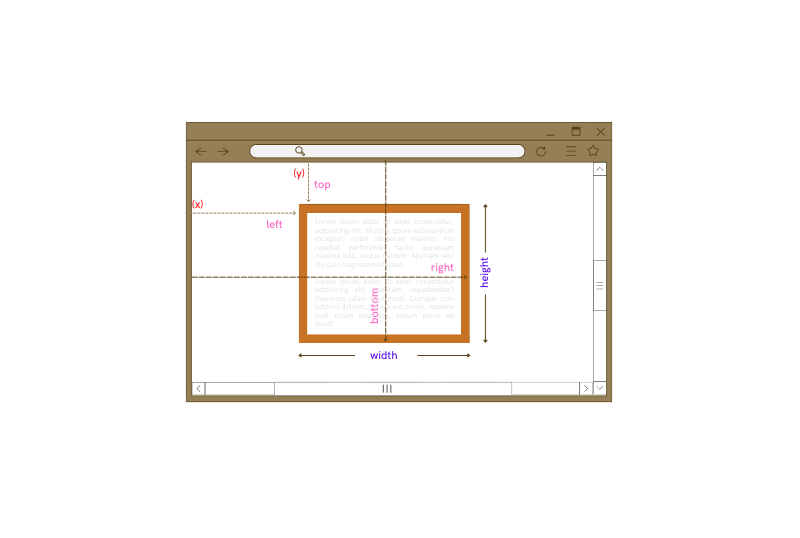
The getBoundingClientRect() Method
Element.getBoundingClientRect() returns a DOMRect object with window-relative dimensions and positions for the element it is called on. It is the primary method for placing elements relative to the viewport.
Be aware that getBoundingClientRect() results can differ from layout-based measurements when CSS transforms are present:
In case of transforms, theoffsetWidthandoffsetHeightreturns the element's layout width and height, whilegetBoundingClientRect()returns the rendering width and height. As an example, if the element haswidth: 100px;andtransform: scale(0.5);thegetBoundingClientRect()will return 50 as the width, whileoffsetWidthwill return 100.
— MDN
See the Pen [DOM Rect Properties [forked]](https://codepen.io/smashingmag/pen/KKedmYx) by Pearl Akpan.
The DOMRect returned by getBoundingClientRect() exposes these properties:
xandy— coordinates of the element's origin relative to the window;topandbottom— the y-coordinates of the element's top and bottom edges;leftandright— the x-coordinates of the element's left and right edges;heightandwidth— the element's rendered dimensions, computed as if it usedbox-sizing: border-box.
Pointer Event Coordinates
Mouse and pointer event objects carry coordinate properties for both coordinate systems. The window-relative position is stored in clientX and clientY, representing the x- and y-coordinates from the viewport origin. The document-relative position is available through pageX and pageY, measured from the document's top-left corner.
Geometry APIs in Practical UI Patterns
The live geometry properties and methods from the CSSOM View Module are not just theoretical. They power several common interface features found across modern websites and web applications. Below are four practical implementations that rely on these JavaScript APIs.
Scroll-to-Top Button
Returning a user to the top of a long page is a straightforward task with the window's scrollTo() method (and its alias scroll()). The core implementation involves a click listener on the button that triggers the scroll:
scrollToTop.addEventListener("click", (e) => {
  window.scrollTo({left: 0, top: 0, behavior: "smooth"});
});
For better user experience, the button should only appear once the user has scrolled away from the top. This visibility toggle is controlled by checking window.pageYOffset. When the page is scrolled more than 500 pixels, the button becomes visible; otherwise, it remains hidden.
document.addEventListener("scroll", (e)=> {
  if(window.pageYOffset >= 500) {
      scrollToTop.style.display = "block";
  } else {
    scrollToTop.style.display = "none";
  }
});
Infinite Scrolling
Infinite scrolling feeds content continuously as the user approaches the bottom of the page. The key question is determining exactly when that point is reached. The browser exposes the necessary measurements: document.scrollHeight for total document height, document.clientHeight for the viewport height, and document.scrollTop (or window.pageYOffset) for the scrolled distance. When document.scrollTop + document.clientHeight >= document.scrollHeight, the user is at the bottom.
This pattern can be seen in a simple demo that loads cards dynamically. The page displays a maximum number of cards (totalCardsNo), adding a fixed batch (cardLoadAmount) each time the bottom is reached.
const cardContainer = document.querySelector("main");
const currentCardStats = document.querySelector(".currentCardNo");
const cardLoadAmount = 9;
const totalCardsNo = 90;
let lastIndex;
A scroll event listener on the document handles the loading. The handler first checks the bottom-reached condition:
document.addEventListener("scroll", (e) => {
  if (document.documentElement.scrollTop + document.documentElement.clientHeight >= document.documentElement.scrollHeight) {
    const children = cardContainer.children;
    lastIndex = children.length;
  }
});
If true, the handler must decide whether more cards are allowed. It collects the current children of the card container into an HTMLCollection. The collection's length serves as the index of the next card to load. As long as that index is below the totalCardsNo limit, a new batch of cards is appended:
if(lastIndex < totalCardsNo) {
  for(let i = 1; i <= cardLoadAmount; i++) {
    const tile = document.createElement("div");
    tile.classList.add("card");
    tile.textContent = `${lastIndex + i}`;
    cardContainer.appendChild(tile);
  }
  currentCardStats.textContent = `${children.length}`;
} else {
    return;
}
Animate on Scroll
Elements that animate into view as the user scrolls are a staple of modern landing pages. The core logic hinges on detecting when an element enters the viewport. The recommended method is Element.getBoundingClientRect(), which returns element position relative to the viewport.
TheElement.getBoundingClientRect()method returns aDOMRectobject providing information about the size of an element and its position relative to the viewport.
For a vertically scrolling page, an element becomes visible when its getBoundingClientRect().top value is less than the viewport's height. To ensure the animation is noticeable, a small offset is often added. The implementation starts by collecting all target elements:
const animatingElements = Array.from(document.getElementsByClassName("item"));
The trigger condition adds 50 pixels to the element's top value. This ensures the element is at least 50 pixels into the viewport before the animation fires:
if(el.getBoundingClientRect().top + 50 < document.documentElement.clientHeight) {
  el.classList.add("animated");
}
A scroll event listener applies a predefined animation class (e.g., .animated) when this condition is true. Once the class is added, the animation runs and the class remains, preventing the animation from repeating on subsequent scroll events.
document.addEventListener("scroll", (e) => {
  animatingElements.forEach((el) => {
    if(el.getBoundingClientRect().top + 50 < document.documentElement.clientHeight) {
      el.classList.add("animated");
    } else {
      return;
    }
  });
});
Range Sliders with Drag-and-Drop
Range sliders rely on a drag interaction between a handle (the "thumb") and a track. Implementing this from scratch involves listening for a sequence of pointer events: pointerdown to grab, pointermove to drag, and pointerup to release.
const thumb = document.querySelector(".thumb");
const slider = document.querySelector(".track");
let draggable;
let x;
The pointerdown event handler, often named prepDrag, prepares the thumb for movement. This might involve changing its CSS positioning to allow for manual top and left manipulation. Critically, this handler attaches the subsequent pointermove and pointerup listeners to the document, not the thumb itself. This is more reliable because mouse movement events can fire unevenly, and attaching to the document ensures movement is always captured during the drag.
function prepDrag(event) {
  draggable = event.target;
  x = event.clientX - draggable.getBoundingClientRect().left;
  document.addEventListener("pointermove", startDrag);
  document.addEventListener("pointerup", endDrag);
}
The pointermove handler, startDrag, contains the logic for moving the thumb. It also enforces boundaries. The thumb's left style is only updated when the pointer's clientX property is within the track's horizontal bounds, defined by the track's offsetLeft and its getBoundingClientRect().right value.
function startDrag(event) {
   if (event.clientX < track.offsetLeft || event.clientX > slider.getBoundingClientRect().right){
    return;
  }
    draggable.style.left = event.clientX - shiftX - track.getBoundingClientRect().left +  'px';
}
Finally, the pointerup handler, endDrag, cleans up by removing the pointermove and pointerup listeners from the document, ending the drag sequence. A final listener is attached to the thumb for the initial pointerdown event.
function endDrag() {
  document.removeEventListener("pointermove", startDrag);
  document.removeEventListener("pointerup", endDrag);
}
thumb.addEventListener("pointerdown", prepDrag);
Summary
The CSSOM View Module provides a robust set of tools for building custom UI components. By leveraging the live geometry properties and event coordinates, developers can create interfaces that are responsive and context-aware, going beyond standard static layouts.



