Driving CSS Animations with the View Timeline
When animation-timeline is given a view() function, the animation stops counting elapsed time and instead follows how much of an element is visible inside the scrollport — the viewable region of a scroll container. The closest JavaScript analogue is an Intersection Observer, except the trigger is CSS: an element's animation advances as it enters and exits the scrollport.
A useful demonstration is a horizontal image carousel where slides sit small and blurred toward the edges and grow sharper as they reach the center. Each item is tracked individually against the scrollport, so the effect depends on where that item currently sits. Scroll snapping keeps each slide landing on a stop.
Building the Layout
The markup is a single .carousel element holding scrollable content:
<main class="carousel">
  <!-- scroll items -->
</main>
A flex row puts the children in a line, and overflow makes any content beyond the container scrollable:
.carousel {
  display: flex;
  width: max(480px, 50vw);
  overflow-x: auto;
}
Inside, a set of image slides provides the items to scroll:
<main class="carousel">
  <div class="carousel-slide">
    <!-- (optional) empty bookend slide -->
  </div>
  <div class="carousel-slide">
      <img src="image-1.jpeg" alt="alt text for image 1">
  </div>
  <div class="carousel-slide">
      <img src="image-2.jpeg" alt="alt text for image 2">
  </div>
  <!-- etc -->
  <div class="carousel-slide">
    <!-- (optional) empty bookend slide -->
  </div>
</main>
Each slide takes one-third of the available space so that three are visible at once:
.carousel {
  /* same as before */

  .carousel-slide {
    flex-shrink: 0;
    width: calc(100% / 3); /* show three at a time */
    aspect-ratio: .8;
    img {
      width: 100%;
    }
  }
}
Setting Up the Scroll Container
With overflow-x set on .carousel, it is officially a scroll container. Minimal scroll snapping restricts scrolling to one item at a time:
.carousel {
  /* same as before */

  scroll-snap-type: x mandatory;
  scroll-behavior: smooth; /* optional for smooth scrolling */
  scrollbar-width: none; /* optional to hide the scrollbar */
}
Slides should align to the center of the scroll container when they snap into place:
.carousel-slide {
  /* etc. */
  scroll-snap-align: center;
}
Writing the Animation
The animation itself is an ordinary keyframe animation: items start small and blurred, and they grow and sharpen at the midpoint of the timeline.
@keyframes slide {
  /* from start to 45%, and to the end (100%) */
  45%, 100% {
    transform: scale(0.5);
    border-radius: 20px;
    filter: blur(6px) brightness(.8);
  }
  /* middle */
  50% {
    transform: scale(1);
    border-radius: 4px;
    filter: none;
  }
}
The animation is applied to the animated element exactly as usual:
.carousel-slide {
  /* etc. */
  animation: slide;
}
The one change is the timeline. Instead of the default timeline, the animation is bound to the element's own view():
.carousel-slide {
  /* etc. */
  animation: slide;
  animation-timeline: view(inline);
}
Technically, the timeline could be listed directly in theanimationshorthand alongsideanimation-name,animation-delay,animation-durationand the rest, but no browser supports assigning a timeline function that way yet. Declare it separately, and declare it after theanimationshorthand — otherwise the shorthand's defaultautovalue can override the view timeline.
That is the whole technique: standard CSS keyframes, applied normally, but running against a view timeline rather than a standard one.
Choosing Between view() and scroll()
view() sits within the broader CSS Scroll-Driven Animations feature set. The animation-timeline property also accepts scroll(), and the two answer different questions. scroll() produces a scroll progress timeline linked to a container's scroll position; view() produces a view progress timeline linked to an element's visibility within its container.
Both have their uses. view() suits item-specific reveal effects — in the carousel, the intent is to animate a slide only as that particular slide scrolls into the scrollport, tracking its own position rather than the container's overall scroll offset.
The Inset Parameter and animation-range
view() is a function, so it takes arguments: axis (block, inline, x, or y) and the inset, an offset from the scrollport's edges that defines where the animated element is tracked.
animation-timeline: view(<axis> <view-timeline-inset>);The inset narrows exactly which parts of the scrollport trigger the animation. For some effects, starting and ending the timeline when an element fully enters and fully exits cuts things off:
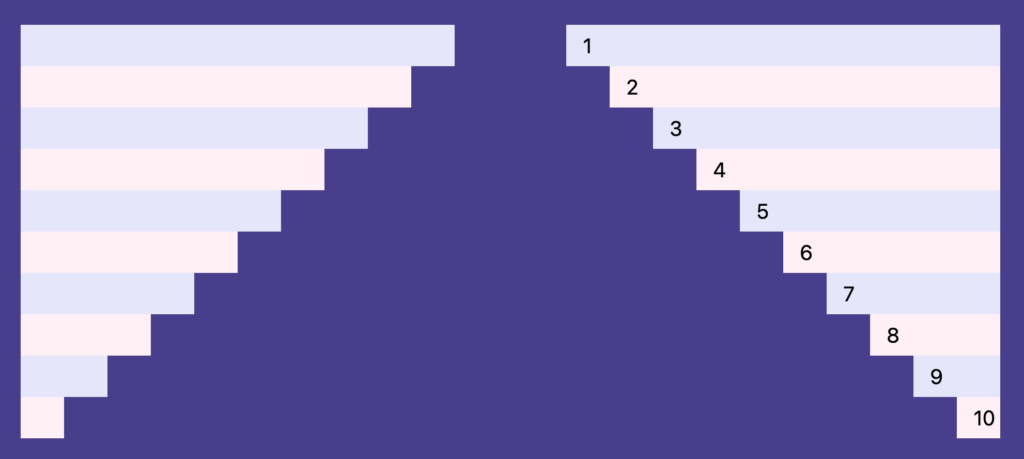
Each item should animate fully into place when it fully enters the scrollport, not when it fully exits; without that, the items read as staggered because they sit at different points on the timeline. The inset fixes this by anchoring the start of each animation at the bottom edge of the scrollport:
animation: slide-in linear both;
animation-timeline: view(100% 0%);
The animation-range property works along similar lines:
animation-range: entry; /* same as: entry 0 entry 100%; */It accepts many other keywords as well, including exit (the element leaves the scrollport), cover (from when the element begins to enter to when it begins to leave), and contain (from when it has fully entered to when it has fully left), among others.
Beyond Fades and Scaling
Carousels usually rely on fade in-and-out, scaling and parallax. Most CSS properties are animatable, and those that are not can be made animatable with registered CSS properties — gradient lines being one case — which leaves room for more creative view() carousels. Animating just the background position, for instance, can generate pleasing movement across the carousel.