Why a plain editor doesn't survive syntax highlighting
Full-featured editors such as CodeMirror, Ace and Monaco already highlight source code, but they are heavy when all you want is a textarea with colored syntax. Trying to build that yourself runs into two dead ends.
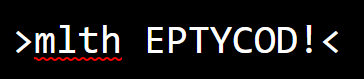
The first approach is contenteditable on a div passed through Prism.js on oninput. That fails because every DOM change resets the cursor to the start of the code, so typed characters appear backwards.
The second approach is a textarea, which edits cleanly but holds only plain text and cannot be styled. Prism.js in turn works best when markup sits inside <pre><code> — which can't be edited.
Stack a textarea over a highlighted block
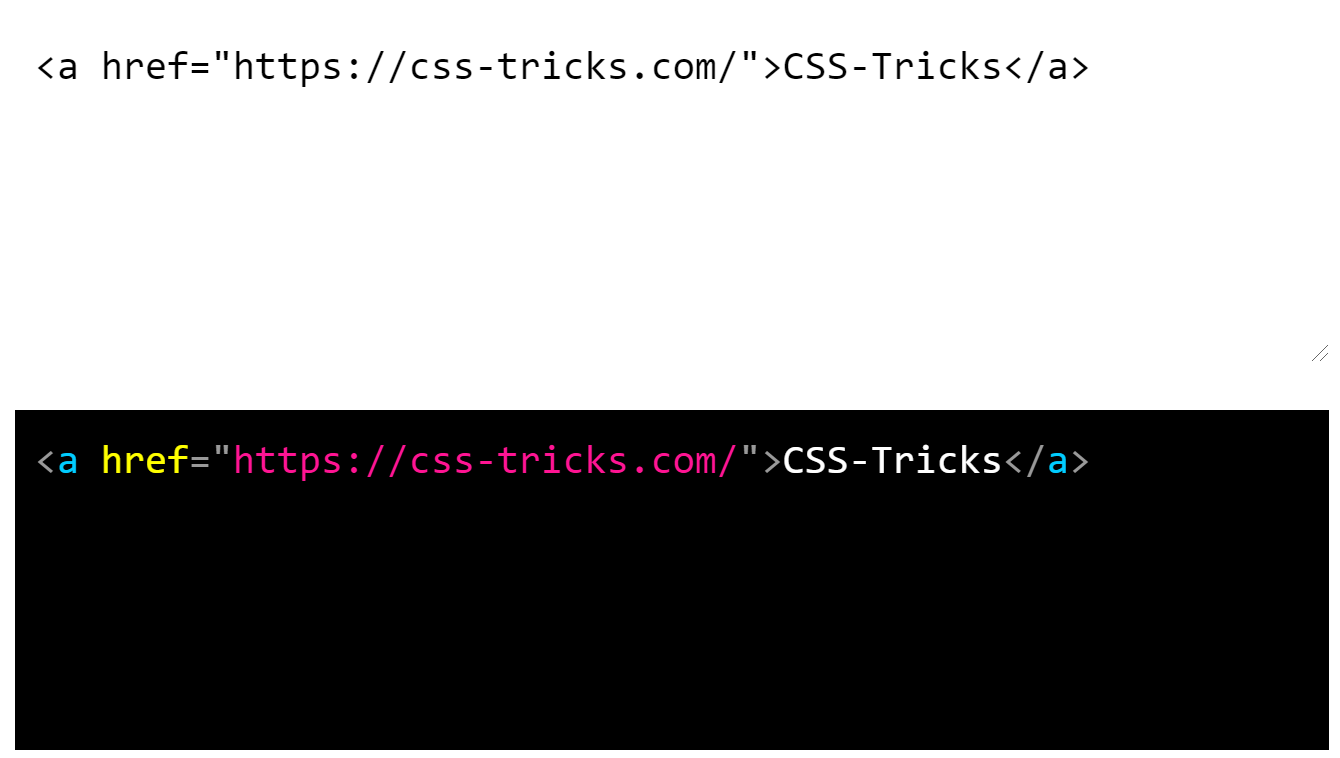
Put both on the page: a Prism-highlighted <pre><code> whose innerText is rewritten by a JavaScript update function on oninput, and a textarea for editing. Mark the <pre><code> with aria-hidden so a screen reader reads only the textarea.
<textarea id="editing" oninput="update(this.value);"></textarea>

<pre id="highlighting" aria-hidden="true">
  <code class="language-html" id="highlighting-content"></code>
</pre>
function update(text) {
let result_element = document.querySelector("#highlighting-content");
// Update code
result_element.innerText = text;
// Syntax Highlight
Prism.highlightElement(result_element);
}
The rest of the work is CSS and small JavaScript fixes so it looks like one element.
Merging the two layers visually
Give both elements identical sizing and spacing, then position them on top of each other.
#editing, #highlighting {
  /* Both elements need the same text and space styling so they are directly on top of each other */
  margin: 10px;
  padding: 10px;
  border: 0;
  width: calc(100% - 32px);
  height: 150px;
}

#editing, #highlighting, #highlighting * {
  /* Also add text styles to highlighting tokens */
  font-size: 15pt;
  font-family: monospace;
  line-height: 20pt;
}
#editing, #highlighting {
position: absolute;
top: 0;
left: 0;
}With z-index, the textarea stacks in front:
/* Move the textarea in front of the result */
#editing {
  z-index: 1;
}

#highlighting {
  z-index: 0;
}
At this point you see no highlighting, because the textarea covers the result.

The fix is to make the textarea fully transparent except for its caret:
/* Make textarea almost completely transparent */
#editing {
  color: transparent;
  background: transparent;
  caret-color: white; /* Or choose your favorite color */
}
Edge cases
Spell checking
A browser spell checker flags code identifiers as mistakes, and it's impossible to tell an incorrect word from invalid code. Turn it off:

<textarea id="editing" spellcheck="false" ...>Newlines and HTML escaping
innerText does not support \n.
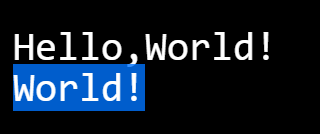
Switch the update function to innerHTML, replacing < with < and & with & so escapes are not evaluated and the code is displayed rather than rendered as tags.
result_element.innerHTML = text.replace(new RegExp("&", "g"), "&").replace(new RegExp("<", "g"), "<"); /* Global RegExp */
Synchronized scrolling and resizing
By default the highlighted layer does not scroll, and it does not follow the textarea when the latter scrolls.
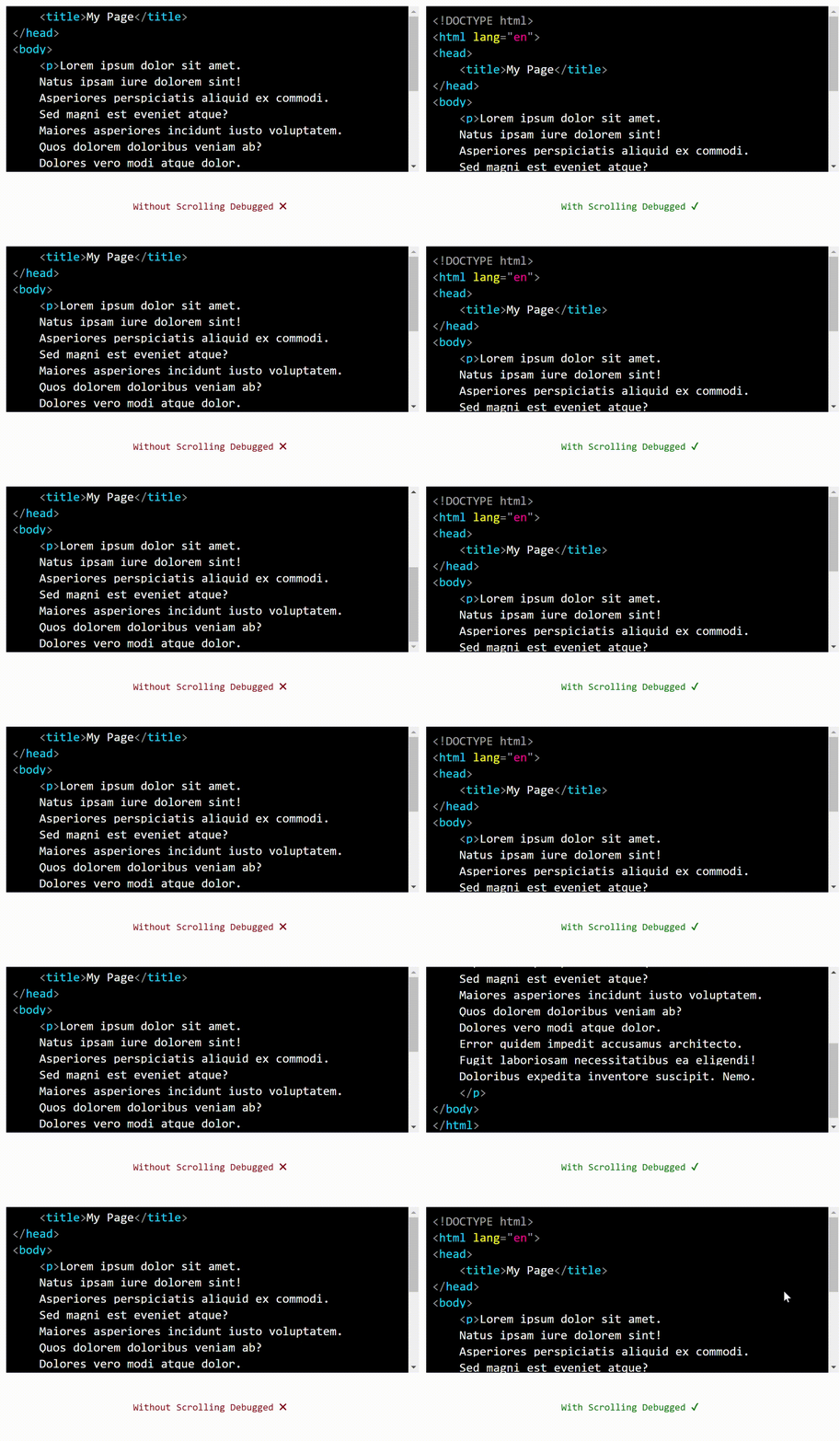
Enable scrolling on both, then sync them from the textarea's scroll event:
/* Can be scrolled */
#editing, #highlighting {
  overflow: auto;
  white-space: pre; /* Allows textarea to scroll horizontally */
}
<textarea id="editing" oninput="update(this.value); sync_scroll(this);" onscroll="sync_scroll(this);"></textarea>function sync_scroll(element) {
/* Scroll result to scroll coords of event - sync with textarea */
let result_element = document.querySelector("#highlighting");
// Get and set x and y
result_element.scrollTop = element.scrollTop;
result_element.scrollLeft = element.scrollLeft;
}Some browsers let users resize a textarea, which would break the size match. Disable resizing in CSS:
/* No resize on textarea */
#editing {
  resize: none;
}
The empty last line
After that fix scrolling is almost always synced, but creating a new line leaves the cursor and text temporarily misaligned: the <pre><code> block ignores an empty final line. Since this is an input, the line must be shown, so the update function appends an invisible space character to the final line to give it content.
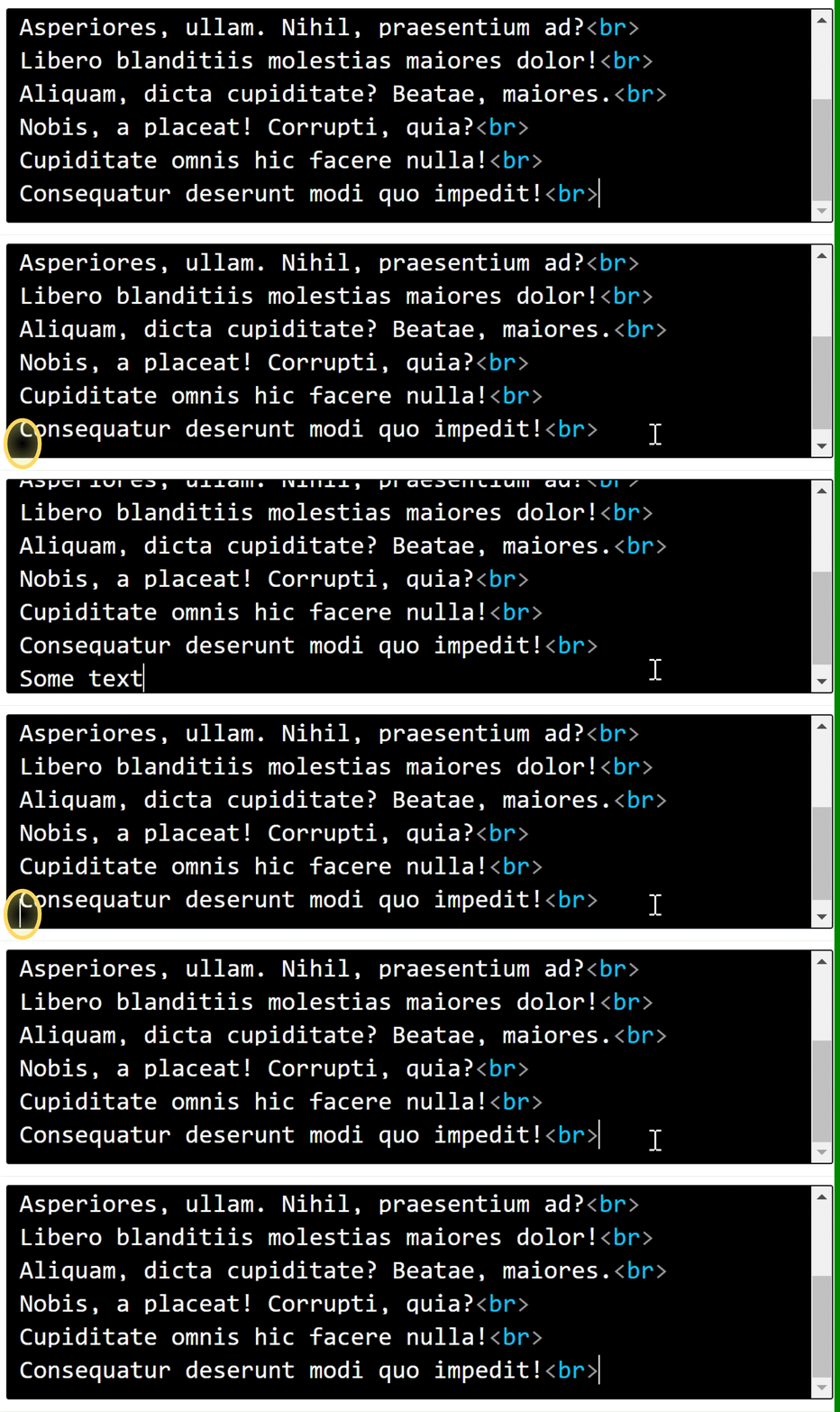
function update(text) {
  let result_element = document.querySelector("#highlighting-content");
  // Handle final newlines (see article)
  if(text[text.length-1] == "\n") { // If the last character is a newline character
    text += " "; // Add a placeholder space character to the final line
  }
  // Update code
  result_element.innerHTML = text.replace(new RegExp("&", "g"), "&").replace(new RegExp("<", "g"), "<"); /* Global RegExp */
  // Syntax Highlight
  Prism.highlightElement(result_element);
}
Tabs
Indenting with spaces works as-is; the Tab key needs JavaScript help, with comments in the function explaining each step.
<textarea ... onkeydown="check_tab(this, event);"></textarea>function check_tab(element, event) {
let code = element.value;
if(event.key == "Tab") {
/* Tab key pressed */
event.preventDefault(); // stop normal
let before_tab = code.slice(0, element.selectionStart); // text before tab
let after_tab = code.slice(element.selectionEnd, element.value.length); // text after tab
let cursor_pos = element.selectionEnd + 1; // where cursor moves after tab - moving forward by 1 char to after tab
element.value = before_tab + "\t" + after_tab; // add tab char
// move cursor
element.selectionStart = cursor_pos;
element.selectionEnd = cursor_pos;
update(element.value); // Update text to include indent
}
}To keep Tab characters the same width in both layers, set tab-size in CSS:
#editing, #highlighting, #highlighting * {
  /* Also add text styles to highlighing tokens */
  /* etc. */
  tab-size: 2;
}
What's left
The component is ordinary semantic HTML — <textarea>, <pre>, <code> — plus CSS to stack them and JavaScript for the edge cases above. Prism.js is the highlighter used here, but the technique works with any other highlighter, or one you write yourself. Because it remains a textarea, it functions in any form, where a placeholder is also available. The component has been released as a <code-input> custom element on GitHub.
Updates:
- Aug. 27, 2024: A React version was contributed in CodePen by reader Luis Lobo.
- January 13, 2025: The example gained a
white-space: pre;declaration so whitespace is treated equally across browsers, improving horizontal scrolling.