
The Extension model
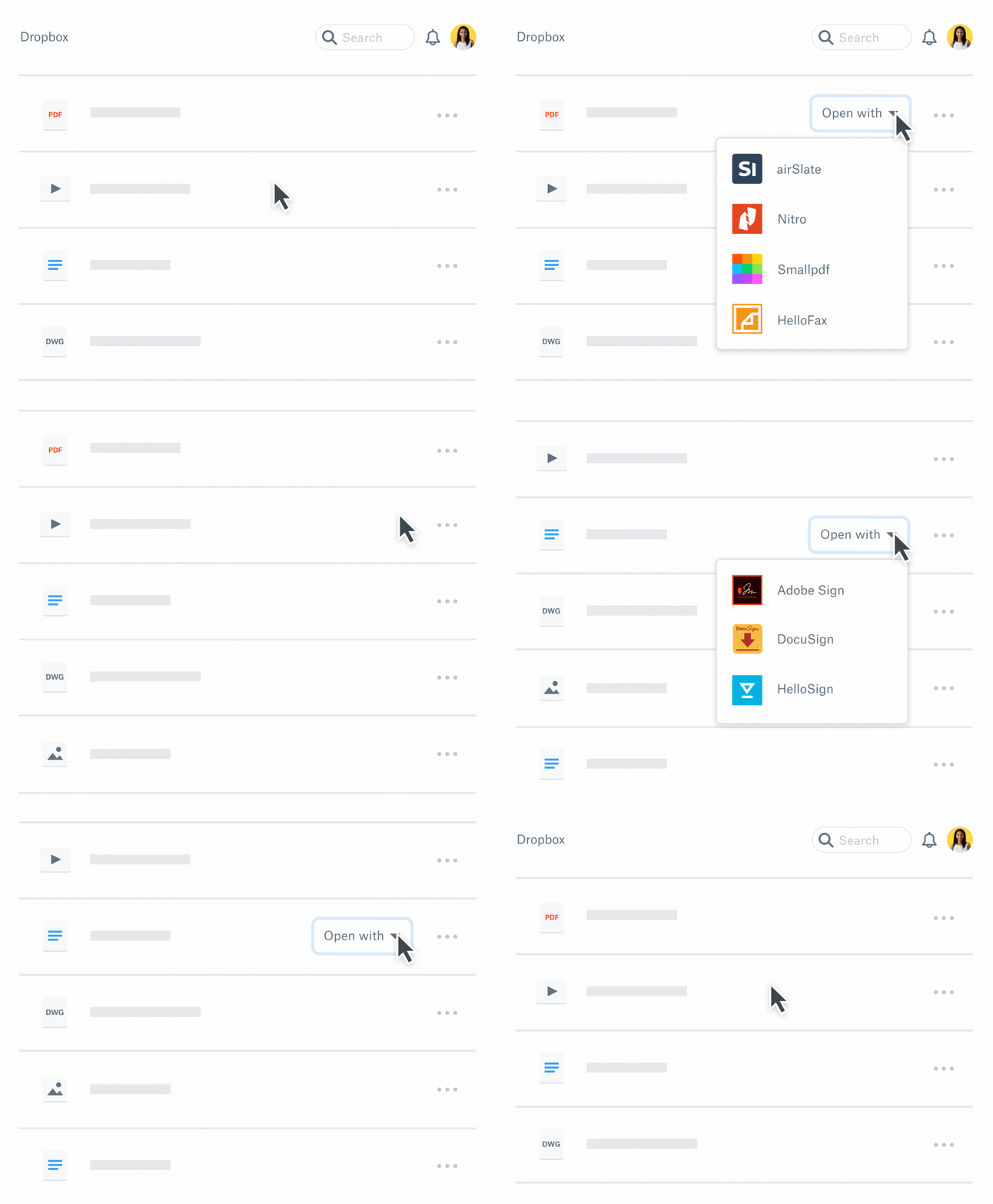
Dropbox has shipped partner-built Extensions for tasks like PDF editing and eSignature requests. The platform is now open to all developers, letting any app plug into Dropbox's file workflows through the standard OAuth flow and API v2. For users, an Extension removes the round trip of exporting a file, editing it elsewhere, and re-uploading: they click the file in Dropbox and the action starts in your app.
An Extension is a feature of a Dropbox app, not a separate product. You add it to an existing app or create a new one in the App Console. Two requirements apply: the app needs Full Dropbox access, and if it is scoped, it must include at least the files.metadata.read scope.
How users discover and launch your Extension
Before any user sees your Extension, they must authorize your app via OAuth 2.0, initiated from your own website. After authorization, the Extension appears on Dropbox files in either the “Open” or “Share” menu, depending on the app’s settings. When a user clicks it, Dropbox redirects them to your app along with a unique file reference. From there, your app runs its workflow—for example, a photo editor opening the referenced image—and should save the result back to Dropbox to complete the loop.
Configuration and testing
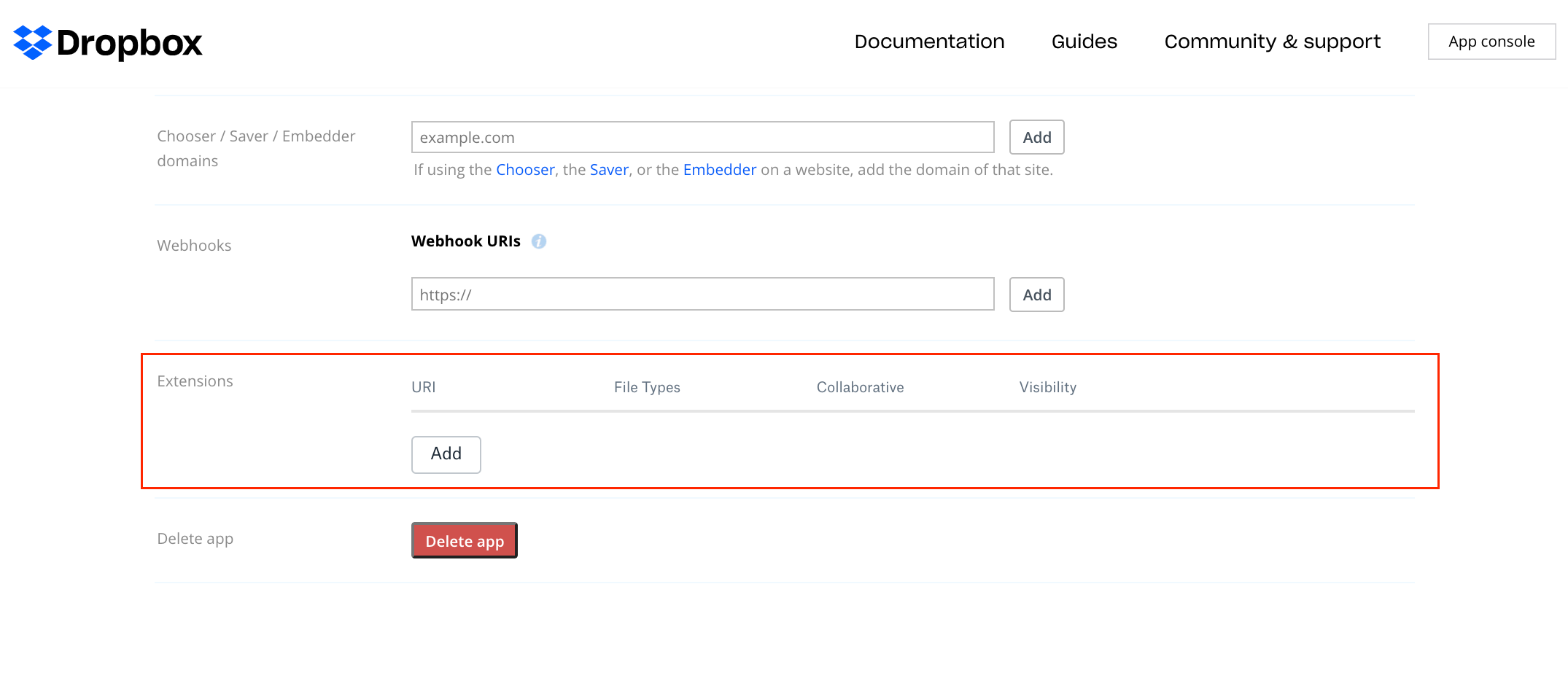
In the Extension section of the App Console, the key setting is the Extension URI. Dropbox sends information about the selected file—such as file_id—to that URI. With the file_id and the user’s access token from OAuth, you can call APIs like /users/get_current_account to identify the user, and /files/download or /files/get_metadata to fetch the selected file's metadata. Scoped apps must configure the right permissions in the Permissions tab as well.

Existing Full Dropbox access apps get a new Extension URI section in the Settings tab. Once configured, the Extension appears in your own account without an OAuth flow, so you can test it before flipping its visibility for users who have authorized the app. If you add an Extension to an already-authorized app, existing users are not prompted again; the Extension simply shows up in their Dropbox.
Get started
The full Extensions Guide covers implementation details, and questions and feedback can go to the community forum.


