
Annotations on Previews: Bringing Context to Collaboration
Location-specific feedback is core to effective collaboration. At Dropbox, we wanted users to be able to attach comments directly to a document's content by drawing rectangles or highlighting text on the preview. This presented a unique set of engineering challenges: rendering those marks accurately across different file types, viewport sizes, and platforms; preserving the security isolation of user documents; and keeping the whole experience smooth. Here’s how we solved those problems.
The Framework: Previews and Isolation
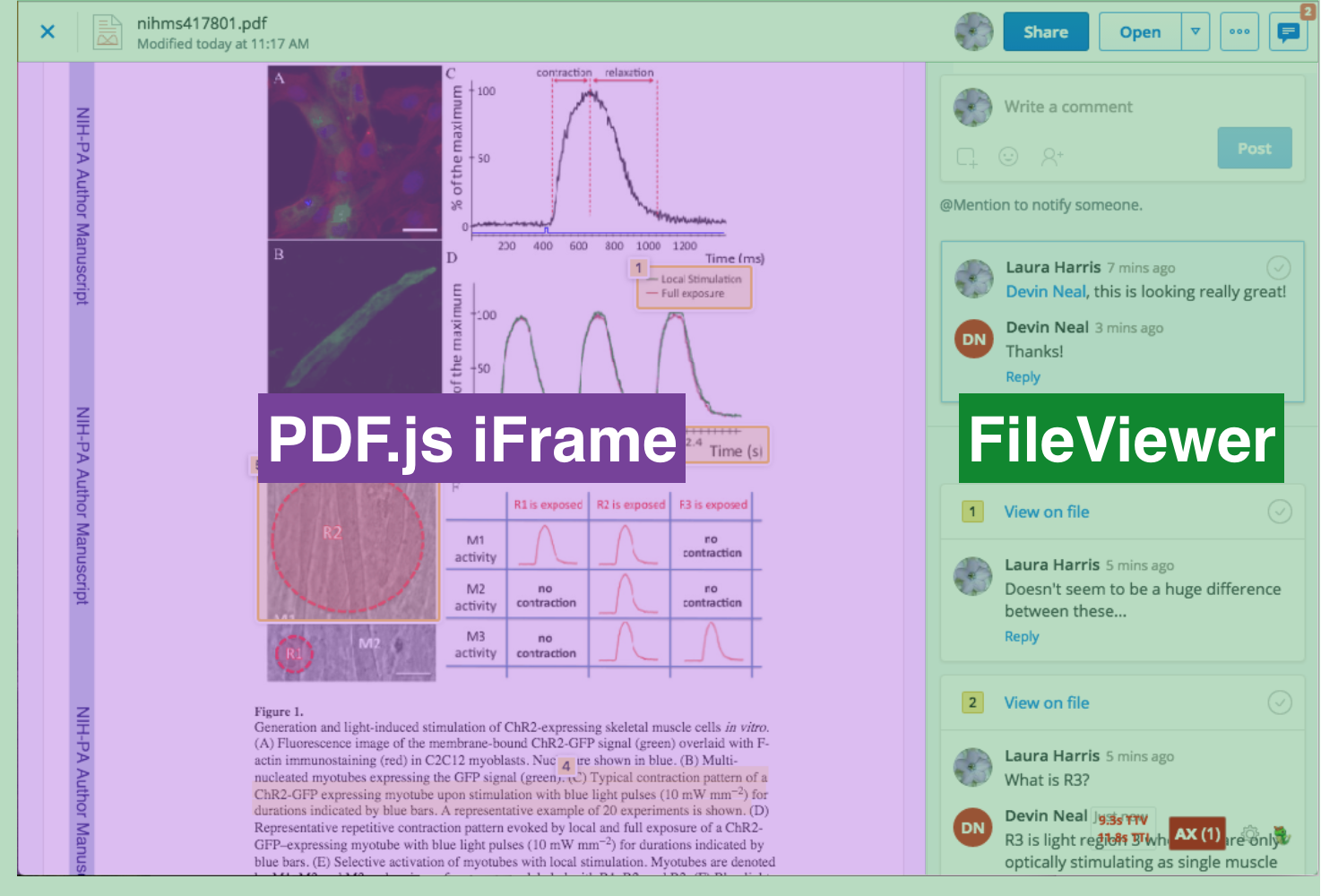
Our previews on the web are handled by a module called FileViewer. Simple files like images and text are inserted directly into the DOM. More complex types—PDFs, Microsoft Office files, Adobe Illustrator files—require a PDF preview to be generated on the back end. That preview is then displayed inside an iframe that sits within the FileViewer.
Since user documents can be arbitrary and potentially malicious, they are rendered only within that isolated iframe. Because the iframe's source is on a different domain, it has no access to the main site's DOM, CSS, JavaScript, cookies, or local storage. Within the iframe, we rely on PDF.js to display the generated previews. PDF.js is deliberately kept simple: its only job is to render a PDF from a given URL, with no knowledge of the user. This isolation is a security win, and it also lets us leverage a mature, actively developed open-source library.
For simple read-only previews, this setup was ideal. But annotations changed the requirements. We now needed real-time communication between the isolated PDF.js environment and the main FileViewer. That communication is handled by FrameMessenger, a Dropbox-proprietary message-passing module that sends JSON payloads. We use PDF previews on the web as our working example, though the architecture is designed for any file type and platform.
The Components: Annotation and AnnotationBubble
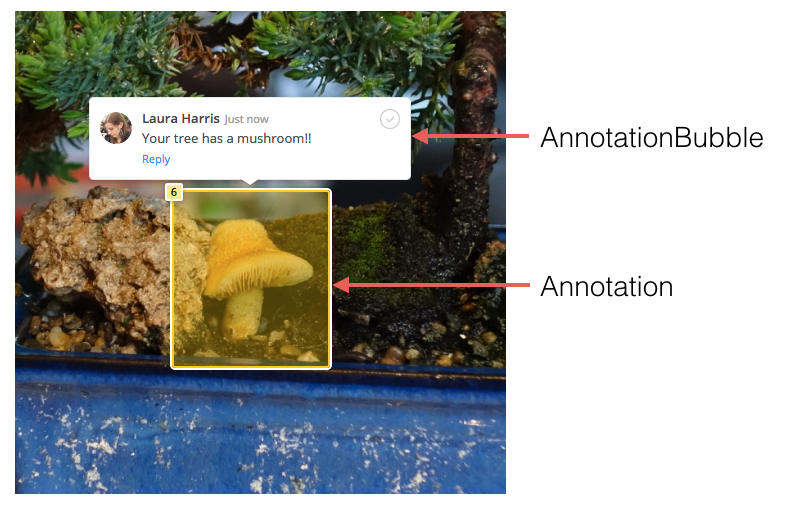
Our front end is built with React, and annotations are built from two primary, reusable components. The first is the Annotation itself: a yellow overlay that is positioned within the document and refers to a specific part of its content. Today this can be either a text highlight or a rectangle, and we plan to add more types like freehand shapes in the future. The Annotation's placement and sizing are driven by user mouse events; it must react fluidly while being created and continue to track the document as it scrolls or resizes.
The second component is the AnnotationBubble. This is a popup that contains the original comment text along with replies and a list of relevant users. It floats near its associated Annotation. If a user @mentions someone, the CommentComposer React component notifies the recipient via email and a popup. The AnnotationBubble needs to be visually linked to its Annotation, but it also has to interact with other Dropbox systems—like the User object, the contact list popup, and a comments side panel.
The Divide: Where to Put the Logic
The central design question was how to bridge the gap between the FileViewer ecosystem and the isolated PDF.js iframe. We had several criteria we wanted to meet:
- The
AnnotationandAnnotationBubbleshould track smoothly with scrolling and resizing. - The
AnnotationBubbleshould be able to overlap the document's edge to use viewport space efficiently, but theAnnotationitself should be clipped to the document boundary. - We wanted to minimize our modifications to the third-party
PDF.jsand keep the bulk of our code inFileViewerfor maintainability. - We needed to avoid sending sensitive user data into the iframe, as that would compromise the security we designed for.
Option 1: Everything Inside the Iframe
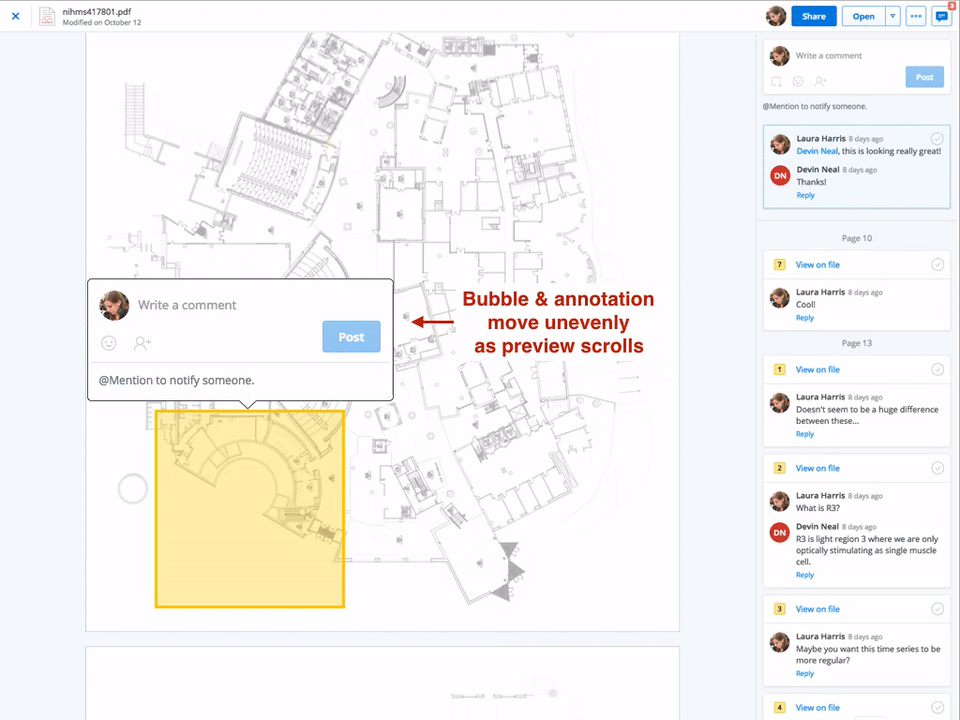
One path was to customize PDF.js and implement everything within the iframe. The Annotation components would live "inside" the document itself. This has distinct advantages: resizes and scrolls could update the Annotation's position seamlessly with no complex calculations, and elements would be naturally clipped by the iframe's boundary.
However, this direction had serious problems as well. First, the AnnotationBubble would also be clipped by the iframe, but for usability it should be allowed to extend beyond the document's view. Second, integrating these components into PDF.js would mean compiling real code into the "vanilla" JavaScript library, which would make future upgrades to PDF.js painful and compromise code simplicity. Third, such an approach would be nearly impossible to generalize for preview types that don't use an iframe. Finally, and most critically, to render the bubble we'd need to pass user information (like profile data and contact lists) into the iframe, which would break the security encapsulation.
Option 2: Everything in the Parent FileViewer
The opposite strategy was to build all components in the main FileViewer, drawing an overlay "on top" of the iframe. This aligns development with the main Dropbox site and makes data exchange between the annotation and other systems trivially easy with no security concerns.
But the challenge here is visual. It's very difficult to make an Annotation in an overlay look like it's attached to the document, especially when the document is moving. Instead of sending slow-moving user metadata, we'd have to constantly stream rapid mouse, scroll, and resize events. The latency of that cross-document communication, combined with coordinate translation and manual repainting, would cause the Annotation to visually lag behind the document, breaking the illusion that it's attached.
Option 3: A Hybrid Approach
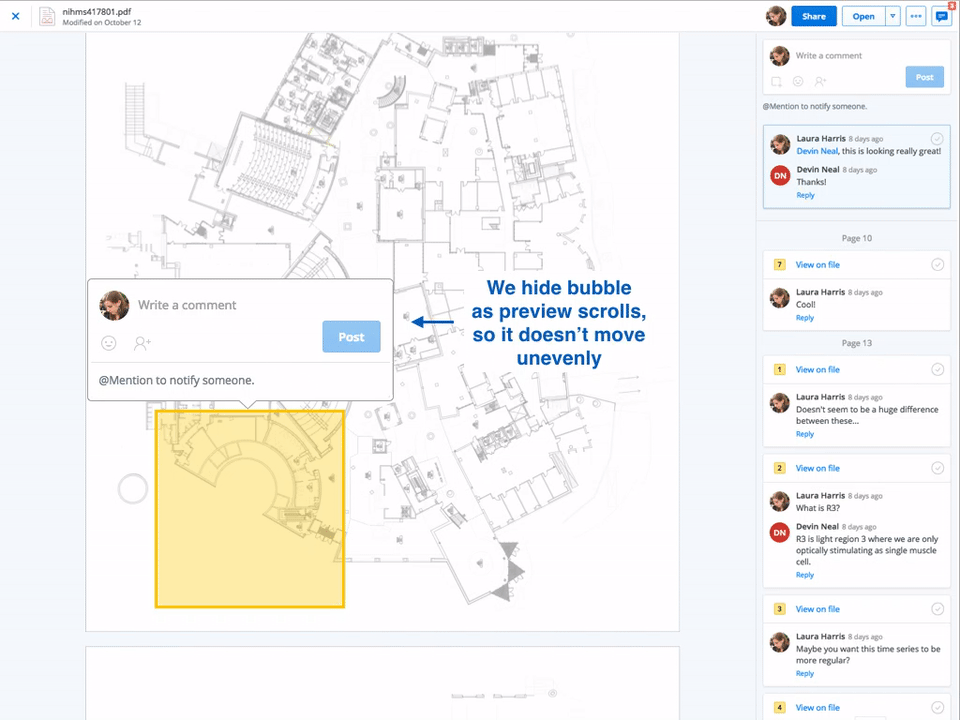
The best answer was a compromise that balanced code quality and performance. We put the Annotation code inside the PDF.js iframe. Because it's attached as a child div within the iframe, it moves smoothly with the document during scrolls and resizes, and it's automatically clipped at the page's boundary.
The AnnotationBubble, by contrast, is a component in the parent FileViewer. This gives it direct access to other Dropbox components and the user data it needs, and it can freely extend beyond the iframe's edges for better viewport usage. To keep itself linked to its Annotation, the bubble must receive updates about the Annotation's movement. These updates are sent from inside the iframe via the FrameMessenger and translated to viewport coordinates. This introduces some latency, which we mitigate by hiding the bubble while its Annotation is moving, so it appears only when it's safe and precisely positioned. This approach does require a specific translation interface for each preview type, a complexity we've documented in an appendix.
The tradeoffs of the three options are summarized below:
| Option | Pros | Cons |
|---|---|---|
|
|
|
|
|
|
|
|
|
From Mouse Click to JSON: An Event in Action
Here's a concrete example of how this system works, showing how we achieve isolation and cross-frame communication in practice. In this scenario, a user has been dragging her mouse to draw a rectangle on the document. When she releases the mouse, a chain of events begins.
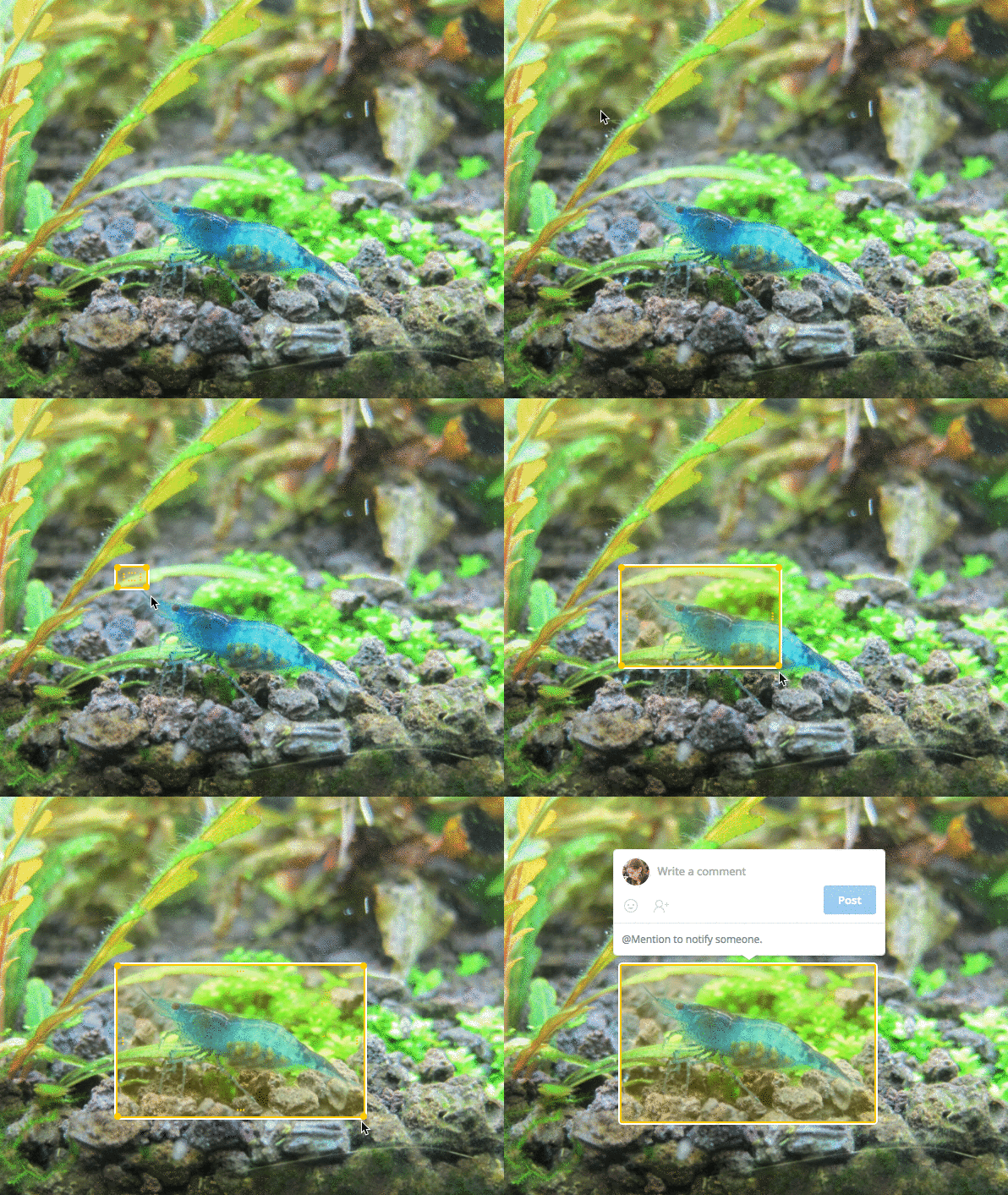
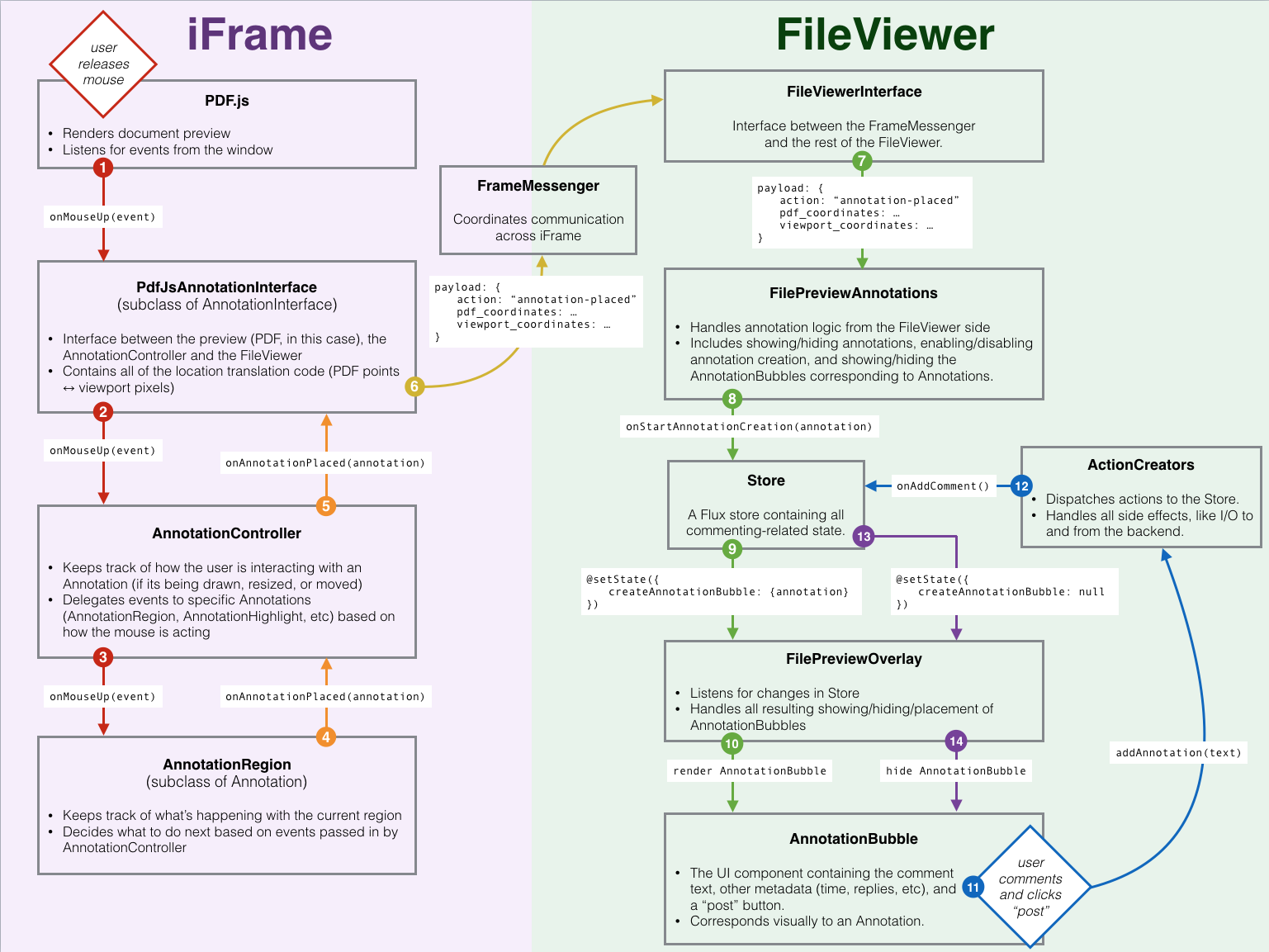
Inside the iframe
- The document preview inside the iframe is built on
PDF.js, which has listeners set up on the browser'swindow. It catches themouseupevent and calls itsPdfJsAnnotationInterface. PdfJsAnnotationInterfacehandles all communication between the preview itself and the generalAnnotationController.- The event is passed to the
AnnotationController, which routes it to the appropriateAnnotation—in this case, a new one that was being drawn. It invokes thatAnnotationRegion's specificonMouseUpcallback.
The following is a simplified snippet of the CoffeeScript code in that callback (the relevant path is emphasized):
AnnotationRegion = React.createClass(
  ...
  # If dragging/resizing, we can stop now.
  # Otherwise, the click happened elsewhere and we just hide the rectangle
  onMouseUp: (event) ->
    if @_isModifying()  # the mouse was just interacting with the region
      # Update the annotation
      @_updateAnnotationFromState()  # updates @annotation dict based on state
      # Call "Annotation Placed" or "End Drag" depending on whether or not
      # we were just creating the region
      if @state.isInitialCreation
        @props.onAnnotationPlaced?(@annotation)  # back to AnnotationController
      else
        @props.onAnnotationEndDrag?(@annotation)

      # Disable creation mode
      @setState {
        isInitialCreation: false
      }
      # the mouse was not interacting with the region,
      # so a click outside it tells it to hide.
      else
        @hideAnnotation(event)
  ...
)- Based on mouse positions tracked during earlier
mousemoveevents,AnnotationRegionupdates its@annotationobject. It passes it back toAnnotationControllervia theonAnnotationPlacedcallback. AnnotationControllermarks this drawing task as complete and sends the final@annotationtoPdfJsAnnotationInterface.- Finally,
PdfJsAnnotationInterfacetranslates the annotation's coordinates from PDF points to viewport pixels, packages everything into a JSON message, and sends it across the iframe boundary usingFrameMessenger.
Here's what that actual JSON payload looks like as it crosses the boundary:
payload: {
  action: "annotation-placed"
  parameters: {
    pdf_coordinates: [  // original PDF location information
      page: 1
      page_size: {
        height: 790
        width: 610
      }
      coordinates: [
        x: 250.0, y: 540.0
        x: 250.0, y: 360.0
        x: 410.0, y: 360.0
        x: 410.0, y: 540.0
      ]
    ]
    type: 2   // 2 = region
    // text_highlight would contain the selected text for a highlight
    text_highlight: null
    viewport_coordinates: [   // translated viewport pixels
      x: 530, y: 510
      x: 530, y: 870
      x: 830, y: 870
      x: 830, y: 510
    ]
  }
}
Inside the FileViewer event flow
When a user places an annotation on a preview, the "annotation-placed" JSON message is received by FileViewerInterface, the component that manages all communication between the preview iframe and FileViewer. From there, the message moves up to FilePreviewAnnotations, which owns all annotation logic on the FileViewer side.
FilePreviewAnnotations then updates the commenting Store and prepares the data needed for a new AnnotationBubble. Commenting follows a Flux architecture, so the Store only holds shared state — it never constructs UI components directly. Specifically, the Store updates the createAnnotationBubble portion of its state:
return Reflux.createStore({
  ...
  onStartAnnotationCreation: ({annotation}) ->
    @setState({
      # createAnnotationBubble contains information for creating
      # the AnnotationBubble for a new Annotation
      createAnnotationBubble: {
        annotation: annotation
        showBubble: true
      }
    })
  ...
})
Actual creation of the AnnotationBubble happens in FilePreviewOverlay, which subscribes to Store updates. When Store.createAnnotationBubble changes, FilePreviewOverlay picks up the change and positions a new AnnotationBubble accordingly.
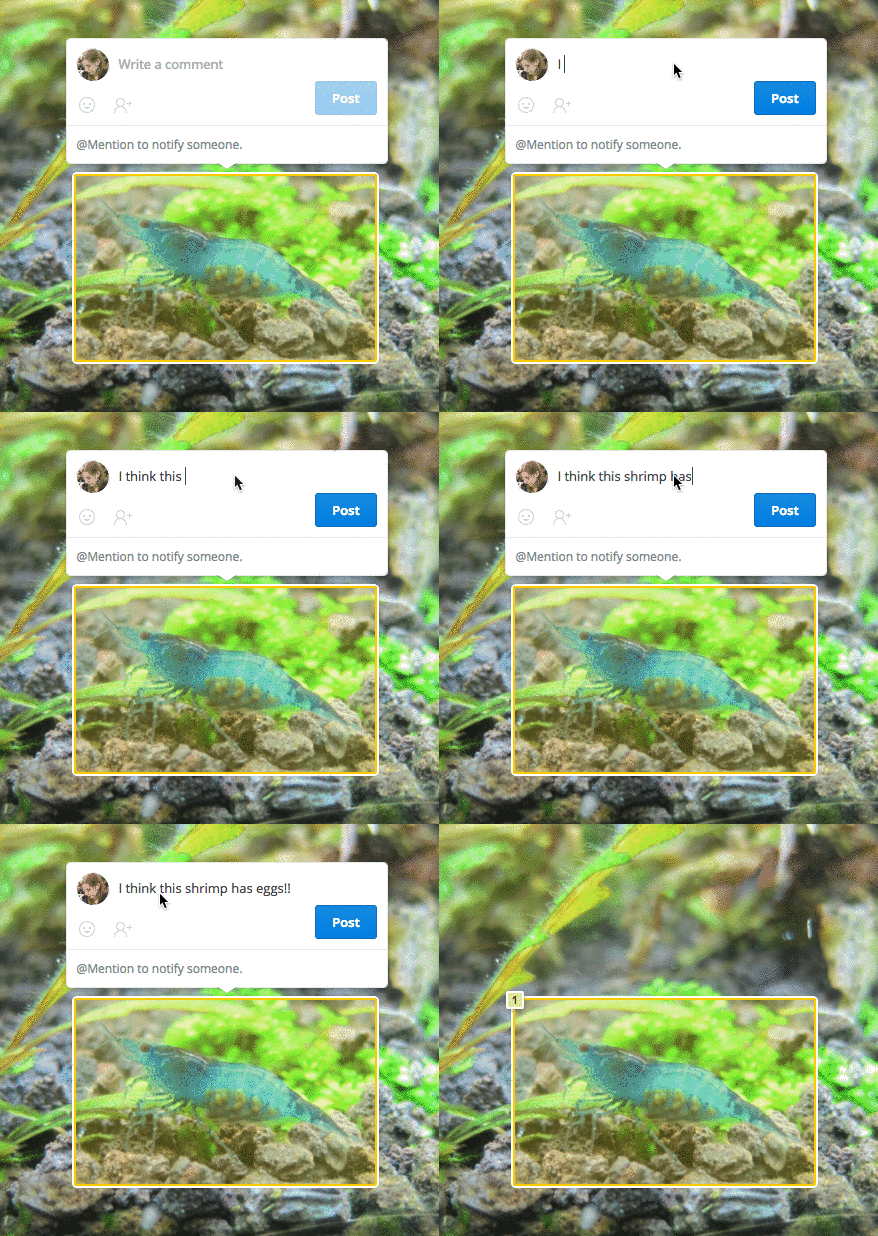
The user types a comment into the bubble and clicks “Post.” This triggers ActionCreators.addAnnotation. In the Flux paradigm, the Store holds global state but ActionCreators handle global actions, including side effects and I/O. Here, ActionCreators.addAnnotation saves the annotation and comment to Dropbox’s back-end data centers. On a successful save, ActionCreators updates the Store and clears Store.createAnnotationBubble. FilePreviewOverlay detects this update and hides the AnnotationBubble.
Why annotations are split across the boundary
The cascade above begins with a single mouse action, but many more events fire continuously as a user interacts with a preview. Events also flow in the reverse direction — from FileViewer down to the iframe — for higher-level actions such as toggling commenting on or off.
To keep the system responsive, Dropbox deliberately split responsibilities. The lightweight, purely visual Annotation is attached directly to the document inside the iframe, which maximizes rendering performance. The information-heavy AnnotationBubble lives outside in FileViewer, connected through a flexible interface. This separation of concerns made it straightforward to extend annotations to image files, and it leaves room for supporting additional file types later.
Translating coordinates between two systems
The split between iframe and FileViewer means coordinates must be translated between two different coordinate systems: PDF points and viewport pixels. On PDFs, positions are measured from the bottom left corner of a page in “points,” where one point equals 1/72 of an inch on the printed page. Viewport positions, by contrast, are measured in pixels from the top left of the viewer’s viewport.
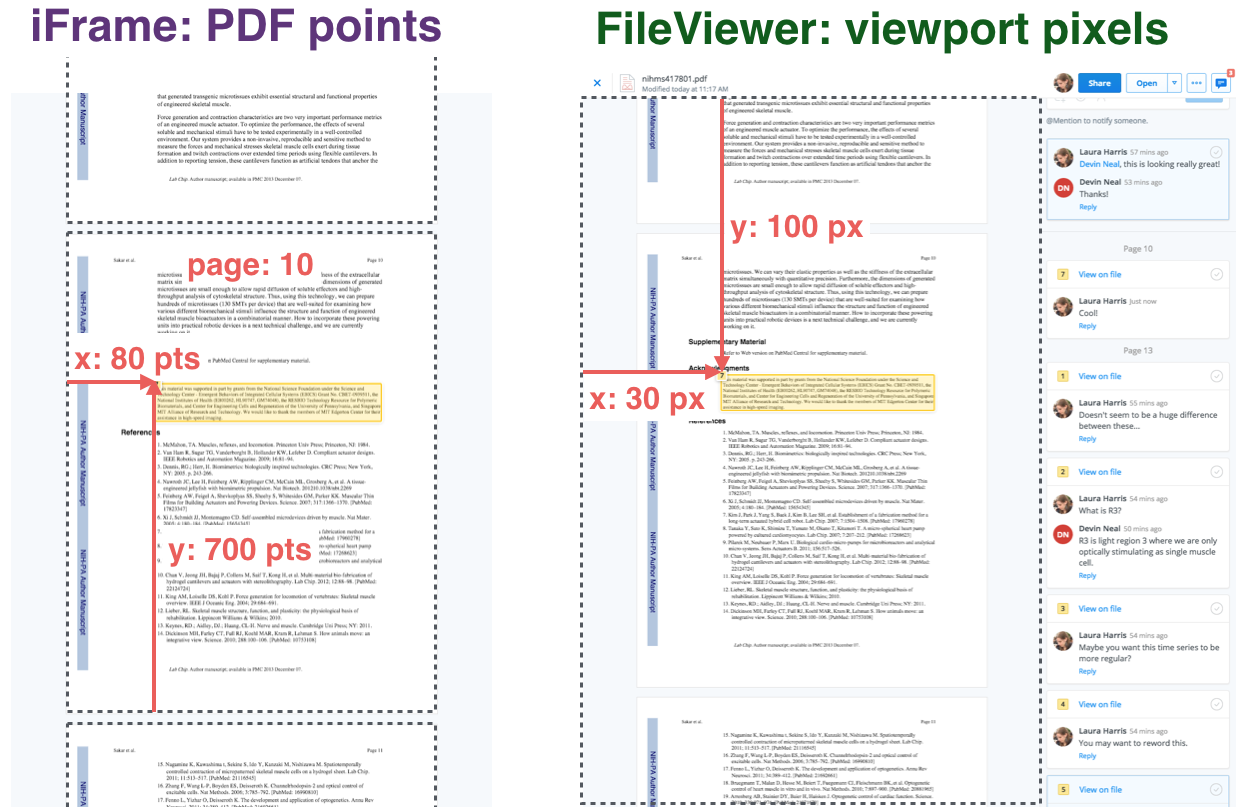
Converting from PDF points in the iframe to viewport pixels requires accounting for the current page and scroll position to derive an offset. The vertical component of the point must be reversed, and the document’s zoom level provides the multiplier for the final translation to pixels.
This translation runs every time the Annotation moves, whether from the user drawing it, scrolling, or resizing the document. Position data is streamed continuously from the iframe to FileViewer. Information also travels in the opposite direction — for instance, when a user toggles comment visibility globally or posts or deletes a specific comment from the AnnotationBubble. These lightweight messages transmit quickly, so the added traffic does not degrade performance.


