
Npgsql, the open source ADO.NET Data Provider for PostgreSQL, can serve as the bridge between an Excel workbook and a PostgreSQL server. Because Excel ships an entry for PostgreSQL under its database connectors, the integration avoids the usual ODBC route — provided the driver is registered in the right place.
What has to be in place
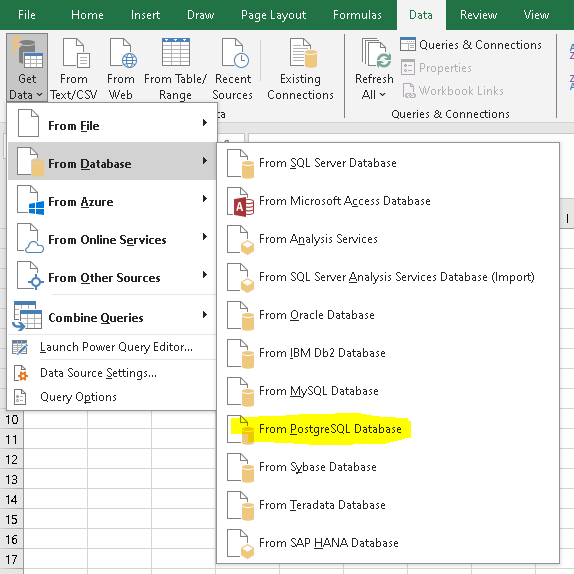
A reachable PostgreSQL server and an Excel version or license that includes the native PostgreSQL connector are the prerequisites. To confirm the license covers it, open Excel and follow Data – Get Data – From Database; the resulting container should list a PostgreSQL entry, as shown in the environment referenced below.
The setup described here was verified with the following client and server environment.
- Client
- Server
Installing the driver into the Global Assembly Cache
Excel can only use Npgsql as a database provider once the driver resides in the Global Assembly Cache. Npgsql publishes MSI installers that handle this placement; the example here uses an older one.
The package Npgsql-4.0.10.msi is downloaded from the v4.0.10 release and installed on Windows, after which the driver should also be visible to Excel. Verification is straightforward:
- Open Excel.
- Go through
Data > From Database > From PostgreSQL Database.
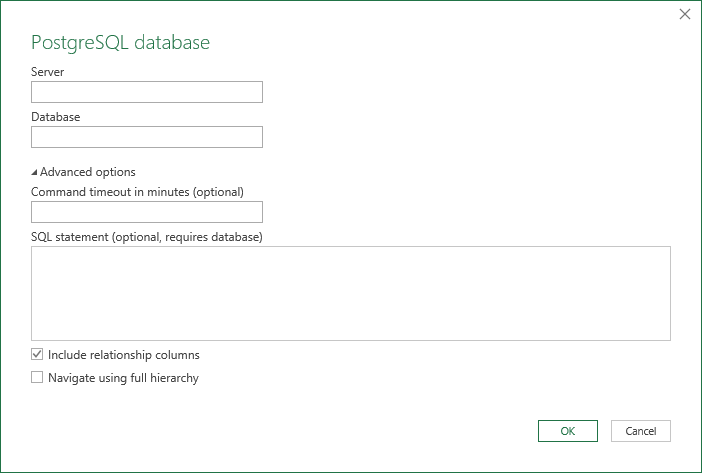
If recognition succeeded, Excel asks for connection details and credentials.
Connecting without SSL
The simplest starting point is a connection without SSL. Testing it with psql before touching Excel saves time, by passing sslmode=disabled on the client side.
|
1 2 3 4 5 6 |
user@fn-gis-2:~$ psql 'dbname=perf user=postgres host=10.0.0.217 sslmode=disable' Password for user postgres: psql (16.1 (Ubuntu 16.1-1.pgdg22.04+1)) Type 'help' for help. perf=# |
With that confirmed, the same connection details and credentials are entered in Excel. The screenshots below document those steps.
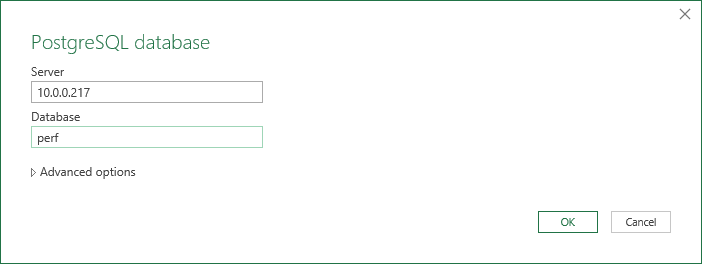
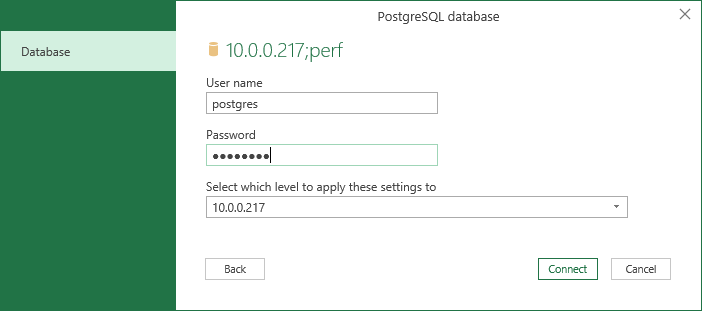
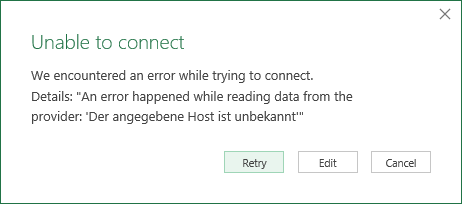
The attempt fails. According to the error message, Excel negotiates PostgreSQL connections with SSLMODE enabled by default. The parameter can be changed in Excel's Data Source Settings (Data > Data Source Settings), where unchecking Encrypt connections disables SSLMODE for that connection.
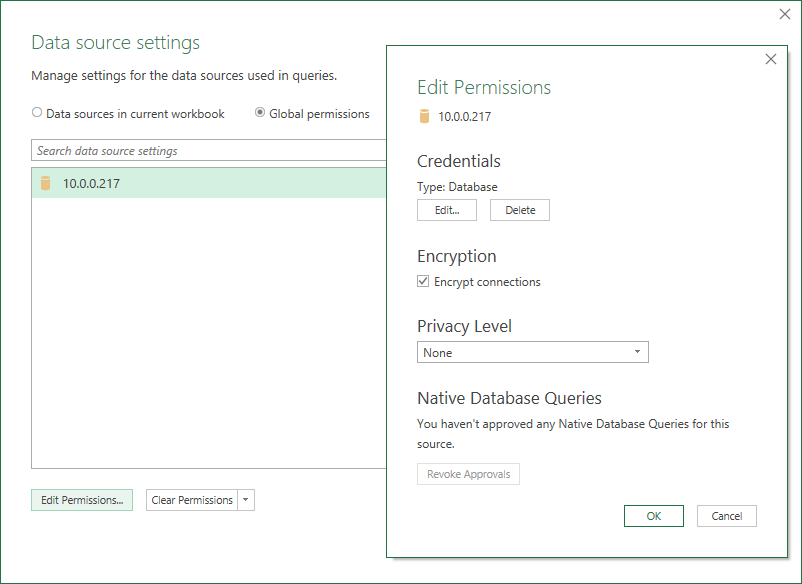
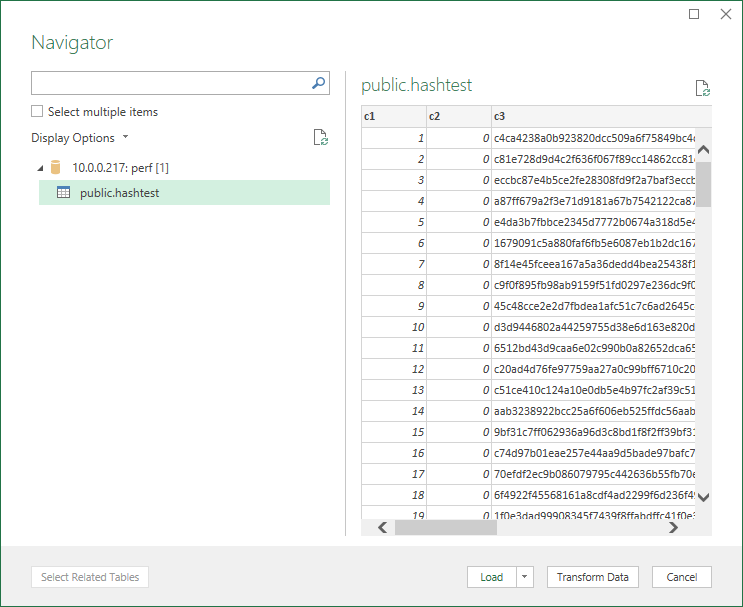
The next attempt succeeds and brings up Excel's navigator pane for further data processing.
Switching to an encrypted connection
Securing the link requires a working knowledge of PostgreSQL's SSL capabilities, for which the project's own documentation and Hans Schönig's write-up on setting up SSL authentication are good references. The approach followed here is to generate a self-signed certificate on the server and treat it as a trusted root certificate on the client.
The process splits into server-side and client-side work.
- Server
- Client
On the server, the self-signed certificate is generated and stored in PostgreSQL's data directory, the location the system checks by default. Generation — and any chown needed to fix ownership — is done as user postgres.
postgres@fn-gis-2:~/16/main$ openssl req -new -x509 -days 90 -nodes -text -out server.crt -keyout server.key -subj '/CN=10.0.0.217'
...+.....+..........+...+..+......+......+....+.....+.+......+..+.+.....................+...+..+....+++++++++++++++++++++++++++++++++++++++++++++++++++++++++++++++++*...+++++++++++++++++++++++++++++++++++++++++++++++++++++++++++++++++*....................+............+.........+.+........+.+...........+...+++++++++++++++++++++++++++++++++++++++++++++++++++++++++++++++++
..+......+.+...+..............+.+.....+.+..............+......+.+...+..+..........+..+...+.......+...........+.........+...+...+.+...+..+.+...+.....+.......+.....+...+.......+........+.+.....+......+.............+......+...+++++++++++++++++++++++++++++++++++++++++++++++++++++++++++++++++*....+...+.+.....+.+++++++++++++++++++++++++++++++++++++++++++++++++++++++++++++++++*....+.....+.+.....+.........+....+...............+...+............+...+.....+....+.....+...+.+.....+.......+...+++++++++++++++++++++++++++++++++++++++++++++++++++++++++++++++++
-----
postgres@fn-gis-2:~/16/main$ chmod og-rwx server.key server.crt
The paths to those files are then set in postgresql.conf, after which the database server is restarted.
|
1 2 3 |
ssl = on ssl_cert_file = 'server.crt' ssl_key_file = 'server.key' |
|
1 |
root@fn-gis-2:/var/lib/postgresql/16/main# sudo systemctl restart postgresql@16-main |
Before moving to Windows, correctness is checked with psql. The server certificate becomes a trusted root certificate by copying and renaming server.crt to root.crt inside the .postgresql directory, where psql looks for certificates by default.
|
1 2 3 |
postgres@fn-gis-2:~$ mkdir ~/.postgresql postgres@fn-gis-2:~$ cd .postgresql/ postgres@fn-gis-2:~/.postgresql$ cp /var/lib/postgresql/16/main/server.crt root.crt |
The connection test follows.
|
1 2 3 4 5 6 7 |
postgres@fn-gis-2:/home/user/.postgresql$ psql postgresql://[email protected]:5432/postgres?sslmode=verify-full Password for user postgres: psql (16.1 (Ubuntu 16.1-1.pgdg22.04+1)) SSL connection (protocol: TLSv1.3, cipher: TLS_AES_256_GCM_SHA384, compression: off) Type 'help' for help. postgres=# |
The output confirms that the session is connecting with SSL mode enabled. Renaming ~/.postgresql/root.crt away provides a cross-check of the configuration.
|
1 2 3 4 5 6 7 8 |
postgres@fn-gis-2:~/.postgresql$ mv root.crt _root.crt postgres@fn-gis-2:~/.postgresql$ psql postgresql://[email protected]:5432/postgres? sslmode=verify-full psql: error: connection to server at '10.0.0.217', port 5432 failed: root certificate file '/var/lib/postgresql/.postgresql/root.crt' does not exist Either provide the file, use the system's trusted roots with sslrootcert=system, or change sslmode to disable server certificate verification. postgres@fn-gis-2:~/.postgresql$ |
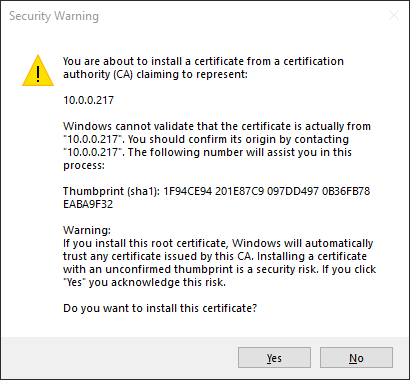
For Windows, the same root.crt is installed into the trusted root certification store:
- Right-click on
root.crtand choose install certificate. - Choose store location: User/Local Machine.
- Manually choose a cert store: trusted root certification authorities.
- Trust our ca.
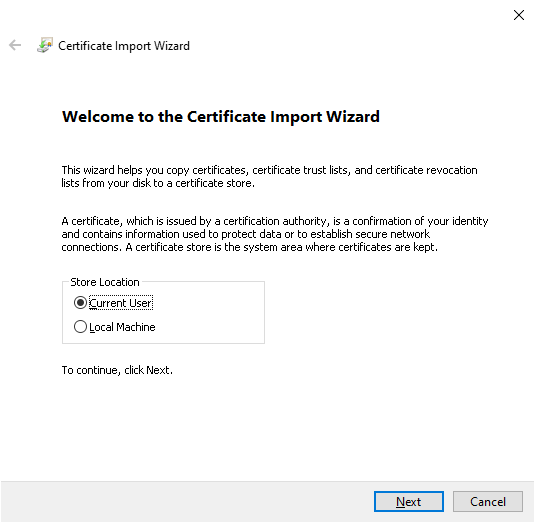
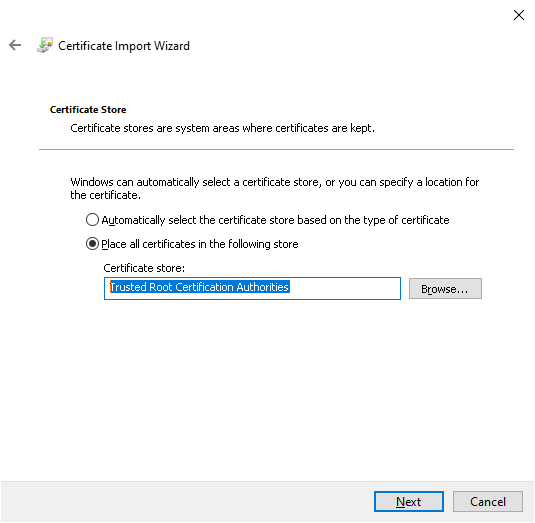
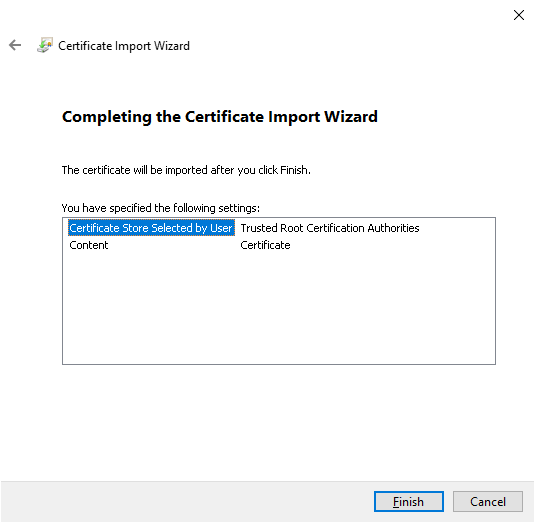
Back in Excel, the connection settings are reverted to enable Encrypt connection, and the navigator pane is opened again to confirm everything still works. As a further exercise, clients can be forced onto SSL through pg_hba.
Summary
Connecting Excel to PostgreSQL through Npgsql looks trivial at first glance, but it has a few stumbling blocks — above all the default SSLMODE behaviour Excel applies to PostgreSQL connections. Once the driver sits in the Global Assembly Cache and the certificate is trusted on the client, connectivity stops being the distraction and the data work can begin.