Django’s Admin Panel As A Data-Exploration Tool
The Django admin panel is often described as one of the framework’s standout features — and for good reason. It provides complete CRUD interfaces for your models out of the box, with room for deep customization when you need it. More than just a convenience, however, the admin panel can serve as a practical lens for understanding how Django models map to relational databases.
We’ll explore this idea using a sample library inventory system. The project tracks books, physical copies of those books, and library patrons. Before diving in, it’s worth clarifying the intended audience for the admin panel: it is a tool for developers, operators, and administrators. It is not designed as an end-user interface, and you should not deploy it as a moderation or user-facing management system.
This exploration rests on two assumptions:
- The admin panel is intuitive enough that you already know how to navigate it.
- The admin panel’s feature set is rich enough to serve as a teaching tool for relational data representation in Django.
That said, unlocking the panel’s full potential requires writing some configuration code, and we’ll need Django’s ORM to define how our data is structured.
Getting The Sample Project Running
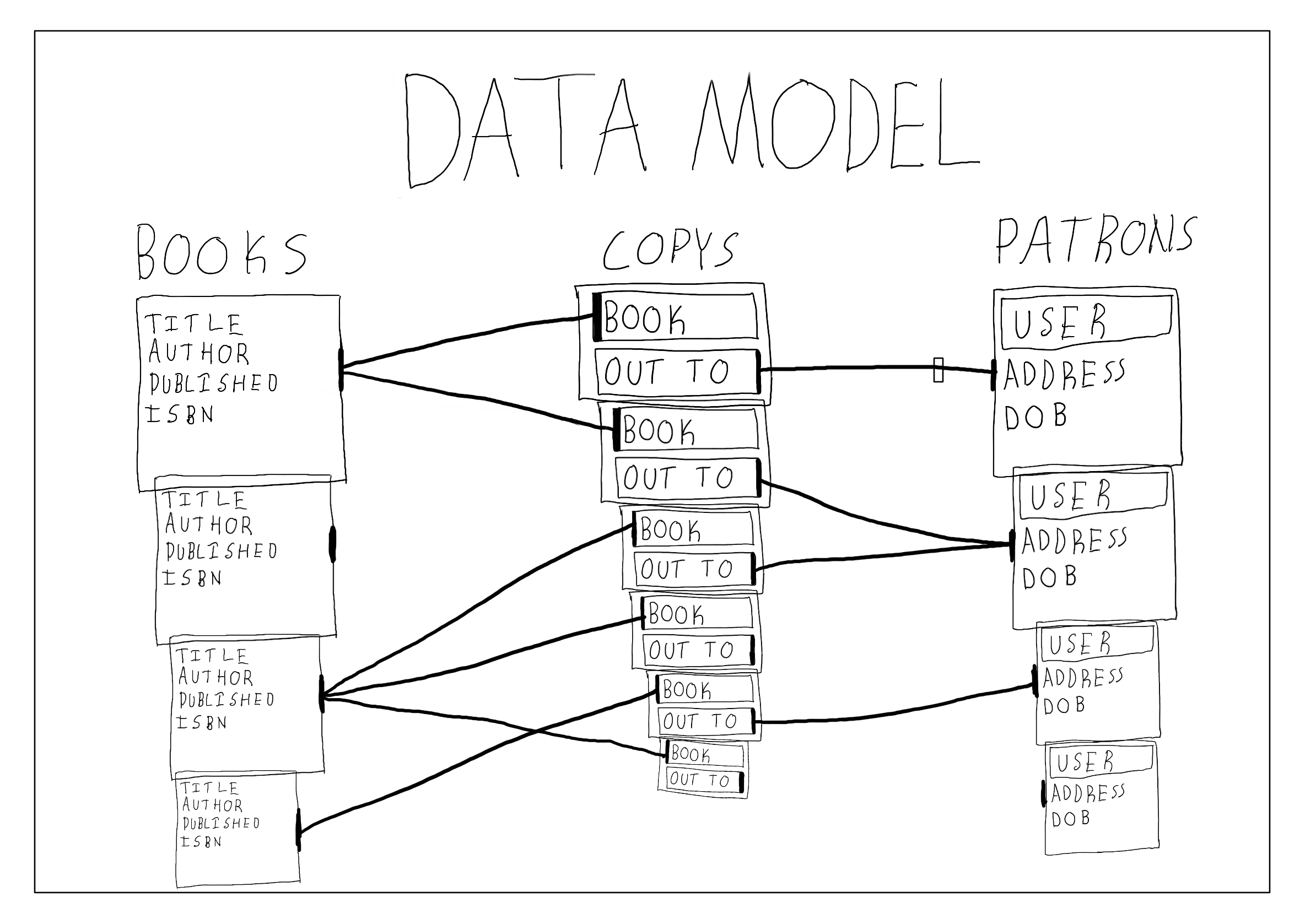
The example project models data a library would track about its books and patrons — a scenario that maps well onto many systems managing users or inventory. The data structure looks like this:
To run the code locally, follow these steps.
Install Packages And Fetch The Code
With Python 3.6 or newer installed, create a directory and virtual environment, then install these packages:
pip install django django-grappellidjango-grappelli is an admin theme we’ll touch on briefly. Next, download the example project from GitHub:
git clone https://github.com/philipkiely/library_records.git
cd library_records/library
Set Up The Database And Superuser
Run the database migrations and create a superuser account. The command-line prompts will guide you; the superuser is how you’ll access the admin panel, so note the password you choose:
python manage.py migrate
python manage.py createsuperuser
Load Fixture Data
The project includes a dataset formatted as a Django fixture. Loading it populates the database so we can explore the admin panel with realistic records. (We’ll discuss creating fixtures later.) To load the data:
python manage.py loaddata ../fixture.jsonRun The Server
Start the development server:
python manage.py runserverOpening https://127.0.0.1:8000 lands you directly at the admin panel at /admin/. This redirect is configured in library/urls.py:
from django.contrib import admin
from django.urls import path
from records import views

urlpatterns = [
    path('admin/', admin.site.urls),
    path('', views.index),
]
combined with a simple redirect in records/views.py:
from django.http import HttpResponseRedirect

def index(request):
    return HttpResponseRedirect('/admin/')
Understanding The Admin’s Default View
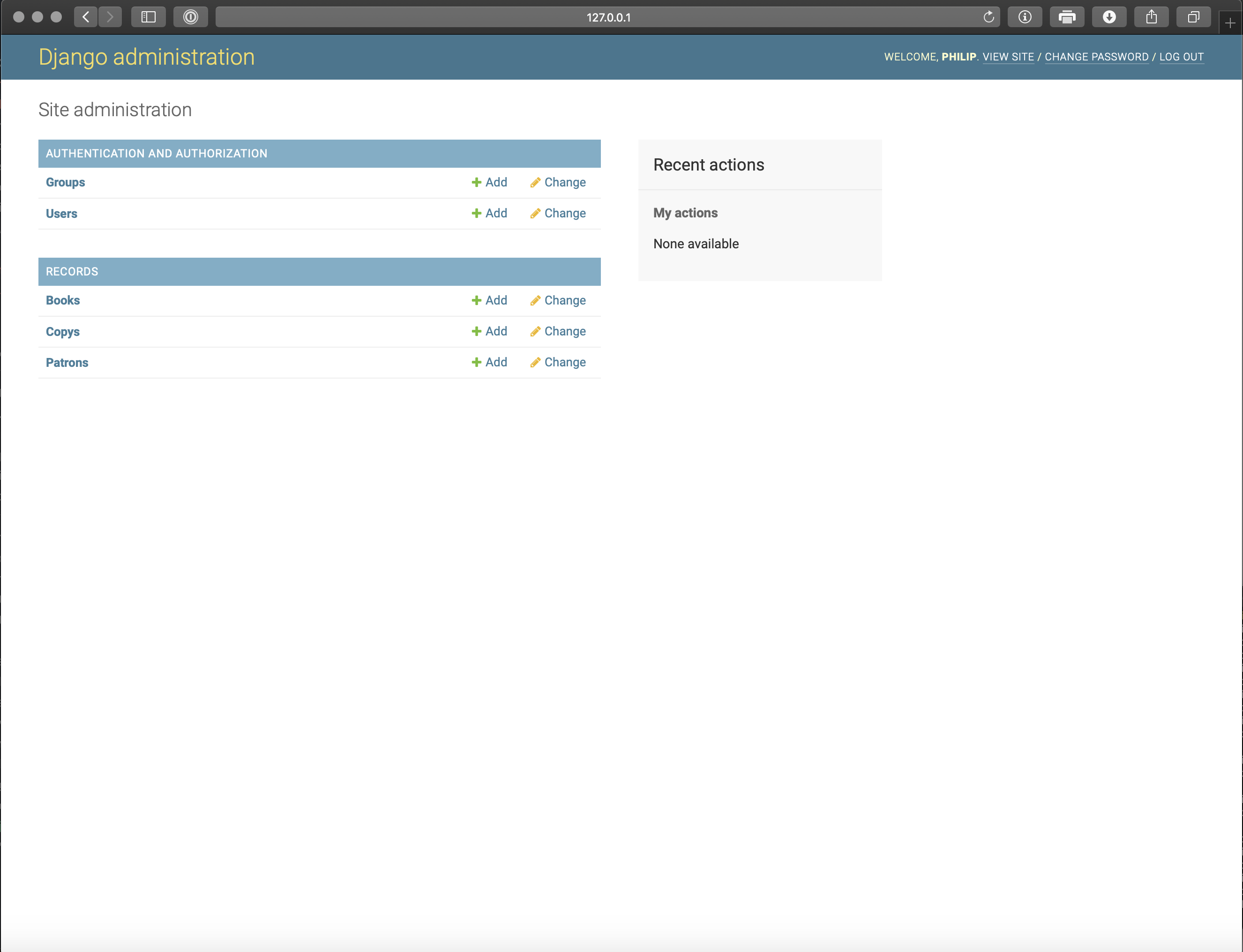
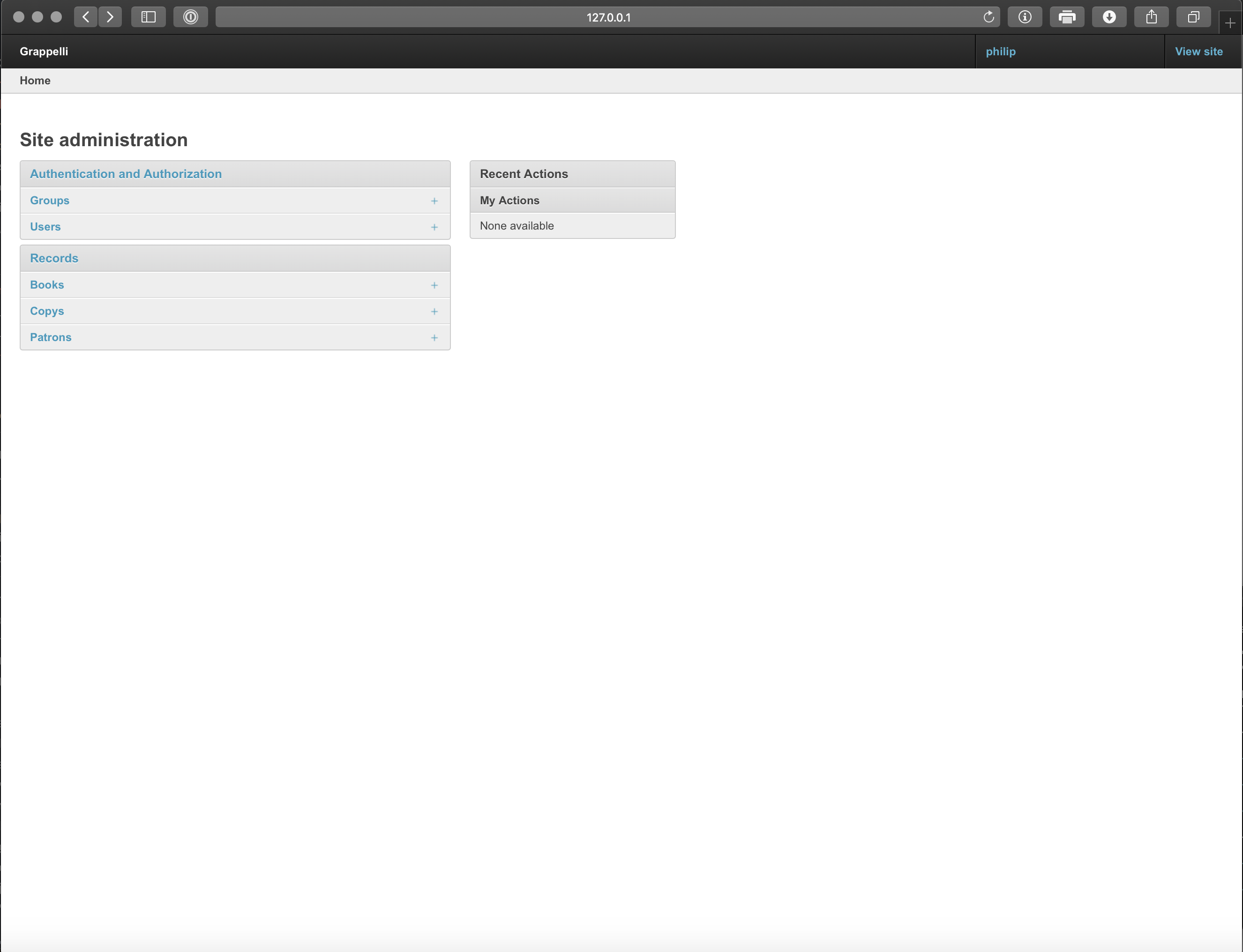
Loading the page should present a familiar admin layout:
That default view comes from boilerplate in records/admin.py:
from django.contrib import admin
from .models import Book, Patron, Copy

admin.site.register(Book)
admin.site.register(Copy)
admin.site.register(Patron)
The panel gives an immediate sense of what the system stores. Groups and Users are Django’s built-in models for account and permission management (covered in an earlier article on user authentication). The tables Books, Copys, and Patrons come from the project’s migrations and fixture data. Note that Django pluralizes model names naively by appending s — hence “Copys.”
In this model, a Book records a title, author, publication date, and ISBN. The library holds one or more Copy instances of each Book, and a Copy can either be checked out by a Patron or checked in. A Patron extends Django’s User model with an address and date of birth.
Core Admin Capabilities: CRUD And Inline Creation
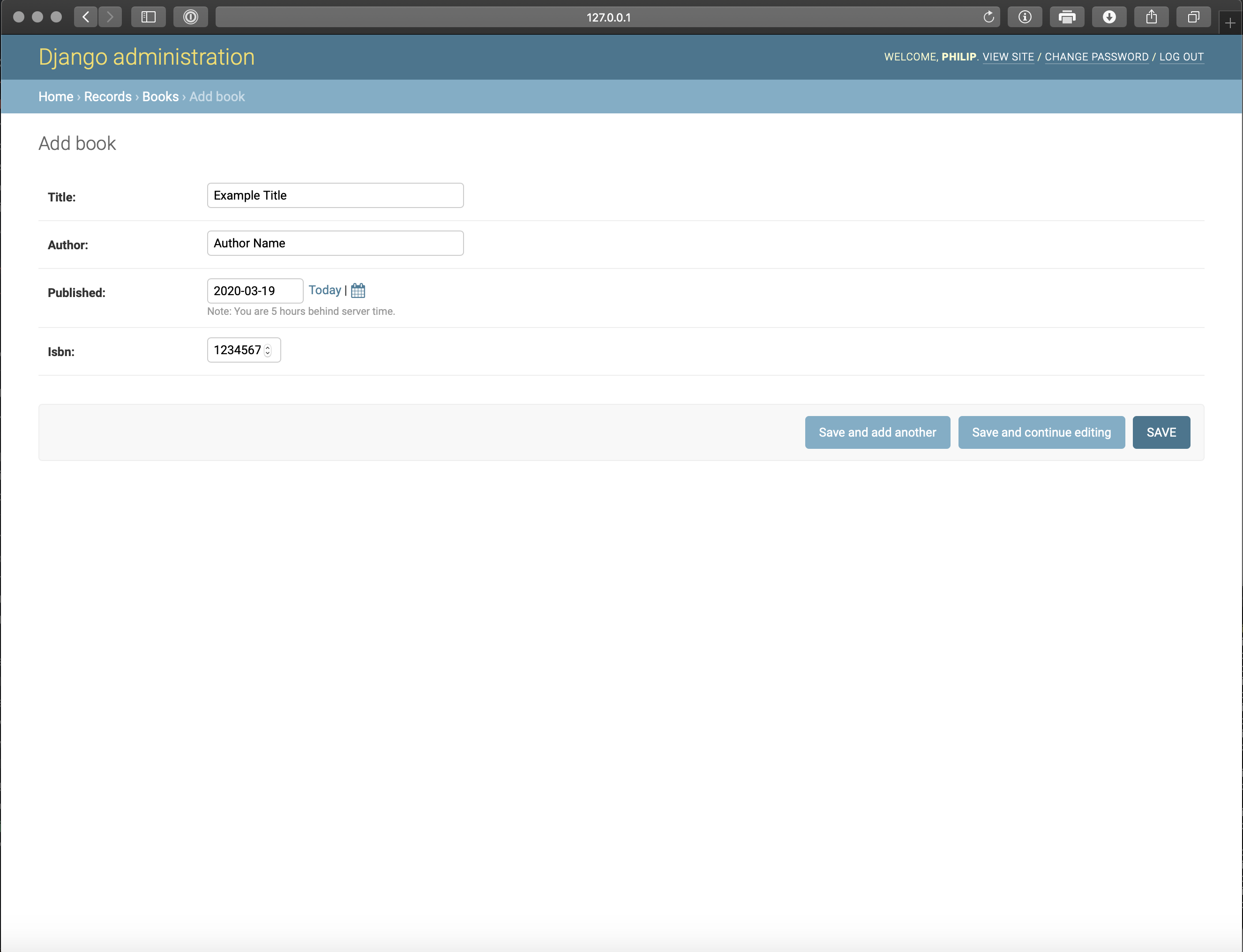
The admin panel supports standard data operations out of the box. Clicking on “Books” takes you to the model’s list page, where an “Add Book” button in the corner opens a form to create a new record:
Creating a Patron demonstrates another useful feature: related models can be created directly from the parent form. The green plus sign next to the User dropdown opens a popup to create the connected model without leaving the page:
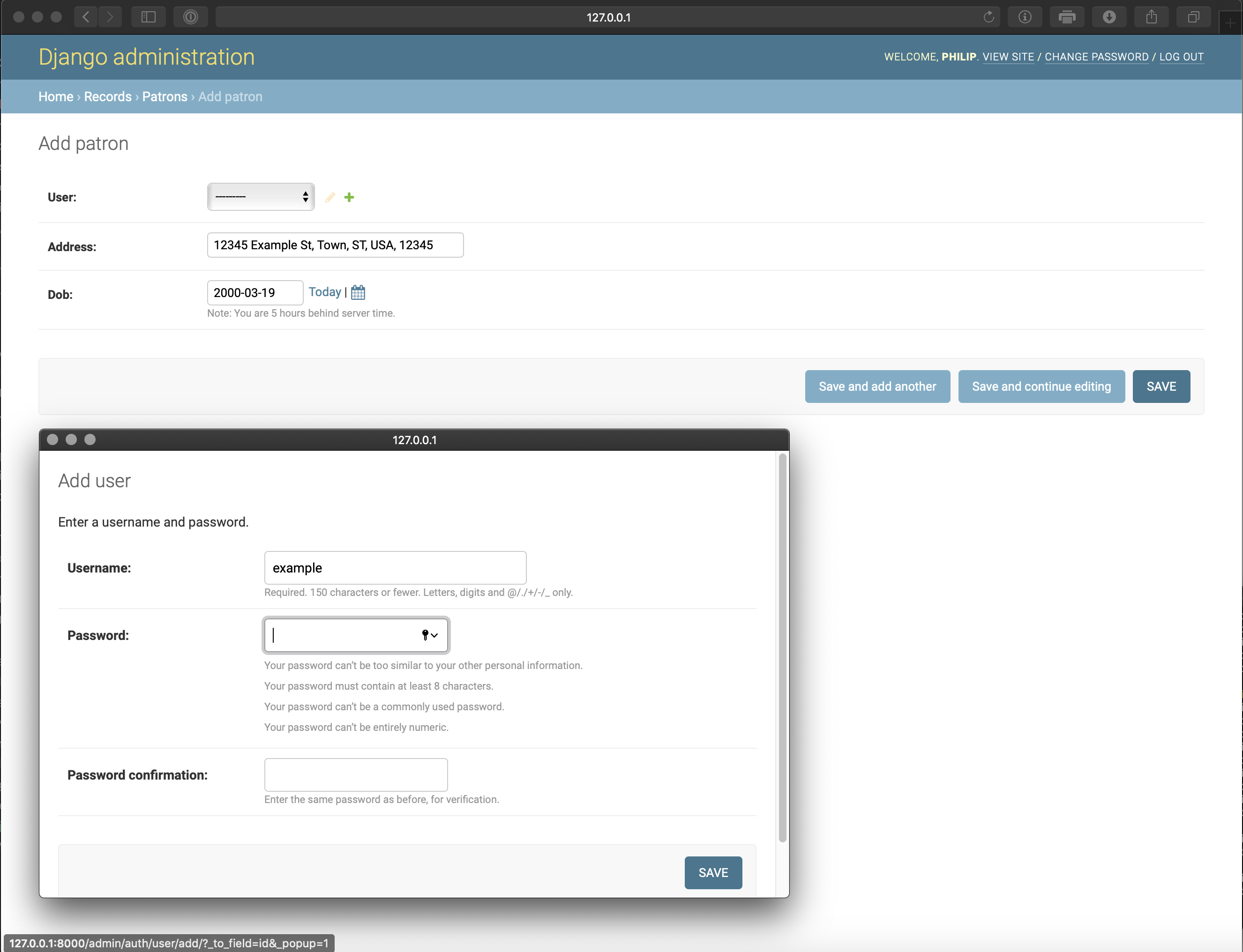
The same inline creation works for Copy records. From any list page, clicking a row opens the edit form, and records can be removed via admin actions.
Building Custom Admin Actions
Beyond built-in operations, the admin panel supports custom tools implemented as admin actions. We’ll define two: one to add another Copy of a selected Book, and another to check in Copy instances that have been returned.
To use the first, navigate to /admin/records/book/, select books using the checkboxes, and choose “Add a copy of book(s)” from the action dropdown:
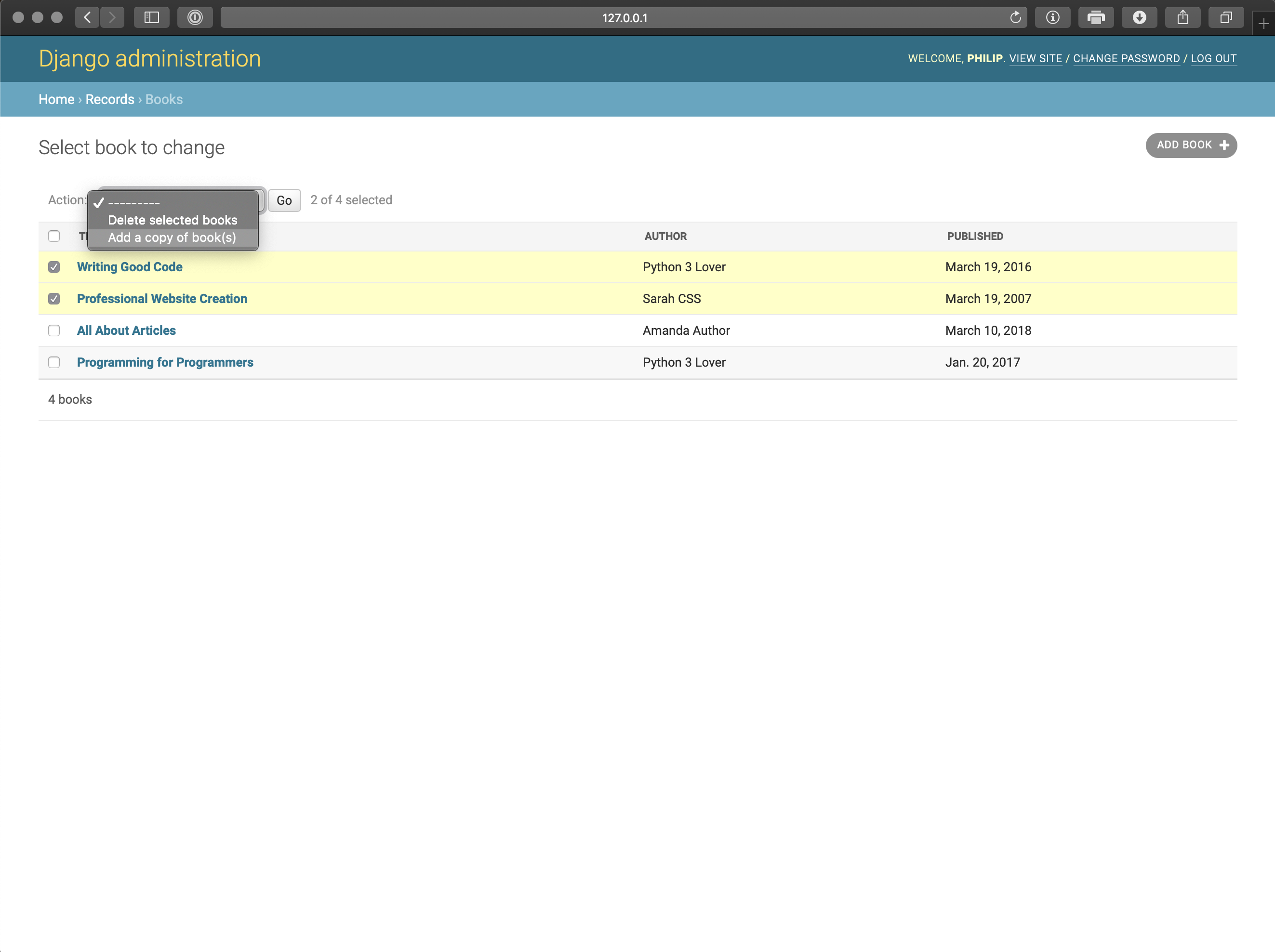
The action relies on a model method we’ll define later. The action itself is attached to a ModelAdmin class for the Profile model in records/admin.py:
from django.contrib import admin
from .models import Book, Patron, Copy

class BookAdmin(admin.ModelAdmin):
    list_display = ("title", "author", "published")
    actions = ["make_copys"]

    def make_copys(self, request, queryset):
        for q in queryset:
            q.make_copy()
        self.message_user(request, "copy(s) created")
    make_copys.short_description = "Add a copy of book(s)"

admin.site.register(Book, BookAdmin)
list_display determines which fields appear in the model’s overview page, and actions enumerates the available admin actions. An admin action is a function on the ModelAdmin that receives the admin instance, the HTTP request, and the queryset of selected objects. The action loops through the queryset to perform its operation and then notifies the user. Each admin action requires a short description for the dropdown menu. The final step is registering BookAdmin with the model.
Admin actions that bulk-set properties share a similar shape. Checking in a Copy looks close to the previous action:
from django.contrib import admin
from .models import Book, Patron, Copy

class CopyAdmin(admin.ModelAdmin):
    actions = ["check_in_copys"]

    def check_in_copys(self, request, queryset):
        for q in queryset:
            q.check_in()
        self.message_user(request, "copy(s) checked in")
    check_in_copys.short_description = "Check in copy(s)"

admin.site.register(Copy, CopyAdmin)
Swapping The Admin Theme
Django’s default admin styling is intentionally minimal, but you can customize it with your own theme or an open-source one like grappelli, which we installed earlier. See the documentation for its feature set.
Enabling grappelli requires two changes. First, add grappelli to INSTALLED_APPS in library/settings.py:
INSTALLED_APPS = [
    'grappelli',
    'django.contrib.admin',
    'django.contrib.auth',
    'django.contrib.contenttypes',
    'django.contrib.sessions',
    'django.contrib.messages',
    'django.contrib.staticfiles',
    'records',
]
Then update library/urls.py:
from django.contrib import admin
from django.urls import path, include
from records import views

urlpatterns = [
    path('grappelli/', include('grappelli.urls')),
    path('admin/', admin.site.urls),
    path('', views.index),
]
With that configuration, your admin panel takes on a different look:
Many themes exist, and Django also supports developing your own admin templates. The remainder of this article will stick with the default appearance.
Models as Database Blueprints
In Django, a model defines the structure of one table in a relational database. Relational databases organize data into tables with defined columns—each typed as a string, integer, date, and so on—and every stored object becomes a row. The real power comes from relationships between tables: objects can relate through one-to-one, one-to-many (foreign keys), or many-to-many mappings.
By default, Django uses SQLite3 during development, automatically creating db.sqlite3 on your first python manage.py migrate. SQLite3 is convenient but unsuitable for production due to potential data overwrites with concurrent users; PostgreSQL or MySQL are the better choices for deployment. Django’s ORM bridges the gap between Python classes and the database, so models in records/models.py declare fields, properties, and methods. Aiming for a “Fat Model” architecture—moving data validation, parsing, business logic, and edge-case handling into the model itself—is straightforward because Django models bring useful default behavior out of the box.
The Book Model
The Book class is the simplest of the three:
from django.db import models

class Book(models.Model):
    title = models.CharField(max_length=300)
    author = models.CharField(max_length=150)
    published = models.DateField()
    isbn = models.IntegerField(unique=True)

    def __str__(self):
        return self.title + " by " + self.author

    def make_copy(self):
        Copy.objects.create(book=self)
Every CharField needs a declared max_length; the conventional 150 characters doubles for title to accommodate longer names, though the limit is still arbitrary. Unbounded text should use a TextField. The published date is stored in a DateField, which would become a DateTimeField if time mattered. The ISBN is an integer—10 or 13 digits easily fits—and unique=True enforces at the database level that no two books share an ISBN.
Overriding __str__(self) changes how a book appears everywhere as a string—for instance as “title by author.” The admin list uses this when list_display is absent, as it does for both Patron and Copy. The model also carries a method used earlier by the admin action; it creates a related Copy for the given Book instance.
One-to-One: Patron and User
The Patron model demonstrates a one-to-one relation with Django’s built-in User model:
from django.db import models
from django.contrib.auth.models import User

class Patron(models.Model):
    user = models.OneToOneField(User, on_delete=models.CASCADE)
    address = models.CharField(max_length=150)
    dob = models.DateField()

    def __str__(self):
        return self.user.username
The relation is not strictly bijective—a User may exist without a Patron, but a User cannot map to multiple Patrons, and a Patron cannot exist without exactly one User. The database enforces this, and on_delete=models.CASCADE guarantees that deleting a User also removes the associated profile. It’s possible to reach through the relation in model functions, such as accessing user.username.
Foreign Keys: Copy With Different Semantics
The Copy model showcases two very different uses of the same field type:
from django.db import models

class Copy(models.Model):
    book = models.ForeignKey(Book, on_delete=models.CASCADE)
    out_to = models.ForeignKey(Patron, blank=True, null=True, on_delete=models.SET_NULL)

    def __str__(self):
        has_copy = "checked in"
        if self.out_to:
            has_copy = self.out_to.user.username
        return self.book.title + " -> " + has_copy

    def check_out(self, p):
        self.out_to = p
        self.save()

    def check_in(self):
        self.out_to = None
        self.save()
A Copy belongs to exactly one Book, while a library may hold many Copys of the same Book. That relationship is written as:
book = models.ForeignKey(Book, on_delete=models.CASCADE)Here, deleting a Book cascades to its Copys, just as Patron cascades from User.
The checkout relationship between Copy and Patron differs. A Copy is checked out to at most one Patron, but a Patron can hold many copies—and a copy may be unassigned. The two entities exist independently; removing one should leave the other untouched:
out_to = models.ForeignKey(Patron, blank=True, null=True, on_delete=models.SET_NULL)
Here blank=True lets forms accept None for the relation, while null=True allows the corresponding database column to store null. The delete behavior, triggered if a Patron is removed while holding a Copy, severs the link and sets the patron field back to null, preserving the Copy.
The same models.ForeignKey type handles these distinct cases cleanly. A many-to-many field, not shown in this example, would cover scenarios like a book having multiple authors, each of whom wrote several books.
Migrations: Keeping Schema in Sync
Migrations translate model changes into database schema updates. Django generates them via python manage.py makemigrations, which you run whenever creating a model or adding/editing fields—but not when changing model methods. Migrations are chained; each references the previous one, making them error-free but sensitive to version-control histories. On a shared project, keep a single consistent migration chain. Unapplied migrations are applied with python manage.py migrate before starting the server.
Hand-editing migration files is rarely needed and error-prone for beginners. The sample project ships with a single generated initial migration at records/migrations/0001_initial.py, which is readable if you want to peek behind the scenes but not something to modify.
Fixtures: Data Exchange, Not Backup
Fixtures are a less common Django feature, useful for distributing sample data or automated testing—not a backup or live-editing tool. They support formats like JSON but are not migration-aware; applying a fixture against an incompatible schema fails.
To export the entire database into a fixture:
python manage.py dumpdata --format json > fixture.json
To load one back in:
python manage.py loaddata fixture.json
Django’s official documentation covers fixtures in more detail, but the essential points are that they’re schema-dependent and best suited for controlled test environments.
Where To Go From Here
The admin panel and model layer are deep subjects; this tour covers only the fundamentals. A solid next exercise is adding a Librarian model inheriting from User, similar to the Patron example. A stricter challenge is implementing a checkout history for each Copy or Patron—several valid approaches exist, and working through them builds real relational-design instincts.